
Using JavaScript in HTML Pages
A web page is three layers doing one job. HTML builds the structure, CSS styles it, and JavaScript makes it respond. This tutorial shows you how to add…

Key topics
A web page is three layers doing one job. HTML builds the structure, CSS styles it, and JavaScript makes it respond. This tutorial shows you how to add JavaScript to your own HTML pages with the <script> tag—and it explains the one timing rule that trips up nearly every beginner.
The One Rule That Explains Everything
Before you write a single line, hold onto this: the browser reads your HTML from top to bottom, and it runs each <script> the moment it reaches it. That single fact decides where your script tags belong, why some scripts "don't work," and why the safest beginner habit is to put scripts at the end of the body.
Everything else in this article is detail around that rule.
Knowledge check
Check your understanding
Answer this question before you continue.
What JavaScript Does on a Page
HTML builds the structure of your page. CSS styles it. JavaScript makes it respond—to clicks, typing, form submissions, and time passing. When you load a page, your browser pulls in all three, then runs the JavaScript in the order it appears.
You do not need to install anything to use JavaScript in a page. If you have a browser, you have everything required. That is the whole appeal: the tool that runs your code is already on your machine.
Two Ways to Add JavaScript to HTML
There are two ways to put JavaScript in an HTML page, and both use the <script> tag.
- Inline JavaScript: you write the code directly inside your HTML file, between
<script>and</script>. - External JavaScript: you keep the code in a separate
.jsfile and point to it with asrcattribute.
The <script> tag is the browser's signal that JavaScript is coming. Without it, your code is just text on the page.
Knowledge check
Check your understanding
Answer this question before you continue.
Writing Inline JavaScript
Inline JavaScript means the code lives inside your HTML file. Here is a complete, runnable page:
<!DOCTYPE html>
<html>
  <head>
    <title>Inline JavaScript</title>
  </head>
  <body>
    <h1>Welcome to My Page</h1>
    <script>
      console.log('Hello from inline JavaScript!');
    </script>
  </body>
</html>
Save this as index.html and open it in your browser. Press F12 (or right-click and choose Inspect) to open the developer tools, then click the Console tab. You should see:
Hello from inline JavaScript!
Inline scripts are fine for a quick test or a tiny bit of code. Treat this example as a disposable first test. The moment your page grows, you will want the second approach—and from here on, that external-file approach is the baseline every remaining example uses.
Knowledge check
Check your understanding
Answer this question before you continue.
Why Script Placement Matters
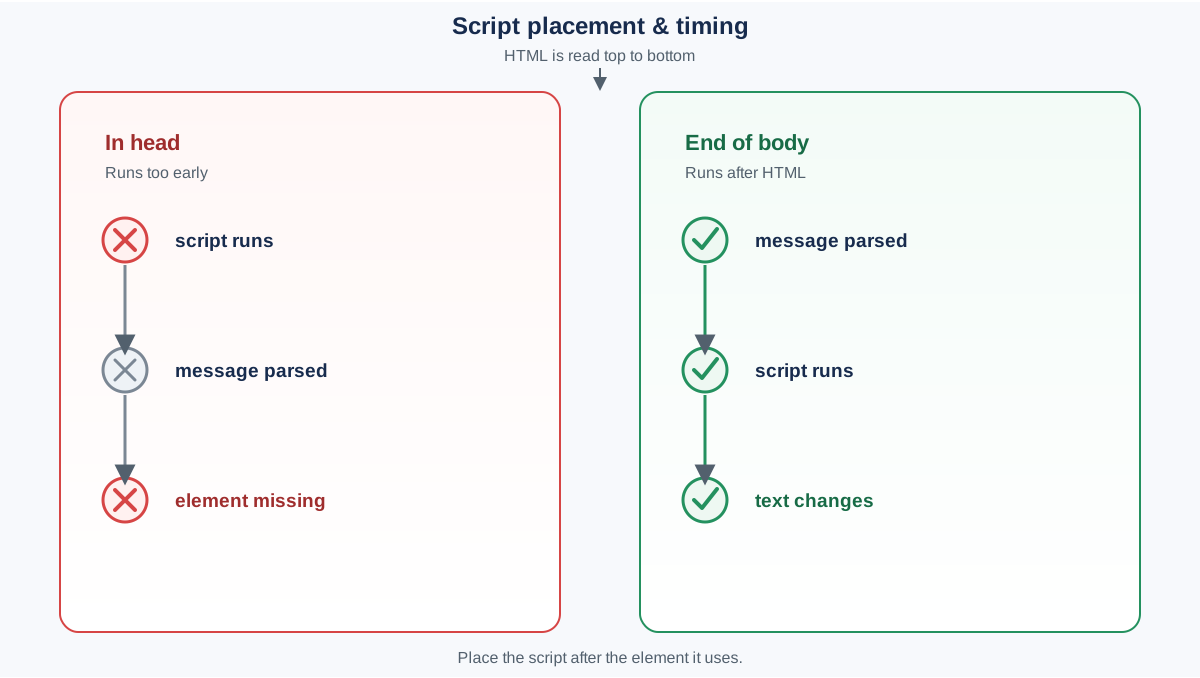
Now let's prove the timing rule instead of just stating it. Put the same script in the <head> of your page and try to change an element that lives in the body:
<!DOCTYPE html>
<html>
  <head>
    <title>Placement Test</title>
    <script>
      document.getElementById('message').textContent = 'Changed too early';
    </script>
  </head>
  <body>
    <p id="message">Original text</p>
  </body>
</html>
Open the page and check the console. You will likely see an error like TypeError: Cannot set properties of null (or document.getElementById(...) is null). The reason: when the browser reached the script in the <head>, the <p> below it had not been parsed yet, so getElementById('message') returned null, and the code could not change text that did not exist yet.
Now move the same script to just before the closing </body> tag:
<!DOCTYPE html>
<html>
  <head>
    <title>Placement Test</title>
  </head>
  <body>
    <p id="message">Original text</p>
    <script>
      document.getElementById('message').textContent = 'Changed after load';
    </script>
  </body>
</html>
Reload the page. The paragraph now reads:
Changed after load
That is the whole mechanism in action. The script did not get smarter. It simply ran after the element it needed already existed.
Note: This fix only helps when the problem is timing—your script ran before the element was parsed. It will not fix a typo, a wrong file path, or a misspelled element id. Those are separate bugs with separate symptoms.
Linking to an External JavaScript File
For real projects, keep your JavaScript in its own file. It keeps your HTML readable, lets you reuse the same script across several pages, and means you fix a bug in one place instead of hunting through every page. This is the pattern the rest of the tutorial uses.
Step 1: Create the JavaScript file. Make a file named script.js in the same folder as your HTML. The .js extension matters.
console.log('Hello from external JavaScript!');
Step 2: Link it from your HTML. Use a <script> tag with a src attribute pointing at the file:
<!DOCTYPE html>
<html>
  <head>
    <title>External JavaScript</title>
  </head>
  <body>
    <h1>Welcome to My Page</h1>
    <script src="script.js"></script>
  </body>
</html>
Open the page, check the console, and you will see the same message. The code now lives in one reusable file.
Note: The
<script>tag needs a closing</script>even when it only loads an external file. Writing<script src="script.js" />does not work reliably in HTML.
Knowledge check
Check your understanding
Answer this question before you continue.
Where to Put Script Tags
Because the browser runs each script the moment it reaches it, placement controls what your code can touch.
- In the
<head>: the script runs before the page body exists. If your code tries to find an element on the page, that element is not there yet, and you get an error like the one above. - At the end of
<body>: the HTML above the script has already loaded, so your code can safely reach every element on the page. This is the safest habit for a beginner. - With
deferorasync: these attributes change when an external script runs.deferwaits until the HTML is fully parsed;asyncruns the script as soon as it downloads. Both are useful later, but neither is needed while you are learning.
The practical rule: put your <script> tag just before the closing </body> tag, and you will rarely fight a timing bug.
Common Mistakes and How to Fix Them
Most "my JavaScript is not working" moments come down to a short list of causes. Check these in order:
- Wrong file extension. JavaScript files end in
.js, not.txtor.html. - Broken script tag. Make sure every
<script>has a matching</script>, and that external files usesrc, nothref. - Wrong file path. If
script.jssits in the same folder as your HTML,src="script.js"works. If it lives in a subfolder, the path must say so, likesrc="js/script.js". - A typo. One misspelled variable or missing quote stops the whole script. The browser console shows the exact error—read it before you guess.
- Wrong element id. If your code calls
getElementById('message')but the element's id ismsg, the call returnsnull. Double-check that the id in your code matches the id in your HTML.
Common mistake: placing a script in the
<head>that tries to change an element in the<body>. The element does not exist yet, so the code errors out. Move the script to the end of the body and the timing problem disappears—but only if timing was the actual problem.
Try It: Make a Button Respond
Let's combine everything into one small, satisfying example that uses the reusable pattern you just learned. Create an HTML file and a JavaScript file in the same folder.
script.js:
function changeMessage() {
  document.getElementById('message').textContent = 'You clicked the button!';
}

const button = document.getElementById('myButton');
button.addEventListener('click', changeMessage);
index.html:
<!DOCTYPE html>
<html>
  <head>
    <title>Button Demo</title>
  </head>
  <body>
    <h1>JavaScript in HTML</h1>
    <p id="message">Click the button below.</p>
    <button id="myButton">Click me</button>
    <script src="script.js"></script>
  </body>
</html>
Open the page and click the button. The paragraph text changes to:
You clicked the button!
Notice the structure: the HTML defines the elements, and the external script does all the wiring. It selects the button by its id, attaches a click listener, and defines what should happen when the click fires. The script sits at the end of the body, so both the button and the paragraph already exist before the code runs.
This is the pattern to carry into your next project: keep behavior in the .js file, select the elements you need, and attach the events there. Keeping all the behavior in one file is what makes a page easy to read and easy to fix later.
Note: You will sometimes see
onclickwritten directly on a button in older examples, like<button onclick="changeMessage()">. That works for a one-line demo, but it scatters behavior across your HTML. Wiring the click from your JavaScript file keeps every behavior in one place, which is the habit worth building now.
What to Do Next
Run the button experiment again, but change what it does: make the click update two elements, or swap the paragraph text for a different message. Small variations like this are how the pattern becomes automatic.
And when a script stops working, do not guess. Work the checklist—file extension, script tag, file path, element id, typo—and read the console error before you change anything.
Once you can reliably load the right file, wait until the elements you need exist, select them, and observe the result, you have the reusable foundation for interactivity. Later lessons add more kinds of logic and more kinds of events—but the loading, timing, and observing loop stays the same.
Knowledge check
Final check
Finish the article by checking the ideas you just learned.
References
Want a more structured JavaScript path?
Use the JavaScript for AI Applications Starter Pack to turn individual tutorials into a focused path from language fundamentals to interactive AI applications.
JavaScript for AI Applications Starter Pack
Build the JavaScript foundation behind modern interactive applications. The JavaScript for AI Applications Starter Pack takes you from core language concepts through functions, browser events, forms, DOM updates, application state, debugging, and practical projects—so you can learn how interfaces take input, work with structured data, respond to users, and turn results into experiences people can actually use.
- 253-page illustrated PDF
- 12 guided JavaScript chapters
- Visual concept diagrams
- Self-assessment quizzes
- Bonus deep-dive sections
- DOM, events, forms & application state
- Browser projects, debugging & practical workflows
Coming soon


