
Your First JavaScript Program
The fastest way to learn JavaScript is not to read about it. It is to write one line, run it, and watch the browser answer back. That first exchange—your…

The fastest way to learn JavaScript is not to read about it. It is to write one line, run it, and watch the browser answer back. That first exchange—your code in, a message out—is the whole loop that every bigger program builds on.
What You Will Build
By the end of this tutorial, you will have written and run your first JavaScript program in the browser: a page that greets you with a popup message the moment it loads.
You do not need any previous coding experience. You need a modern web browser, a plain text editor, and about ten minutes. If your tools are not set up yet, get the browser and editor ready first.
Why Start in the Browser
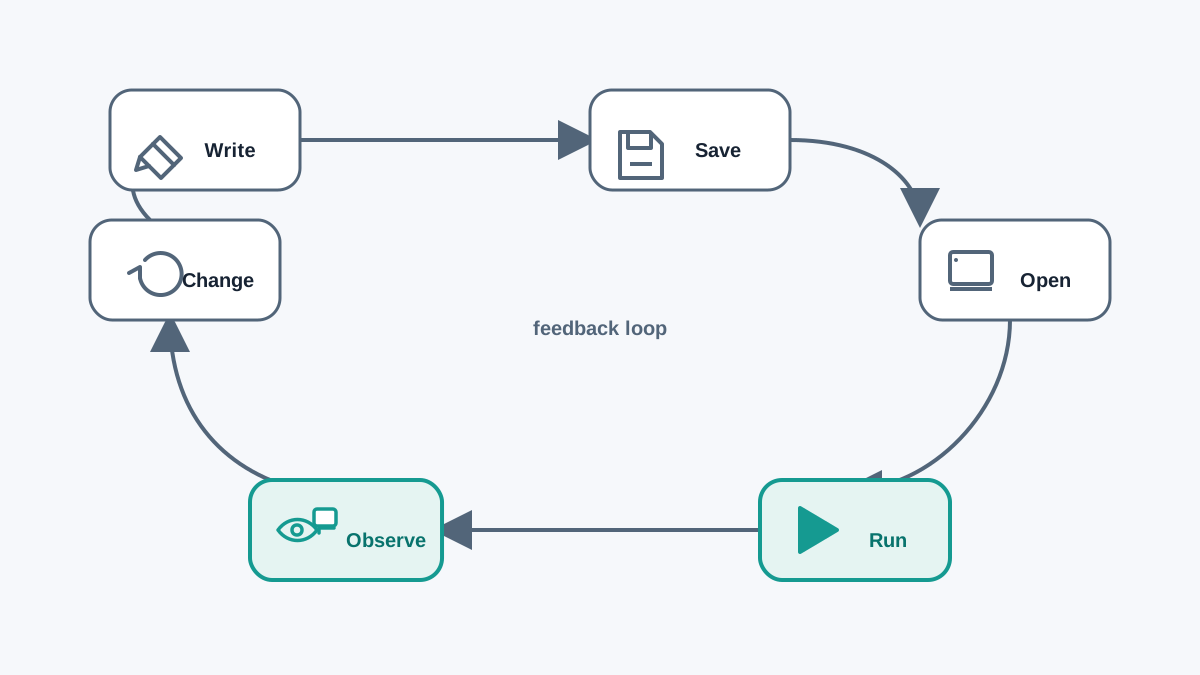
Your browser already contains a JavaScript engine—the software that reads and runs JavaScript code. Chrome, Firefox, Edge, and Safari all ship with one built in. That means you do not need to install a separate runner to see your first program work.
This is the fastest possible feedback loop: write a file, open it, and the browser executes your code immediately. No compiler step, no server, no waiting. You type, you run, you observe. That loop is the habit you will reuse for every program after this one.
Note: JavaScript and Java are different languages that share part of a name. Nothing you do here depends on Java, and you do not need to install it.
Knowledge check
Check your understanding
Answer this question before you continue.
Write Your First JavaScript Program
The classic first program is often called a JavaScript hello world. It does one thing: prints a message so you can confirm your code actually runs.
Step 1: Create an HTML file
Open your text editor and create a new blank file. Save it as first-program.html. The .html extension matters—it tells your browser to treat the file as a web page.
Knowledge check
Check your understanding
Answer this question before you continue.
Step 2: Add the code
Type or paste this into the file:
<!DOCTYPE html>
<html>
  <head>
    <title>My First JavaScript Program</title>
  </head>
  <body>
    <script>
      alert('Hello, world!');
    </script>
  </body>
</html>
Save the file. Then find it on your computer and double-click it. Your browser opens the page and shows a popup box that reads Hello, world!
That popup is your program's output. You wrote one instruction, the browser ran it, and you saw the result. That is your first JavaScript program running.
Knowledge check
Check your understanding
Answer this question before you continue.
What each line does
Most of this file is HTML—the structure of the page. Only two parts matter for your JavaScript:
- The
<script>tag tells the browser, "Everything inside here is JavaScript. Run it." - The line
alert('Hello, world!');tells the browser to display a popup with that message.
The alert() part is a command. The text inside the parentheses and quotes is the message it shows. Change the message, save, and refresh the page to see your edit take effect.
Common mistake: Forgetting the closing
</script>tag. If your code does not run, check that both the opening and closing script tags are present and spelled exactly.
Knowledge check
Check your understanding
Answer this question before you continue.
Run Your Code in the Browser
Opening the file by double-clicking it is the simplest way to run your program. Here is the full sequence:
- Save
first-program.htmlon your computer. - Double-click the file to open it in your default browser.
- Watch for the popup that says Hello, world!
If nothing happens, work through this checklist:
- Did the file end in
.html? Without it, the browser may not treat the file as a web page. - Did you copy the code exactly? A missing quote or a misspelled command stops the script.
- Did you save after editing? An unsaved change never reaches the browser.
Tip: After you edit the file, refresh the browser tab (press F5 or Ctrl+R) rather than double-clicking the file again. Refreshing re-runs the page's JavaScript.
Understand What Your Program Did
When you opened the file, the browser loaded the HTML, reached the <script> element, and ran the JavaScript inside it as part of loading the page. That is the whole mechanism: loading the page is what triggers your code to run. The alert() command then produced visible output—the popup box.
Two small details are worth noticing now because they appear in nearly every JavaScript program you will write:
- Statements end with a semicolon. The
;marks where one instruction stops and the next begins. JavaScript often runs without it, but adding semicolons keeps your intent clear and avoids surprises. - Quotes wrap text. Both single quotes (
'Hello') and double quotes ("Hello") work, as long as you use the same kind on both ends of the message.
Popup versus console: two different audiences
The popup is the simplest visible proof that your code runs, which is why it is a good choice for a first run. But it is not how real web pages talk to people. On a real site, the page content, buttons, and interface elements are what a user sees and interacts with.
console.log() is different again. It is a developer-facing channel—a quiet place where you, the person writing the code, can inspect values while you build. A visitor to your page will never see it. You will.
Replace the alert() line with this:
console.log('Hello, world!');
Save and refresh the page. This time no popup appears. Instead, open your browser's developer tools (press F12, or right-click the page and choose Inspect), then click the Console tab. You will see Hello, world! printed there.
The difference matters:
| Command | Where output appears | Best for |
|---|---|---|
alert() | A popup box that blocks the page | Quick visible proof during early learning |
console.log() | The developer console | Inspecting values and debugging while you build |
Here is the decision rule in one line: use alert() when you want a beginner-friendly visible confirmation, and use console.log() when you want to inspect what your code is doing without interrupting the page for a user.
Common mistake: Looking for
console.log()output on the page itself. It never appears there. It only shows up in the developer console.
Practice Your First Program
Now that the loop works, make it yours. Each of these drills changes one small thing and asks you to predict the result before you run it:
- Change the message. Edit the text inside
alert()to greet yourself by name. Predict what you will see, then refresh. - Add a second alert. Put another
alert()line below the first. Predict the order the two popups appear, then refresh to check. - Switch to the console. Replace
alert()withconsole.log()and watch the output land in the developer console instead of a popup. - Break it on purpose. Remove the closing quote from the message and refresh. Read the error the console reports. Fixing that mistake teaches you more than a perfect first run ever will.
Where to Go Next
You have written and run your first JavaScript program. The next step is to make that code do something visible on the page instead of in a popup—which means placing JavaScript inside a real web page and connecting it to buttons, forms, and page content.
For now, run the practice drills above. The goal is not to memorize syntax. It is to build the habit that carries you through everything else: write a little, run it, read the output, and change one thing at a time.
Knowledge check
Final check
Finish the article by checking the ideas you just learned.
References
Want a more structured JavaScript path?
Use the JavaScript for AI Applications Starter Pack to turn individual tutorials into a focused path from language fundamentals to interactive AI applications.
JavaScript for AI Applications Starter Pack
Build the JavaScript foundation behind modern interactive applications. The JavaScript for AI Applications Starter Pack takes you from core language concepts through functions, browser events, forms, DOM updates, application state, debugging, and practical projects—so you can learn how interfaces take input, work with structured data, respond to users, and turn results into experiences people can actually use.
- 253-page illustrated PDF
- 12 guided JavaScript chapters
- Visual concept diagrams
- Self-assessment quizzes
- Bonus deep-dive sections
- DOM, events, forms & application state
- Browser projects, debugging & practical workflows
Coming soon


