
Setting Up Your JavaScript Environment
You do not need a server, a database, or a single paid tool to start writing JavaScript. You need a browser that can run code and an editor that makes…

You do not need a server, a database, or a single paid tool to start writing JavaScript. You need a browser that can run code and an editor that makes writing it pleasant. That is the whole environment, and this guide walks you through it step by step.
What a JavaScript Environment Actually Is
A JavaScript environment is the set of tools that let you write code, run it, and see what happens. For a beginner, that set is small: a modern web browser and a code editor.
JavaScript does not run on its own. It needs a host that understands it. In the browser, that host is the page itself, which is why JavaScript is the language that makes websites interactive.
The reason the environment matters for learning is simple: the faster you can run code and see output, the faster you learn. Every mistake becomes evidence you can read instead of a wall you have to guess past.
The Two Tools You Need
For a basic JavaScript setup for beginners, keep it to two tools:
- A modern web browser. Google Chrome, Mozilla Firefox, Microsoft Edge, and Safari all run JavaScript and ship with built-in developer tools. Any of them works.
- A code editor. This is where you write your JavaScript. A code editor is a text editor built for programming: it highlights your code, helps you spot errors, and offers shortcuts that plain Notepad does not.
That is the minimum. You do not need to install a server, a compiler, or a framework to write your first JavaScript.
What about online playgrounds?
Websites like CodePen, JSFiddle, and Replit let you type and run JavaScript directly in your browser. They are great for quick experiments when you cannot install anything. But they hide part of the setup you will eventually need for real projects, so treat them as a convenience, not a replacement for your own editor and browser.
Knowledge check
Check your understanding
Answer this question before you continue.
Choosing a Code Editor
You have options, and most are free:
- Visual Studio Code (VS Code) is the one I recommend for beginners. It is free, runs on Windows, macOS, and Linux, and has a huge library of extensions you will grow into.
- Sublime Text is fast and lightweight, with a free version.
- Notepad++ is a simple option for Windows users.
The difference between a code editor and a regular text editor is the difference between a workbench and a bare table. A code editor colors your syntax, suggests completions, and flags obvious mistakes while you type. A plain text editor just stores your words.
My rule: if you are unsure, start with VS Code. It is the default choice for a reason, and switching later is easy because the fundamentals you learn carry over.
How to install VS Code
- Go to the Visual Studio Code download page.
- Choose the installer for your operating system (Windows, macOS, or Linux).
- Open the downloaded file and follow the prompts.
- Launch VS Code. You are ready to write code.
Testing JavaScript in Your Browser's Console
Your browser is where your JavaScript runs, and every modern browser includes a console where you can type JavaScript and see the result immediately. This is the fastest way to confirm your setup works before you create any files.
Open the developer tools:
- Chrome and Edge: press
Ctrl + Shift + I(Windows) orCmd + Option + I(Mac). - Firefox: press
Ctrl + Shift + K(Windows) orCmd + Option + K(Mac).
Click the Console tab, type this line, and press Enter:
console.log("Hello, world!");
You should see the message appear in the console:
Hello, world!
If that works, your browser is ready. The console is also where errors will appear later, so get comfortable opening it now.
Knowledge check
Check your understanding
Answer this question before you continue.
Creating Your First JavaScript File
The console is great for one-liners, but real code lives in files. Create your first one now.
- In VS Code, choose File > New File.
- Save it as
script.js. The.jsextension tells your computer and browser that this file contains JavaScript. - Put this line in the file:
alert("Welcome to JavaScript!");
The alert function pops up a message box in the browser. It is a simple way to confirm that your file is actually running.
Here is the honest part: this file is ready, but it cannot run by itself. A browser only runs JavaScript that arrives as part of a web page, so the file will sit quietly until an HTML page loads it. That is not a mistake in your setup. It is how the browser works, and the next step is what makes the file come alive.
Knowledge check
Check your understanding
Answer this question before you continue.
Connecting Your JavaScript to an HTML Page
A browser runs JavaScript as part of a web page, so your .js file needs an HTML page to load it. Create a second file named index.html in the same folder:
<!DOCTYPE html>
<html>
  <head>
    <title>My First JavaScript Page</title>
  </head>
  <body>
    <h1>Hello, JavaScript!</h1>
    <script src="script.js"></script>
  </body>
</html>
The line <script src="script.js"></script> tells the browser to load your JavaScript file. The src attribute points to the file by name.
Now open index.html in your browser by finding the file in your folder, right-clicking it, and choosing Open with and your browser. If everything is set up, you will see the heading and the alert message will pop up.
Common mistake: The file name in
<script src="...">must match your actual.jsfile name exactly, and both files must live in the same folder. A typo in either one means the browser silently loads nothing.
Knowledge check
Check your understanding
Answer this question before you continue.
Verify the Full Loop: Edit, Save, Reload, Observe
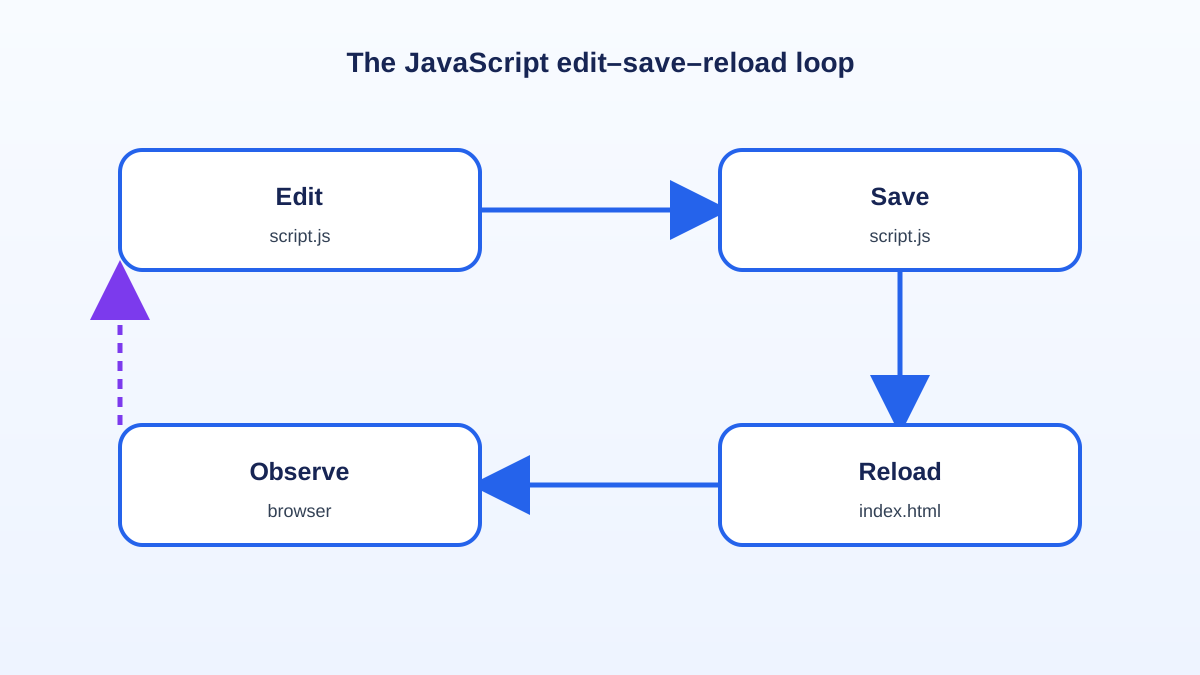
Seeing the alert once proves the page loaded your script. To prove your whole environment works, you need one more step: change the file, reload the page, and watch the result change with it. That edit-save-reload-observe loop is the real test of a working setup.
- Back in VS Code, change the message in
script.js:
alert("You changed me!");
- Save the file with Ctrl + S (Windows) or Cmd + S (Mac).
- Reload
index.htmlin your browser by pressing F5 or Ctrl + R (Windows) or Cmd + R (Mac).
The new message should pop up. If it does, your editor, your file, and your browser are all talking to one another. You changed code in one place, saved it, and the browser picked up the change. That is the whole loop you will use for every JavaScript project from here on.
Tip: If the old message still appears after you reload, you probably forgot to save
script.js, or the browser is showing a cached version. Save the file, then reload again. When something still will not run, open the developer tools and read the Console tab—the error there tells you what the browser actually saw.
Troubleshooting Common Setup Issues
Most beginner setup problems come down to a few causes. When something does not work, check these first:
- Nothing happens when you open the HTML file. Confirm the file name in your
<script src="...">line matches your.jsfile exactly, and that both files are in the same folder. - The alert never appears. Open the developer tools and look at the Console tab. If the browser could not find or parse your file, the error appears there with a hint about what went wrong.
- You see a syntax error. Read the message, find the line it points to, and look for a missing quote, bracket, or semicolon. Fixing one small typo is usually all it takes.
Tip: When you are stuck, read the error message out loud in plain terms. Most beginner errors are not mysteries; they are a file name mismatch or a missing character that the console is trying to point you toward.
What You Have Now
You have a browser that runs JavaScript, an editor to write it in, and a working HTML file that loads your script. More importantly, you have proven the loop that makes the environment useful: you changed code, saved it, reloaded the page, and saw the consequence.
Keep one decision rule in mind as you go:
- Use the console for quick experiments when you want an answer in seconds.
- Use files for code you want to keep, reuse, and build on.
- Use the browser's developer tools to inspect failures when something does not behave.
That is the minimum-environment mindset in action: reach for the smallest tool that answers your question, and let errors point you to the fix.
The next step is to understand the language itself: learn how statements, values, and functions are structured, then write a slightly bigger program that does more than show an alert.
Knowledge check
Final check
Finish the article by checking the ideas you just learned.
References
Want a more structured JavaScript path?
Use the JavaScript for AI Applications Starter Pack to turn individual tutorials into a focused path from language fundamentals to interactive AI applications.
JavaScript for AI Applications Starter Pack
Build the JavaScript foundation behind modern interactive applications. The JavaScript for AI Applications Starter Pack takes you from core language concepts through functions, browser events, forms, DOM updates, application state, debugging, and practical projects—so you can learn how interfaces take input, work with structured data, respond to users, and turn results into experiences people can actually use.
- 253-page illustrated PDF
- 12 guided JavaScript chapters
- Visual concept diagrams
- Self-assessment quizzes
- Bonus deep-dive sections
- DOM, events, forms & application state
- Browser projects, debugging & practical workflows
Coming soon


