
JavaScript Regular Expressions: Match and Check Simple Text
You start with a simple check. Does this input contain a dash? You reach for includes(). Then the input changes shape, and suddenly you have five if…

Key topics
You start with a simple check. Does this input contain a dash? You reach for includes(). Then the input changes shape, and suddenly you have five if statements guarding a format you thought was simple.
A regular expression is a compact way to describe the shape of text. Instead of listing every case by hand, you describe the pattern once and let JavaScript answer a single question: does this text match?
That question is the whole game. Once you can read the boolean, regex stops looking like line noise and starts looking like a tool.
Why String Checks Get Messy
You already know how to work with strings, and you already know how to branch with if/else. So your first instinct for a format check is reasonable:
const input = "2024-01-15";

if (input.includes("-") && input.length === 10) {
  console.log("Looks like a date");
}
This works until it doesn't. What if the input is "abc-def-ghi"? It has dashes and the right length, so it passes. What if the year is two digits? Now your length check is wrong. What if the user types "2024/01/15"? Now you need a second branch.
Every variation forces you to enumerate another case. Optional characters, repeated digits, case differences — each one adds a condition. The code grows, and the logic gets harder to trust.
A regular expression flips this. You describe the shape once: four digits, a dash, two digits, a dash, two digits. That description is the pattern. JavaScript tells you whether the text fits.
Note: A regex is not a new language you have to memorize. It is a pattern object that answers one question — does this text match? Everything else is syntax for describing the shape.
Your First Regex in 30 Seconds
There are two ways to create a pattern in JavaScript. The literal form uses slashes:
const pattern = /cat/;
The constructor form uses new RegExp():
const pattern = new RegExp("cat");
Use the literal form when you know the pattern ahead of time. Use the constructor when the pattern comes from a variable or user input, because the constructor builds the pattern at runtime.
To test whether a string matches, call .test() on the pattern:
const pattern = /cat/;

console.log(pattern.test("I have a cat"));
console.log(pattern.test("I have a dog"));
true
false
.test() returns a boolean. That is the entire feedback loop: write a pattern, run it, read true or false.
The fastest way to learn regex is to change one character in the pattern, re-run, and watch the boolean flip. Do that a few times and the syntax starts to stick.
Knowledge check
Check your understanding
Answer this question before you continue.
Matching Exact Text and Case
A plain pattern like /cat/ matches that exact sequence of characters, in that order, anywhere in the string.
const pattern = /cat/;

console.log(pattern.test("The cat sat"));
console.log(pattern.test("The catalog is here"));
console.log(pattern.test("The c a t is spaced out"));
true
true
false
Notice the second line. "catalog" contains "cat" at the start, so the pattern matches. The third line fails because the letters are not adjacent.
Order and adjacency matter. /cat/ does not match "tac" or "c a t".
By default, matching is case-sensitive. /cat/ does not match "Cat". To make it case-insensitive, add the i flag after the closing slash:
const strict = /cat/;
const loose = /cat/i;

console.log(strict.test("Cat"));
console.log(loose.test("Cat"));
false
true
The i flag is one of the first things you will reach for. It saves you from writing [Cc][Aa][Tt] just to handle capitalization.
Character Classes: Matching a Kind of Character
So far you have matched exact letters. But most real checks are about kinds of characters: any digit, any letter, any whitespace.
JavaScript gives you shorthand classes for the most common kinds:
| Shorthand | Matches | Bracket equivalent |
|---|---|---|
\d | Any digit | [0-9] |
\w | Any word character (letter, digit, underscore) | [A-Za-z0-9_] |
\s | Any whitespace (space, tab, newline) | [ \t\n\r] |
\D | Any non-digit | [^0-9] |
\W | Any non-word character | [^A-Za-z0-9_] |
\S | Any non-whitespace | [^ \t\n\r] |
The uppercase versions are negations. \d matches a digit; \D matches anything that is not a digit.
You can also build your own set with square brackets. [abc] matches any one of those three characters. [0-9] matches any digit. [A-Za-z] matches any letter, upper or lowercase.
To negate a bracket set, put ^ right after the opening bracket: [^abc] matches any character that is not a, b, or c.
Here is a quick example that pulls digits out of a mixed string:
const pattern = /\d/;

console.log(pattern.test("Order 42"));
console.log(pattern.test("No numbers here"));
true
false
The pattern /\d/ asks: does this string contain at least one digit? The first string does. The second does not.
Knowledge check
Check your understanding
Answer this question before you continue.
Repetition: How Many Times?
A single \d matches one digit. To match a run of digits, you need a quantifier.
| Quantifier | Meaning |
|---|---|
+ | One or more |
* | Zero or more |
? | Zero or one |
{2,4} | Between two and four times |
The distinction between + and * trips people up. + requires at least one. * allows zero, which means it can match an empty string and still report success.
const oneOrMore = /\d+/;
const zeroOrMore = /\d*/;

console.log(oneOrMore.test("abc"));
console.log(zeroOrMore.test("abc"));
false
true
The second pattern returns true even though there are no digits, because * is satisfied with zero occurrences. That is almost never what you want in a validation check. When you mean "at least one," use +.
Knowledge check
Check your understanding
Answer this question before you continue.
Anchors: Whole String or Anywhere?
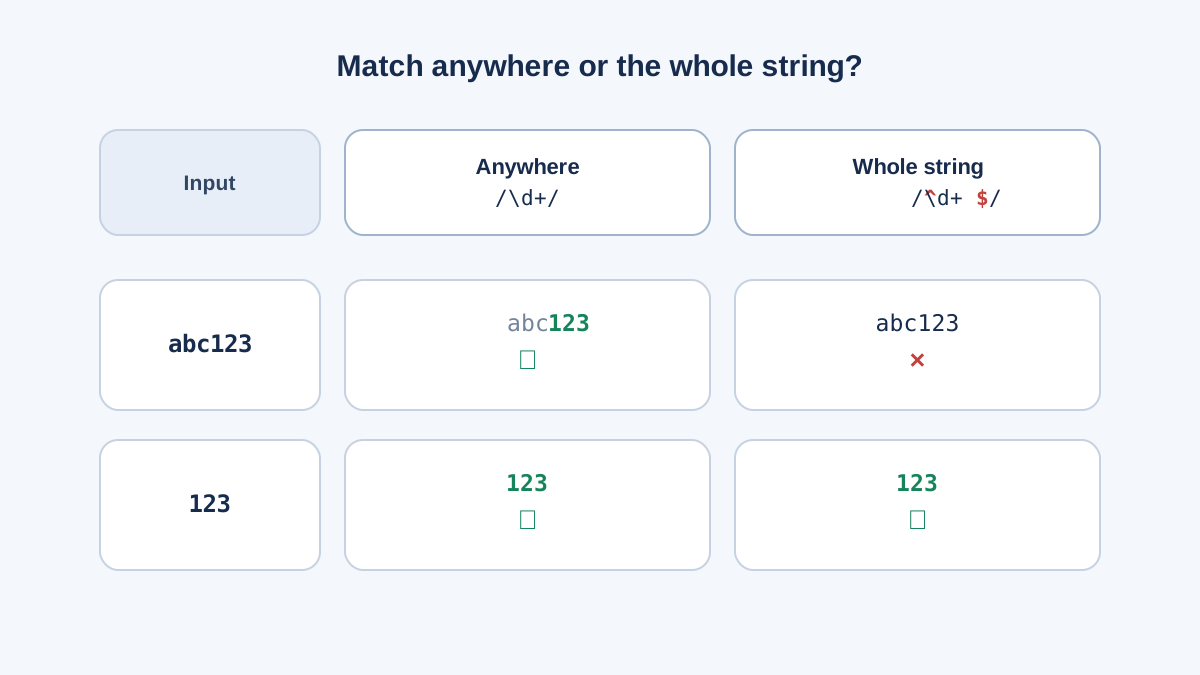
By default, a pattern matches anywhere in the string. /\d+/ returns true for "abc123def" because it finds digits in the middle.
If you want to check that the entire string is digits, you need anchors. ^ anchors to the start, and $ anchors to the end.
const containsDigits = /\d+/;
const onlyDigits = /^\d+$/;

console.log(containsDigits.test("abc123"));
console.log(onlyDigits.test("abc123"));
console.log(onlyDigits.test("123"));
true
false
true
This is the difference between "this input contains digits" and "this input is only digits." For validation, you almost always want the anchored version.
Common mistake: Forgetting anchors and getting a match in the middle of unrelated text. If your check is supposed to validate a full input, wrap the pattern with
^and$.
Escaping Special Characters
Some characters have jobs in the pattern language. The dot . matches any character. The asterisk * means zero or more. The plus + means one or more. The brackets, parentheses, and braces all do something.
If you want to match one of these characters literally, prefix it with a backslash. \. matches a literal dot.
This matters most when you are matching something like a version number or a filename:
const unescaped = /1.5/;
const escaped = /1\.5/;

console.log(unescaped.test("1x5"));
console.log(escaped.test("1x5"));
true
false
The unescaped pattern matches "1x5" because . matches any character. That is a quiet over-match — the kind of bug that passes your test cases and fails in production.
The rule of thumb: if a character has a job in the pattern language, escape it when you want the character itself. The characters that need escaping are . * + ? ^ $ ( ) [ ] { } | \ and the forward slash /.
Knowledge check
Check your understanding
Answer this question before you continue.
Common Beginner Mistakes
These are the failure modes that cost beginners the most time. Each one has a visible symptom.
Forgetting anchors. Your pattern matches in the middle of unrelated text. Symptom: "abc123" passes a digits-only check. Fix: add ^ and $.
Using * when you meant +. An empty string passes validation. Symptom: submitting a blank field returns true. Fix: use + when you need at least one.
Forgetting to escape a literal dot. Your pattern matches more than expected. Symptom: "1x5" matches /1.5/. Fix: escape it as \..
Reusing a pattern with the g flag across multiple .test() calls. You get alternating results — true, false, true — for the same input. This happens because the g flag makes the pattern remember where it left off via a property called lastIndex. For simple checks, leave off the g flag. If you need it, create a fresh pattern for each test.
When to Use Regex — and When Not To
Regex is the right tool for checking a simple format, finding a pattern in text, or extracting a repeated shape. It is a poor fit for validating complex real-world formats like full email addresses or URLs. A simple pattern will accept invalid input, and a correct pattern becomes unreadable.
It is also the wrong tool for parsing structured data like JSON or HTML. Those have real parsers that handle nesting, escaping, and edge cases that regex cannot.
My rule: if you cannot explain the pattern out loud in one sentence, it is probably the wrong tool. "Three digits, a dash, four digits" is a sentence. "A sequence of characters that may or may not contain an at-sign followed by..." is a warning sign.
Practice: Check a Simple Input Format
Let's build a function that returns true only when a string is exactly three digits, a dash, then four digits. This is a common ID format.
Start with the pieces. \d matches one digit. \d{3} matches exactly three. \d{4} matches exactly four. The dash is a literal character. Anchors lock it to the full string.
function isValidId(input) {
  return /^\d{3}-\d{4}$/.test(input);
}

console.log(isValidId("123-4567"));
console.log(isValidId("12-4567"));
console.log(isValidId("123-45678"));
console.log(isValidId("abc-4567"));
true
false
false
false
Read the pattern out loud: start of string, three digits, a dash, four digits, end of string. That is the shape.
Now a variation. What if the dash is optional? Change - to -?:
function isValidId(input) {
  return /^\d{3}-?\d{4}$/.test(input);
}

console.log(isValidId("1234567"));
console.log(isValidId("123-4567"));
true
true
Before you run it, predict the output. Then run it and check. That prediction step is where the learning happens.
Note: This is a shape check, not a date validator.
"999-9999"passes. If you need real date validation, you need more than a pattern.
What to Memorize and What to Look Up
Memorize the core set now: \d, \w, \s, +, *, ?, ^, $, and the i flag. These cover most beginner patterns.
Look up the rest when you need it: groups, lookahead, backreferences, Unicode property escapes, and the full flag list. You do not need them for simple checks.
A live tester is worth keeping open in a browser tab. It lets you build a pattern, see what it matches, and inspect the result before pasting it into your code. That feedback loop is faster than guessing.
Your next step: find one string check in your own code that uses includes() or indexOf(). Rewrite it as a regular expression. Run both versions against the same inputs and compare the results. Where do they agree? Where is the pattern version stricter?
That comparison will teach you more than any tutorial. Regex is a tool for describing shape — and now you have enough syntax to handle the simple checks without memorizing the whole language.
Knowledge check
Final check
Finish the article by checking the ideas you just learned.
References
Want a more structured JavaScript path?
Use the JavaScript for AI Applications Starter Pack to turn individual tutorials into a focused path from language fundamentals to interactive AI applications.
JavaScript for AI Applications Starter Pack
Build the JavaScript foundation behind modern interactive applications. The JavaScript for AI Applications Starter Pack takes you from core language concepts through functions, browser events, forms, DOM updates, application state, debugging, and practical projects—so you can learn how interfaces take input, work with structured data, respond to users, and turn results into experiences people can actually use.
- 253-page illustrated PDF
- 12 guided JavaScript chapters
- Visual concept diagrams
- Self-assessment quizzes
- Bonus deep-dive sections
- DOM, events, forms & application state
- Browser projects, debugging & practical workflows
Coming soon


