
Arrays and Objects Basics
A variable can hold one value—and that value can be a collection holding many related values. JavaScript arrays and objects are how you build those…

Key topics
A variable can hold one value—and that value can be a collection holding many related values. JavaScript arrays and objects are how you build those collections.
Why You Need More Than Single Variables
By now you know how to store a single value in a variable:
let userName = "Maya";
let score = 42;
That works fine—until your data grows. What if you need to track every score from a game session? Or store a user's name, age, and email together? You could create separate variables for each piece:
let player1 = "Maya";
let player2 = "Diego";
let player3 = "Priya";
That gets painful fast. What happens when you have fifty players? You'd be writing variables until your fingers cramp.
This is the moment where you need a way to group related data into a single container. JavaScript gives you two main tools for this: arrays and objects.
Here's the mental model that will guide you through the rest of this article:
- Use an array when you have an ordered list of similar items.
- Use an object when you have a labeled collection of details.
Keep those two questions in mind: Is this an ordered list? or Is this a set of labeled details? The answer tells you which tool to reach for.
Arrays: Ordered Lists of Values
An array is an ordered list of values. You create one with square brackets [] and separate each value with a comma:
let colors = ["red", "green", "blue"];
let scores = [85, 92, 78];
Arrays in JavaScript are zero-indexed. That means the first item sits at position 0, not position 1. Think of it like floor numbers in some countries: the ground floor is floor 0.
let colors = ["red", "green", "blue"];

console.log(colors[0]); // "red"
console.log(colors[1]); // "green"
console.log(colors[2]); // "blue"
red
green
blue
To read an item, use the array name followed by the position in square brackets: colors[0]. To update an item, assign a new value to that position:
let colors = ["red", "green", "blue"];
colors[1] = "purple";

console.log(colors);
[ 'red', 'purple', 'blue' ]
Arrays also have a length property that tells you how many items are in the list:
let colors = ["red", "green", "blue"];
console.log(colors.length);
3
One thing to notice: because arrays start at index 0, the last item is always at position length - 1. For colors, that means the last item is at colors[2], not colors[3].
Note: Arrays can hold any type of value—strings, numbers, booleans, even other arrays or objects. You'll see that flexibility become useful in a moment.
Knowledge check
Check your understanding
Answer this question before you continue.
Objects: Labeled Collections of Details
An object stores data as labeled pairs. Each label is called a key, and the value paired with it can be any data type. You create an object with curly braces {}:
let user = {
  name: "Maya",
  age: 29,
  email: "maya@example.com"
};
Think of an object like a form you fill out. Each field has a label—name, age, email—and each label has a value. The labels are what make objects different from arrays. In an array, you ask for "the third item." In an object, you ask for "the value labeled email."
To read a property, you have two options. The first is dot notation, which is the most common and readable:
let user = {
  name: "Maya",
  age: 29,
  email: "maya@example.com"
};

console.log(user.name);
console.log(user.age);
Maya
29
The second option is bracket notation, which uses a string inside square brackets:
console.log(user["email"]);
maya@example.com
Bracket notation is useful when the key name is stored in a variable or contains characters that dot notation can't handle. For most everyday code, dot notation is the cleaner choice.
Updating an existing property works just like updating an array item:
let user = {
  name: "Maya",
  age: 29,
  email: "maya@example.com"
};

user.age = 30;
console.log(user.age);
30
You can also add a brand-new property to an object at any time:
let user = {
  name: "Maya",
  age: 29
};

user.location = "Austin";
console.log(user.location);
Austin
Objects are flexible containers. You can start with a few known details and add more as you learn them.
Knowledge check
Check your understanding
Answer this question before you continue.
Arrays vs. Objects: Which One Do You Reach For?
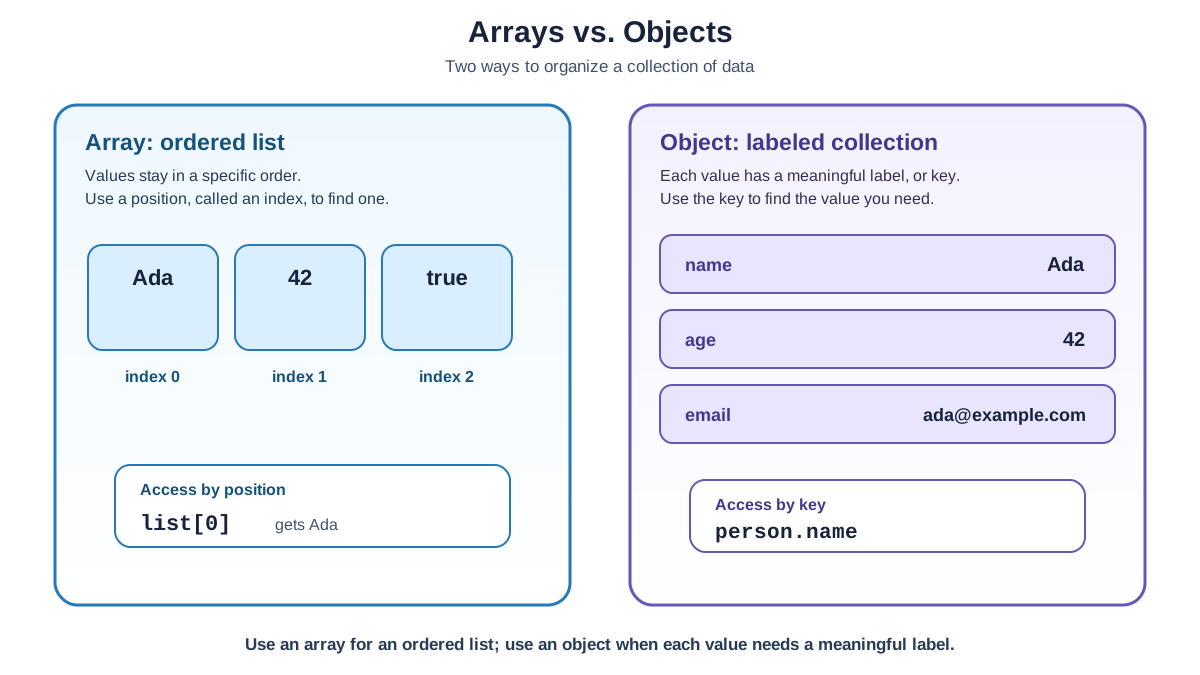
This is the question beginners ask most often, and the answer comes down to the shape of your data.
Use an array when:
- Order matters.
- The items are similar in kind.
- You want to ask "what's at position 3?"
Use an object when:
- Each value needs a label.
- You want to ask "what's the value for
email?" - The details describe one thing, like a person or a product.
| Array | Object | |
|---|---|---|
| What it stores | Ordered list of values | Labeled collection of details |
| How you access values | By index number: list[0] | By key name: person.name |
| Best for | To-dos, scores, names, any list | User profiles, settings, product details |
| Example | ["buy milk", "call mom"] | { title: "Buy milk", done: false } |
A good beginner instinct: if you catch yourself naming variables item1, item2, item3, you probably want an array. If you catch yourself describing one thing with several facts, you probably want an object.
Knowledge check
Check your understanding
Answer this question before you continue.
Combining Arrays and Objects
In real code, arrays and objects rarely stay separate. They combine naturally because data rarely comes in one clean shape.
An array can hold objects. This is the classic "list of things, each with details" pattern:
let users = [
  { name: "Maya", age: 29 },
  { name: "Diego", age: 34 },
  { name: "Priya", age: 27 }
];

console.log(users[0].name);
console.log(users[1].age);
Maya
34
Read this from the inside out: users[0] grabs the first object in the array, and .name grabs that object's name property.
An object can hold arrays as property values:
let user = {
  name: "Maya",
  hobbies: ["hiking", "photography", "baking"]
};

console.log(user.hobbies[0]);
hiking
Here, user.hobbies gives you the array, and [0] grabs its first item.
You can even nest deeper—an array of objects where each object contains another array. That's common in real data, but for now, just know that the same rules apply at every level. Read the structure step by step, and you'll always find your way to the value you need.
Knowledge check
Check your understanding
Answer this question before you continue.
One Practical Example: A To-Do List
Let's put it all together with the kind of data you'll actually build in a web app. A to-do list is an array of objects, where each object holds the details of one task:
let todoList = [
  { title: "Buy milk", done: false },
  { title: "Call mom", done: true },
  { title: "Finish JavaScript lesson", done: false }
];
The array keeps the tasks in order. Each object gives the task a title and a done status. To read the title of the first task:
console.log(todoList[0].title);
Buy milk
To mark the last task as done:
todoList[2].done = true;
console.log(todoList[2]);
{ title: 'Finish JavaScript lesson', done: true }
This is the shape you'll see again and again: an ordered list of things, where each thing has labeled details. When you later pull data from a website or an API, most of it will arrive in exactly this form—arrays and objects nested together. JSON, the common format for web data, uses the same square-bracket and curly-brace syntax you just learned.
Common Beginner Mistakes to Avoid
Every beginner trips over these. Here's what to watch for.
Mistake 1: Forgetting arrays start at index 0.
The first item is at position 0, and the last item is at length - 1. Trying to access colors[3] on a three-item array gives you undefined, not an error—which can be confusing.
let colors = ["red", "green", "blue"];
console.log(colors[3]);
undefined
Fix: When you need the last item, use colors[colors.length - 1].
Mistake 2: Using an array when you need labels, or an object when order matters.
If you store a user's details in an array, you'll end up asking "which index holds the email?"—and the answer will change every time you add a field. If you store a list of scores in an object, you lose the ordering that makes the list meaningful.
Fix: Ask the two questions from earlier. Ordered list of similar items? Array. Labeled details about one thing? Object.
Mistake 3: Expecting two arrays or objects with the same contents to be equal.
let listA = [1, 2, 3];
let listB = [1, 2, 3];

console.log(listA === listB);
false
This surprises almost everyone. The reason is that arrays and objects are reference types. When you compare them with ===, JavaScript checks whether they point to the same spot in memory—not whether their contents match. Two separate arrays with identical values are still two separate things.
Fix: For now, just remember that === compares contents for strings and numbers, but it compares identity for arrays and objects. You'll learn the proper ways to compare contents later.
Your Next Step
The best way to make this stick is to build something small. Open your browser's console or a JavaScript playground and try this:
- Create an array called
todoListwith three tasks you need to do today. - Read the second task and log it.
- Update the last task to something new.
- Create an object called
profilewith your name, age, and favorite programming language so far. - Add one more property to
profile, like your city. - Log the whole object and read one property back.
When that feels comfortable, you're ready for the natural next step: looping over collections. That's where you'll learn to work through every item in an array or every property in an object without writing repetitive code. Arrays and objects give you the containers; loops give you the hands to reach inside them.
Knowledge check
Final check
Finish the article by checking the ideas you just learned.
References
Want a more structured JavaScript path?
Use the JavaScript for AI Applications Starter Pack to turn individual tutorials into a focused path from language fundamentals to interactive AI applications.
JavaScript for AI Applications Starter Pack
Build the JavaScript foundation behind modern interactive applications. The JavaScript for AI Applications Starter Pack takes you from core language concepts through functions, browser events, forms, DOM updates, application state, debugging, and practical projects—so you can learn how interfaces take input, work with structured data, respond to users, and turn results into experiences people can actually use.
- 253-page illustrated PDF
- 12 guided JavaScript chapters
- Visual concept diagrams
- Self-assessment quizzes
- Bonus deep-dive sections
- DOM, events, forms & application state
- Browser projects, debugging & practical workflows
Coming soon


