
Working with Strings in JavaScript
A website is mostly text doing work: a signup form checking an email address, a search bar cleaning up what a user typed, a dashboard greeting someone by…

Key topics
A website is mostly text doing work: a signup form checking an email address, a search bar cleaning up what a user typed, a dashboard greeting someone by name. Behind all of that sits the same basic tool—JavaScript strings. Once you can create, combine, and reshape text, you can start building the interactive pieces that make a site feel responsive instead of static.
Let's start with your first useful action: creating a string and printing it.
What Is a String?
A string is a sequence of characters used to represent text. In plain terms: if you want JavaScript to hold onto a word, a sentence, a username, or any kind of text, you store it as a string.
You create a string by wrapping text in quotes. JavaScript gives you three choices:
const single = 'Hello with single quotes';
const double = "Hello with double quotes";
const backtick = `Hello with backticks`;
All three styles work. The only rule is that you must match the opening and closing quote. If you start with a single quote, you must end with a single quote.
If you need a refresher on storing values in variables, check out the Variables and Data Types article first. For now, let's create a string variable and print it to the console:
const greeting = "Hello, world!";
console.log(greeting);
Hello, world!
That's your first string. It doesn't look like much yet, but every text manipulation you do from here builds on this simple idea.
Joining Strings Together
In programming, joining strings together is called concatenation. The name sounds formal, but the mechanism is simple: you use the + operator to combine strings.
const firstName = "Ada";
const lastName = "Lovelace";
const fullName = firstName + " " + lastName;
console.log(fullName);
Ada Lovelace
Notice the " " in the middle. That's a string containing a single space. Without it, you'd get AdaLovelace.
Concatenation works, but it gets hard to read when you mix a lot of text with variables. That's where template literals come in. A template literal is a string wrapped in backticks, and it lets you embed variables directly using ${}:
const firstName = "Ada";
const lastName = "Lovelace";
const fullName = `${firstName} ${lastName}`;
console.log(fullName);
Ada Lovelace
Both approaches produce the same result. The difference is readability. When you're building a sentence around several variables, template literals let you see the whole shape of the text at once instead of hunting for + signs.
const product = "wireless mouse";
const price = 29;
const message = `Your ${product} costs $${price}.`;
console.log(message);
Your wireless mouse costs $29.
My rule is simple: use template literals whenever you're mixing text with variables. They're easier to read, easier to write, and they're the modern standard.
Knowledge check
Check your understanding
Answer this question before you continue.
Common String Methods You Will Use Daily
A method is a built-in action you call on a string by adding a dot and the method name. JavaScript strings come with many useful methods, and these are the ones you'll reach for constantly.
Before we look at them, here's the key fact that makes sense of everything else: string methods return a new string. They do not change the original. You'll see why that matters in the next section, but keep it in mind as you read the examples below.
Count characters with .length
To find out how many characters a string has, use .length:
const city = "Chicago";
console.log(city.length);
7
Knowledge check
Check your understanding
Answer this question before you continue.
Change case with toUpperCase() and toLowerCase()
These methods return a new string in all caps or all lowercase:
const shout = "please be quiet".toUpperCase();
console.log(shout);

const whisper = "PLEASE BE QUIET".toLowerCase();
console.log(whisper);
PLEASE BE QUIET
please be quiet
This is useful for normalizing user input, like making sure an email address is stored in lowercase.
Check what a string contains with includes() and startsWith()
These methods return true or false, which makes them perfect for conditions:
const email = "ada@example.com";
console.log(email.includes("@"));
console.log(email.startsWith("ada"));
true
true
Form validation often uses includes() to check whether an email has an @ symbol before accepting it.
Trim extra spaces with trim()
Users type messy input. The trim() method returns a new string with spaces removed from the beginning and end:
const messy = "   hello   ";
console.log(messy.trim());
hello
Here's a quick way to remember which method to reach for:
| Task | Method |
|---|---|
| Count characters | .length |
| Change case | toUpperCase(), toLowerCase() |
| Check if text contains something | includes(), startsWith() |
| Remove extra spaces | trim() |
Strings Cannot Be Changed in Place
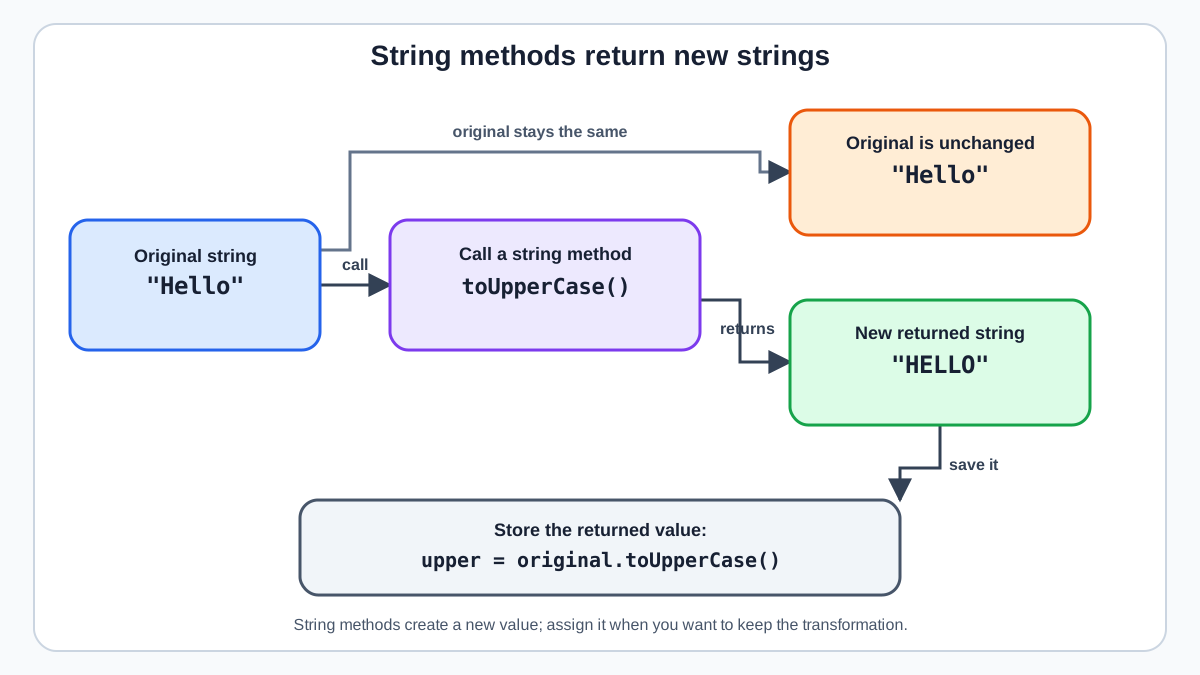
Here's a fact that surprises many beginners: strings are immutable. That means you cannot change a character inside an existing string. JavaScript simply won't let you.
let word = "cat";
word[0] = "b";
console.log(word);
cat
No error, but also no change. The string stays "cat". In strict mode, this would throw an error. Either way, the character doesn't change.
The workaround is to create a new string from the old one and assign it to a variable:
let word = "cat";
word = "b" + word.slice(1);
console.log(word);
bat
This is why string methods always return new strings. When you call toUpperCase() on a string, JavaScript builds a brand-new string with the changes applied. The original string is left untouched.
const original = "Hello";
const upper = original.toUpperCase();
console.log(original);
console.log(upper);
Hello
HELLO
Think of it this way: a string is like a printed document. You can't erase a letter and write a new one on the same page. You have to print a new page. This mental model will save you from a lot of confusion later, especially when you start working with more complex data types.
Knowledge check
Check your understanding
Answer this question before you continue.
Escaping Quotes and Special Characters
What if you want to include a quote inside a string that uses the same quote character?
const message = 'It's a beautiful day';
This breaks. JavaScript sees the second single quote as the end of the string, and then s a beautiful day becomes invalid code.
The fix is the backslash escape character. A backslash tells JavaScript: "the next character is special, treat it literally."
const message = 'It\'s a beautiful day';
console.log(message);
It's a beautiful day
The same works for double quotes:
const quote = "She said, \"Hello!\"";
console.log(quote);
She said, "Hello!"
There are other useful escape sequences too. The most common ones are \n for a new line and \\ for a literal backslash:
const lines = "First line\nSecond line";
console.log(lines);
First line
Second line
Here's a tip: template literals make quotes much easier to handle. Because backtick strings don't conflict with single or double quotes, you can include them freely:
const message = `It's a beautiful day, and she said, "Hello!"`;
console.log(message);
It's a beautiful day, and she said, "Hello!"
No escaping needed.
A Common Beginner Mistake
Every JavaScript developer hits string errors. Here are the ones you'll see most often, and how to fix them.
Mismatched quotes. Starting with one quote type and ending with another causes an immediate error:
const badQuotes = 'This is not allowed";
SyntaxError: Invalid or unexpected token
The fix: make sure the opening and closing quotes match.
Forgetting to close a string. If you forget the closing quote, JavaScript reads the rest of your code as part of the string:
const name = "Ada;
console.log(name);
SyntaxError: Invalid or unexpected token
The fix: always close what you open.
Adding a string number to a real number. This one doesn't throw an error, which makes it sneakier:
const age = "25";
const nextYear = age + 1;
console.log(nextYear);
251
Because age is a string, the + operator concatenates instead of adding. You get "251" instead of 26. If you need to do math with a string number, convert it first with Number():
const age = "25";
const nextYear = Number(age) + 1;
console.log(nextYear);
26
These errors are normal. Every developer makes them. Once you know what to look for, they're easy to spot and fix.
Knowledge check
Check your understanding
Answer this question before you continue.
Practice: Build a Welcome Message
Let's put everything together with a small hands-on task. Your goal: take a user's first and last name and build a personalized welcome message.
Start with these variables:
const firstName = "  ada  ";
const lastName = "LOVELACE";
Your tasks:
- Clean up the extra spaces in
firstNameusingtrim(). - Make both names display in proper case—first letter uppercase, rest lowercase.
- Combine the names into a welcome message using a template literal.
To make a name proper case, you need one small pattern that combines two things you've already seen. First, grab the first character of the cleaned name. Then grab the rest of the name starting from the second character using slice(1). Uppercase the first character, lowercase the rest, and join them with +:
const name = "ada";
const firstChar = name[0].toUpperCase();
const restOfName = name.slice(1).toLowerCase();
const properName = firstChar + restOfName;
console.log(properName);
Ada
Now apply that same pattern to both names in the full solution:
const firstName = "  ada  ";
const lastName = "LOVELACE";

const cleanFirst = firstName.trim();
const cleanLast = lastName.toLowerCase();
const properFirst = cleanFirst[0].toUpperCase() + cleanFirst.slice(1);
const properLast = cleanLast[0].toUpperCase() + cleanLast.slice(1);

const welcome = `Welcome, ${properFirst} ${properLast}!`;
console.log(welcome);
Welcome, Ada Lovelace!
If your output matches, you've just used trim(), toLowerCase(), toUpperCase(), string indexing, slice(), and a template literal in one practical script. That's real string manipulation.
Keep Experimenting
You now have the core toolkit for working with JavaScript strings: creating them, joining them, transforming them, and cleaning them up. The best next step is to experiment on your own text. Take a sentence you like, run it through toUpperCase(), check it with includes(), trim it, and build a template literal around it. The more you play with these methods, the more natural they become.
From here, a natural next direction is learning how strings interact with numbers and operators in real programs—especially the conversion gotchas we touched on earlier. That's where text starts meeting logic, and that's where the real building begins.
Knowledge check
Final check
Finish the article by checking the ideas you just learned.
References
Want a more structured JavaScript path?
Use the JavaScript for AI Applications Starter Pack to turn individual tutorials into a focused path from language fundamentals to interactive AI applications.
JavaScript for AI Applications Starter Pack
Build the JavaScript foundation behind modern interactive applications. The JavaScript for AI Applications Starter Pack takes you from core language concepts through functions, browser events, forms, DOM updates, application state, debugging, and practical projects—so you can learn how interfaces take input, work with structured data, respond to users, and turn results into experiences people can actually use.
- 253-page illustrated PDF
- 12 guided JavaScript chapters
- Visual concept diagrams
- Self-assessment quizzes
- Bonus deep-dive sections
- DOM, events, forms & application state
- Browser projects, debugging & practical workflows
Coming soon


