
JavaScript String Methods Reference for Beginners
You have text in a variable. You want to check it, cut it, clean it, or change it. But which method does which—and what does each one give you back?

You have text in a variable. You want to check it, cut it, clean it, or change it. But which method does which—and what does each one give you back?
This is a JavaScript string methods cheat sheet built the way beginners actually think: by task. Pick the job you need to do, grab the method, and read the example. No alphabet soup, no exhaustive documentation. Just the common string methods JavaScript beginners reach for every day, with runnable examples and expected output.
How to Read This Reference
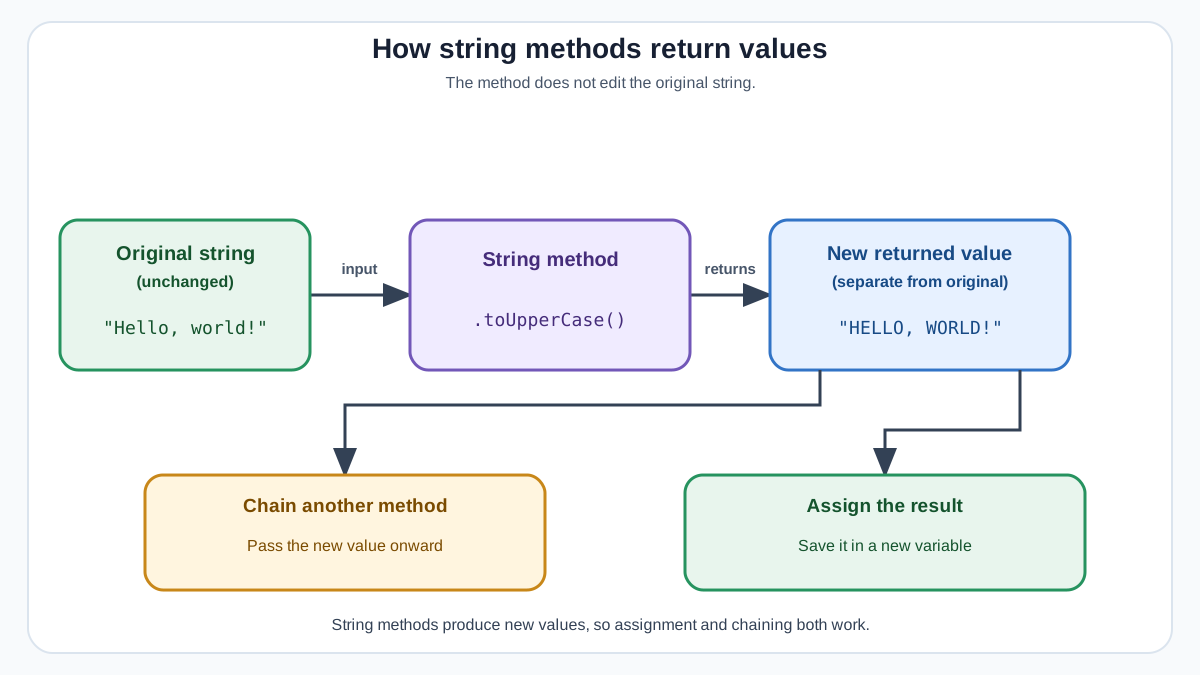
Before we get to the methods, there is one rule that unlocks everything else:
String methods never change the original string.
Strings in JavaScript are immutable, which is a fancy way of saying they cannot be edited in place. When you call a method on a string, JavaScript reads the original, produces a new result, and hands it back to you. The original text stays exactly as it was.
What each method hands back depends on the method. Some return a new string. Others return a boolean (true or false), and one returns a number. The examples below show the return value for every method, so you always know what to expect.
Here is the pattern you will see throughout:
let greeting = "Hello, World!";
let loudGreeting = greeting.toUpperCase();

console.log(loudGreeting);
console.log(greeting);
HELLO, WORLD!
Hello, World!
Notice what happened: loudGreeting holds the new all-caps version, while greeting still holds the original text. If you want the result of a string method, you have to store it somewhere.
This article assumes you already know how to create strings and combine them with the + operator. If you need a refresher on quotes, backticks, and concatenation, review the Working with Strings tutorial first, then come back here.
Learn these first: includes(), slice(), toUpperCase(), toLowerCase(), trim(), and replace(). These six cover the most common beginner tasks: checking text, cutting text, cleaning text, changing case, and swapping words.
Look these up later: everything else. JavaScript has dozens of string methods, but you do not need most of them yet.
Checking What a String Contains
When you need to know whether text contains something, JavaScript gives you four main tools. Three of them return a boolean (true or false). One returns a number.
includes() — Does the text contain this?
The includes() method checks whether a substring exists anywhere in the string.
let email = "ada@example.com";

console.log(email.includes("@"));
console.log(email.includes("example"));
console.log(email.includes("gmail"));
true
true
false
This is the method you will use constantly for quick checks: confirming an email has an @ symbol, seeing whether a message contains a certain word, or checking whether a filename has the right extension.
Note:
includes("@")only tells you that the symbol exists somewhere. It is not a full email validation. Real validation needs more checks, but this is a useful first filter.
Knowledge check
Check your understanding
Answer this question before you continue.
startsWith() and endsWith() — Check the edges
These two check only the beginning or the end of a string.
let filename = "report_final.pdf";

console.log(filename.startsWith("report"));
console.log(filename.endsWith(".pdf"));
console.log(filename.endsWith(".docx"));
true
true
false
These are handy for routing logic: checking whether a URL starts with https://, or whether a file ends with an allowed extension.
indexOf() — Find the position
The includes() method tells you whether text exists. The indexOf() method tells you where it starts. It returns a number representing the position of the first match, or -1 if nothing is found.
let sentence = "The quick brown fox";

console.log(sentence.indexOf("quick"));
console.log(sentence.indexOf("fox"));
console.log(sentence.indexOf("cat"));
4
16
-1
The positions count from zero, so "quick" starts at index 4 (after "The "). When indexOf() returns -1, that is JavaScript's way of saying, "I looked everywhere and found nothing."
Note: All four of these search methods are case-sensitive.
"Hello".includes("hello")returnsfalse. If you need to search without worrying about case, convert both sides to lowercase first—you will learn how in a moment.
Cutting Out a Piece: slice()
The slice() method extracts part of a string and returns it as a new string. You give it a start position and, optionally, an end position.
let language = "JavaScript";

console.log(language.slice(0, 4));
console.log(language.slice(4));
Java
Script
The first example, slice(0, 4), grabs characters from position 0 up to—but not including—position 4. That end-exclusive rule trips up beginners constantly, so let it sink in: the end index is where the slice stops, not where it includes.
The second example, slice(4), omits the end index entirely. When you do that, JavaScript slices from the start position all the way to the end of the string.
Here is a useful trick: negative indexes count from the end of the string.
let filename = "budget_2025.xlsx";

console.log(filename.slice(-5));
.xlsx
slice(-5) grabs the last 5 characters. That is a clean way to pull a file extension without counting characters from the front.
Common mistake: Beginners sometimes reach for
substring()orsubstr()because they sound similar. Ignore them for now.slice()does what you need, and its negative-index behavior makes it the most flexible of the three.
Knowledge check
Check your understanding
Answer this question before you continue.
Changing Letter Case: toUpperCase() and toLowerCase()
These two methods return a new string with every letter converted to uppercase or lowercase.
let message = "Please Save My Work";

console.log(message.toUpperCase());
console.log(message.toLowerCase());
PLEASE SAVE MY WORK
please save my work
The most practical use for these methods is comparing user input without worrying about case. If someone types "ADA@EXAMPLE.COM" into an email field, you probably want to treat it the same as "ada@example.com".
let userInput = "Ada@Example.com";
let storedEmail = "ada@example.com";

console.log(userInput.toLowerCase() === storedEmail.toLowerCase());
true
By converting both sides to lowercase before comparing, you remove case as a variable. This pattern appears everywhere in real code: login forms, search boxes, and anywhere users type free text.
Cleaning Up Whitespace: trim()
The trim() method removes whitespace from both the beginning and the end of a string. Whitespace here means spaces, tabs, and newlines—the invisible characters that users accidentally add.
let name = "   Ada Lovelace   ";

console.log(name.trim());
Ada Lovelace
The spaces disappear from both ends. The text in the middle stays exactly as it was.
This matters more than beginners expect. When someone copies an email address from another app, or types into a form field with autocomplete, stray spaces sneak in. A space at the end of an email address can break a login check or send a confirmation email to the wrong address.
let email = "  ada@example.com  ";
let cleanedEmail = email.trim();

console.log(cleanedEmail);
ada@example.com
JavaScript also provides trimStart() and trimEnd() for removing whitespace from only one side. You will rarely need them, but they are there when a single-sided trim is the right tool.
Swapping Text: replace()
The replace() method finds a piece of text and swaps it for something else. It returns a new string with the replacement applied.
let sentence = "I love JavaScript";

console.log(sentence.replace("JavaScript", "Python"));
I love Python
Here is the catch that surprises everyone: replace() only replaces the first match by default.
let quote = "The cat sat on the mat";

console.log(quote.replace("at", "at?"));
The cat? sat on the mat
Only the first "at" got the replacement. The rest of the string stayed untouched.
If you want to replace every match, use replaceAll() instead.
let quote = "The cat sat on the mat";

console.log(quote.replaceAll("at", "at?"));
The cat? sat? on the mat?
And remember the golden rule: the original string never changes. If you want the swapped version, store it in a variable.
let original = "Hello World";
let updated = original.replace("World", "there");

console.log(updated);
console.log(original);
Hello there
Hello World
Knowledge check
Check your understanding
Answer this question before you continue.
The Mistake That Trips Up Everyone
Every JavaScript beginner hits this wall. You call a method, nothing seems to happen, and you wonder whether the method is broken.
let name = "  Ada Lovelace  ";

name.trim();

console.log(name);
Ada Lovelace
The spaces are still there. Why?
Because trim() returned a cleaned-up string, and then you threw it away. You called the method, but you never stored the result. The original name variable still points to the original string with spaces.
The fix is simple: assign the result to a variable.
let name = "  Ada Lovelace  ";
let cleanedName = name.trim();

console.log(cleanedName);
Ada Lovelace
This is not a dumb mistake. It is a direct consequence of how strings work in JavaScript. Strings cannot be changed in place, so every method hands you a new value. If you do not catch that value, it vanishes.
Here is the mental rule that will save you hours: if you want the result, store it. Every time you call a string method, ask yourself, "Am I saving what this returns?" If the answer is no, you probably do not need the method call at all.
Knowledge check
Check your understanding
Answer this question before you continue.
Your Quick Pick Guide
When you are not sure which method fits the job, use this table.
| Task | Method | What it returns |
|---|---|---|
| Check if text exists somewhere | includes() | true or false |
| Check the beginning or end | startsWith() / endsWith() | true or false |
| Find where text starts | indexOf() | A number, or -1 if not found |
| Cut out a piece of text | slice() | A new string |
| Convert to uppercase | toUpperCase() | A new string |
| Convert to lowercase | toLowerCase() | A new string |
| Remove spaces from both ends | trim() | A new string |
| Swap the first match | replace() | A new string |
| Swap every match | replaceAll() | A new string |
The pattern is worth noticing: the methods that transform text return a new string. The checkers—includes(), startsWith(), endsWith()—return booleans, and indexOf() returns a number. None of them touch the original.
Try It Yourself
Open your browser's developer tools and choose the Console tab, then run this:
let yourName = "  " + "JavaScript Learner" + "  ";
console.log(yourName.trim().toUpperCase());
JAVASCRIPT LEARNER
Notice how you can chain methods together: trim() cleans the edges, then toUpperCase() converts the result. Each method passes its new string to the next one.
Now try your own experiment. Grab a sentence, check whether it contains a word, slice out a piece, replace something, and predict the output before you press Enter. When your prediction matches the result, you have internalized the most important rule in this article: string methods return new values, and the original text never changes.
Once you are comfortable with these methods, the natural next step is learning how to wrap them inside functions—so you can reuse the same text-cleaning logic anywhere in your code.
Knowledge check
Final check
Finish the article by checking the ideas you just learned.
References
Want a more structured JavaScript path?
Use the JavaScript for AI Applications Starter Pack to turn individual tutorials into a focused path from language fundamentals to interactive AI applications.
JavaScript for AI Applications Starter Pack
Build the JavaScript foundation behind modern interactive applications. The JavaScript for AI Applications Starter Pack takes you from core language concepts through functions, browser events, forms, DOM updates, application state, debugging, and practical projects—so you can learn how interfaces take input, work with structured data, respond to users, and turn results into experiences people can actually use.
- 253-page illustrated PDF
- 12 guided JavaScript chapters
- Visual concept diagrams
- Self-assessment quizzes
- Bonus deep-dive sections
- DOM, events, forms & application state
- Browser projects, debugging & practical workflows
Coming soon


