
Keyboard and Form Events
A button click is one quick signal. Typing is a stream of signals. Every search box, sign-up form, and chat input depends on JavaScript watching that…

A button click is one quick signal. Typing is a stream of signals. Every search box, sign-up form, and chat input depends on JavaScript watching that stream and responding at the right moment. The skill is knowing which event to listen for.
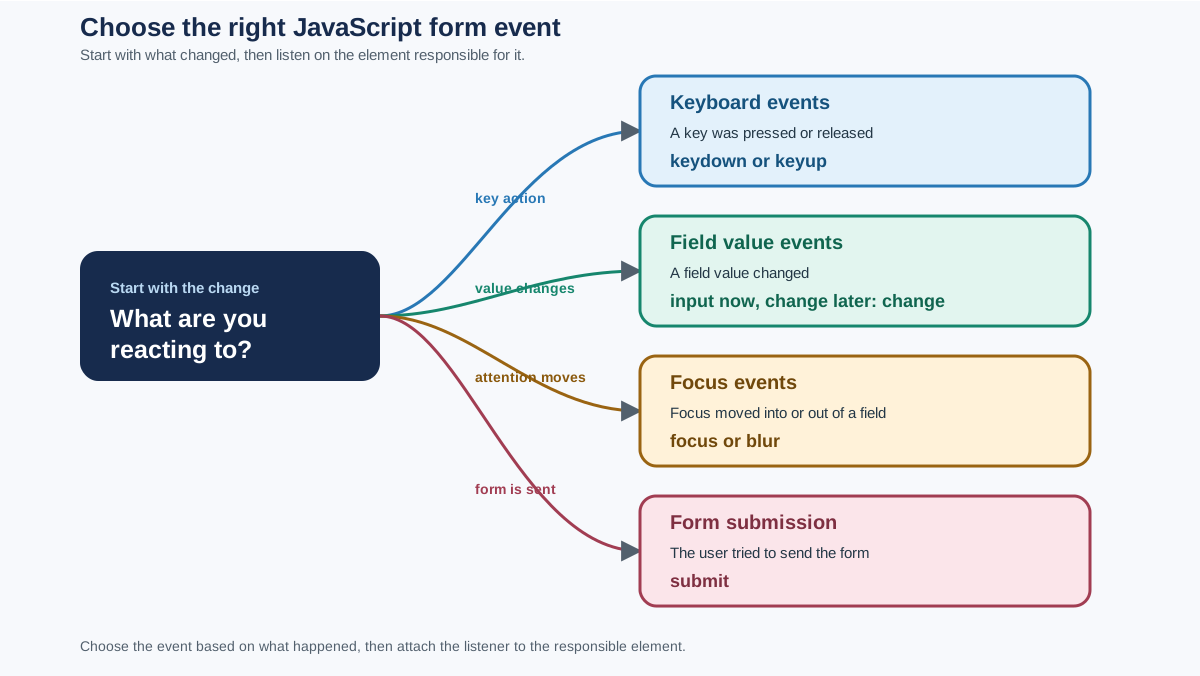
Before you memorize event names, ask one question: What am I reacting to—a key action, a field value change, or a form submission? Each has its own event, and picking the right one is the difference between code that works and code that fights you.
From Clicks to Keystrokes
If you've worked with click events, you already know the pattern: use addEventListener to tell the browser, "When this thing happens, run this code." Keyboard and form events work the same way. They just fire their own signals.
In this tutorial, you'll learn three families of events:
- Keyboard events —
keydownandkeyup, which fire when keys are pressed and released - Field events —
input,change,focus, andblur, which fire as users interact with form fields - The submit event — which fires when a user tries to send a form
Here's a tiny example to get you started. Save this as keys.html and open it in your browser:
<!DOCTYPE html>
<html>
<body>
  <p>Click anywhere on this page, then press a key.</p>

  <script>
    document.addEventListener("keydown", function(event) {
      console.log("You pressed: " + event.key);
    });
  </script>
</body>
</html>
Open your browser's developer console (right-click → Inspect → Console), click the page, and press a few keys. You'll see something like this:
You pressed: h
You pressed: e
You pressed: l
You pressed: l
You pressed: o
That's the whole mental model: an event fires, JavaScript hears it, and you decide what happens next.
Listening for Key Presses
When a user presses a key, two events fire in sequence: keydown when the key goes down, and keyup when it comes back up.
To read which key was pressed, you use the event object that JavaScript passes to your handler. The event.key property tells you the key's value—a letter, number, or name like "Enter" or "Backspace".
document.addEventListener("keydown", function(event) {
  console.log("Key down: " + event.key);
});

document.addEventListener("keyup", function(event) {
  console.log("Key up: " + event.key);
});
Press the letter "a" and you'll see:
Key down: a
Key up: a
So when should you use keyboard events? The clearest case is keyboard shortcuts. If you want pressing Enter to submit a search, or pressing Escape to close a dialog, keydown is your tool.
document.addEventListener("keydown", function(event) {
  if (event.key === "Escape") {
    console.log("Closing the dialog...");
  }
});
Warning: A document-level
keydownlistener sees every key press, including keys typed while the user is entering text in a field. If your shortcut is"Escape", that's usually fine. But if you bind something like"s"globally, you'll hijack typing in every text box on the page. Attach shortcuts to a specific element when the behavior belongs to one control.
Tip: Use
keydownfor shortcuts and game controls. For reading what a user types into a text field, theinputevent is usually a better choice—you'll see why next.
Knowledge check
Check your understanding
Answer this question before you continue.
Watching a Field Change: The input Event
Here's a situation you've definitely seen: a character counter under a text box, or a live preview that updates as you type. That's the input event at work.
The input event fires immediately every time a field's value changes. Type a letter, paste text, or delete a character—each change fires the event.
<!DOCTYPE html>
<html>
<body>
  <input type="text" id="name" placeholder="Type your name">
  <p>You typed: <span id="preview"></span></p>

  <script>
    const nameInput = document.getElementById("name");
    const preview = document.getElementById("preview");

    nameInput.addEventListener("input", function(event) {
      preview.textContent = event.target.value;
    });
  </script>
</body>
</html>
Type "Sam" into the field and the preview updates with every character:
You typed: S
You typed: Sa
You typed: Sam
Two things are happening here. First, event.target refers to the input field that fired the event, and .value gives you its current text. Second, this works for paste and delete too, not just keystrokes—that's why input is more reliable than keydown for reading field content.
Real-world uses include search suggestions that appear as you type, live validation that checks a field while you're still in it, and character counters for posts or bios.
Decision rule: Use
inputwhen you want live feedback while the user is typing.
Knowledge check
Check your understanding
Answer this question before you continue.
change, focus, and blur: When the Field Loses Attention
The input event fires on every single change. Sometimes that's too much. If you only care about the final value once a user finishes with a field, the change event is what you want.
The change event fires when a user commits a change and then leaves the field—by clicking elsewhere or pressing Tab. It doesn't fire on every keystroke.
Then there are focus and blur. When a user clicks or tabs into a field, it gains focus and the focus event fires. When they leave, the blur event fires. These are perfect for showing and hiding helper text.
<!DOCTYPE html>
<html>
<body>
  <input type="text" id="email" placeholder="Enter your email">
  <p id="hint" style="display: none;">We'll never share your email.</p>

  <script>
    const emailField = document.getElementById("email");
    const hint = document.getElementById("hint");

    emailField.addEventListener("focus", function() {
      hint.style.display = "block";
    });

    emailField.addEventListener("blur", function() {
      hint.style.display = "none";
    });
  </script>
</body>
</html>
Click into the email field and the hint appears. Click away and it disappears.
Here's a quick comparison to help you pick the right event:
| Event | Fires when | Use this when |
|---|---|---|
keydown | A key is pressed | Keyboard shortcuts, game controls |
input | A field's value changes (typing, pasting, deleting) | Live previews, character counters, search suggestions |
change | A user finishes editing and leaves the field | Validating a completed field, reacting to a dropdown selection |
focus | A field gains attention | Showing hints or highlighting the active field |
blur | A field loses attention | Hiding hints, validating after the user moves on |
Knowledge check
Check your understanding
Answer this question before you continue.
Handling Form Submission
Now for the big one: the submit event. This is where JavaScript form events come together.
When a user clicks a submit button or presses Enter in a text field, the form fires a submit event. Here's the catch: the event belongs to the form, not the button. And by default, submitting a form reloads the page—which wipes out any message your JavaScript tried to show.
That's where preventDefault() comes in. It cancels the browser's default action for this event. In plain terms: it stops the page reload so your JavaScript can take over. It does not erase the form values or stop your event listener from running.
<!DOCTYPE html>
<html>
<body>
  <form id="signup">
    <input type="text" id="username" placeholder="Choose a username">
    <button type="submit">Sign up</button>
  </form>
  <p id="message"></p>

  <script>
    const form = document.getElementById("signup");
    const message = document.getElementById("message");

    form.addEventListener("submit", function(event) {
      event.preventDefault();

      const username = document.getElementById("username").value;
      message.textContent = "Welcome, " + username + "!";
    });
  </script>
</body>
</html>
Type a name, click "Sign up," and instead of the page reloading, you'll see:
Welcome, Alex!
The two lines that matter are event.preventDefault() to stop the reload, and .value to read what the user typed.
Note: The
submitevent fires on the<form>element, not on the submit button. Always attach your listener to the form.
Common Beginner Mistakes
Every JavaScript developer hits these walls. Here's what goes wrong and how to fix it.
Mistake 1: Attaching the submit listener to the button instead of the form.
// Wrong — the button doesn't fire a submit event
document.getElementById("submitBtn").addEventListener("submit", ...);

// Right — the form fires the submit event
document.getElementById("myForm").addEventListener("submit", ...);
Mistake 2: Forgetting preventDefault(), so the page reloads and your message vanishes.
form.addEventListener("submit", function(event) {
  // Missing: event.preventDefault();
  // The page reloads and your code's effect disappears
});
Mistake 3: Using keydown when input would be simpler for text fields.
// Overly complicated — misses pastes and deletions
field.addEventListener("keydown", function(event) {
  console.log(field.value);
});

// Simpler and more reliable
field.addEventListener("input", function() {
  console.log(field.value);
});
Mistake 4: Reading .value before the user has typed anything.
An empty field has an empty value. If you read .value on page load, you'll get an empty string. Wait for the user to type, then read.
Knowledge check
Check your understanding
Answer this question before you continue.
Practice: Build a Tiny Sign-Up Check
Time to put it together. Build a small form with a name field and a submit button. When the user submits, show a welcome message without reloading the page.
Expected behavior:
- The user types a name into the field.
- The user clicks "Sign up" or presses Enter.
- A message appears below the form: "Welcome, [name]!"
- The page does not reload.
Hint: You'll need the submit event on the form and event.preventDefault().
Extension: Use the input event to disable the submit button until the field has text. A good starting point is setting the button's disabled property to true, then checking the field's value on every input.
Once you've got that working, you've handled the core of JavaScript form events. The natural next step is wrapping your event-handling code in functions so you can reuse and organize it—that's where functions and events start working together.
Knowledge check
Final check
Finish the article by checking the ideas you just learned.
References
Want a more structured JavaScript path?
Use the JavaScript for AI Applications Starter Pack to turn individual tutorials into a focused path from language fundamentals to interactive AI applications.
JavaScript for AI Applications Starter Pack
Build the JavaScript foundation behind modern interactive applications. The JavaScript for AI Applications Starter Pack takes you from core language concepts through functions, browser events, forms, DOM updates, application state, debugging, and practical projects—so you can learn how interfaces take input, work with structured data, respond to users, and turn results into experiences people can actually use.
- 253-page illustrated PDF
- 12 guided JavaScript chapters
- Visual concept diagrams
- Self-assessment quizzes
- Bonus deep-dive sections
- DOM, events, forms & application state
- Browser projects, debugging & practical workflows
Coming soon


