
Fix a JavaScript Event Listener That Is Not Working
You wrote the addEventListener line. You clicked the button. Nothing happened. No error message. No reaction. Just silence.

You wrote the addEventListener line. You clicked the button. Nothing happened. No error message. No reaction. Just silence.
This is one of the most frustrating moments in learning JavaScript, and it happens to everyone. The good news is that a silent event listener is rarely a mystery once you know what to look for. Think of an event listener as a promise: you tell the browser, "When this element fires this event, call this function." When nothing happens, either the promise was never made, or it was made to the wrong target.
Let's build a known-good example first, then break it and fix it.
Start With a Working Baseline
Before you debug anything, you need a page you know works. Create an HTML file with a button and a script that logs a message when clicked:
<!DOCTYPE html>
<html>
<head>
  <title>Event Listener Test</title>
</head>
<body>
  <button id="myButton">Click me</button>

  <script>
    const button = document.querySelector("#myButton");

    button.addEventListener("click", () => {
      console.log("Button clicked!");
    });
  </script>
</body>
</html>
Open this page in your browser, open the developer tools (right-click anywhere, choose Inspect, then click the Console tab), and click the button. You should see:
Button clicked!
If that works, you have a solid baseline. Now you can break it on purpose and learn what each failure looks like.
Knowledge check
Check your understanding
Answer this question before you continue.
Check the Console First
Before you change a single line of code, look at the console. It is your first witness. If something is broken, it usually tells you exactly what and where.
A red error often points straight at the problem. One of the most common beginner mistakes is a simple typo:
button.addeventListener("click", () => {
  console.log("Button clicked!");
});
JavaScript is case-sensitive. addeventListener with a lowercase "e" is not the same as addEventListener with a capital "E". The browser will tell you:
TypeError: button.addeventListener is not a function
That error means the JavaScript interpreter doesn't recognize what you're trying to call. Often, that means a misspelling.
If the console is clean, the code is valid, but something about how it's wired up is wrong. That's what the next sections cover.
Common mistake: Ignoring the console and guessing at the problem. The console is not optional. It's the fastest diagnostic tool you have.
Knowledge check
Check your understanding
Answer this question before you continue.
Is the Element Really There?
The sneakiest reason a listener doesn't fire: the element you're trying to attach to doesn't exist yet when your script runs.
Here's the scenario. You have a button at the bottom of your HTML, but your script runs first:
<!DOCTYPE html>
<html>
<head>
  <script>
    const button = document.querySelector("#myButton");
    button.addEventListener("click", () => {
      console.log("Button clicked!");
    });
  </script>
</head>
<body>
  <button id="myButton">Click me</button>
</body>
</html>
The browser reads your HTML from top to bottom. When it hits the <script> tag in the <head>, it runs your JavaScript immediately. At that moment, the browser hasn't reached the <button> yet. It doesn't exist. So document.querySelector("#myButton") returns null, and trying to call a method on null throws an error:
TypeError: Cannot read properties of null (reading 'addEventListener')
In plain English: null means "nothing is here." The query found no matching element, so there is nothing to attach a listener to.
The fix is simple. Move your script to the end of the body, right before the closing </body> tag:
<!DOCTYPE html>
<html>
<head>
</head>
<body>
  <button id="myButton">Click me</button>

  <script>
    const button = document.querySelector("#myButton");

    button.addEventListener("click", () => {
      console.log("Button clicked!");
    });
  </script>
</body>
</html>
Now the browser has built the entire page before your JavaScript runs. The button exists, querySelector finds it, and the listener attaches successfully.
Tip: If you see
Cannot read properties of null, the element isn't there when your code runs. Check where your script is placed first.
Knowledge check
Check your understanding
Answer this question before you continue.
Is the Event Name a Match?
The event name in your listener must match the real browser event you're expecting. A mismatch produces no error and no response. Just silence.
A frequent mistake comes from mixing old and new syntax. The older onclick attribute uses the "on" prefix. The addEventListener method does not:
// Wrong - "onclick" is not a real event name for addEventListener
button.addEventListener("onclick", () => {
  console.log("Button clicked!");
});

// Right - the event name has no "on" prefix
button.addEventListener("click", () => {
  console.log("Button clicked!");
});
Common event names you'll use as a beginner:
| Event name | Fires when |
|---|---|
click | User clicks an element |
submit | User submits a form |
keydown | User presses a key |
input | User types in an input field |
If you're not sure whether the event is firing at all, add a temporary log inside the callback:
button.addEventListener("click", () => {
  console.log("Event fired!");
});
If you see the log, the event name is correct and the listener is working. The problem is somewhere else.
Knowledge check
Check your understanding
Answer this question before you continue.
Is the Callback Running?
Sometimes the listener fires, but the code inside it doesn't do what you expect. To tell the difference between a listener that never fires and a callback that runs but fails, put a console.log as the first line inside the callback:
button.addEventListener("click", () => {
  console.log("The listener fired!");
  // rest of your code
});
If the log appears when you click, your listener is fine. The problem is inside the callback logic. If the log doesn't appear, go back to the earlier checks.
One of the most common callback mistakes is calling the function immediately instead of passing it as a reference. Look at this:
function handleClick() {
  console.log("Button clicked!");
}

button.addEventListener("click", handleClick());
Notice the parentheses after handleClick. That means the function runs right away, when the listener is being registered, not when the button is clicked. The result is that handleClick executes once, immediately, and the listener receives whatever the function returned—which is undefined since handleClick doesn't return anything.
The fix is to pass the function without parentheses:
button.addEventListener("click", handleClick);
Now you're handing the function itself to the event listener. The browser will call it later, when the click happens.
The same mistake happens with console.log itself:
// Wrong - runs immediately during registration
button.addEventListener("click", console.log("Clicked!"));

// Right - runs when clicked
button.addEventListener("click", () => console.log("Clicked!"));
In the wrong version, you see Clicked! in the console as soon as the page loads, before you click anything. That's because console.log("Clicked!") executes right away, and its result—undefined—is what gets passed as the callback. The listener has nothing to call later.
In the right version, the arrow function () => console.log("Clicked!") is the callback. It doesn't run during registration. It waits until the click happens.
Common mistake: Calling the callback with parentheses. You want to pass the function, not run it. The event system calls it for you when the event happens.
What If the Callback Fires but You See Nothing?
Sometimes the listener works perfectly, but the page seems to ignore it. This often happens with forms.
When a user submits a form, the browser's default behavior is to reload the page. If your listener fires but the page refreshes instantly, you might never see your code's effect.
Here's a minimal example:
<!DOCTYPE html>
<html>
<head>
</head>
<body>
  <form id="signupForm">
    <input type="text" placeholder="Your name">
    <button type="submit">Sign up</button>
  </form>

  <p id="message"></p>

  <script>
    const form = document.querySelector("#signupForm");
    const message = document.querySelector("#message");

    form.addEventListener("submit", (event) => {
      event.preventDefault();
      message.textContent = "Form submitted!";
    });
  </script>
</body>
</html>
The submit event fires when the user clicks the button or presses Enter in the input field. Without event.preventDefault(), the browser reloads the page immediately, and the message never appears. With it, your code runs and the message shows.
This is also why you should use submit rather than click when handling forms. A click listener on the form won't catch Enter-based submission. The submit event represents the action you actually care about: the user trying to send the form.
Your Recovery Routine
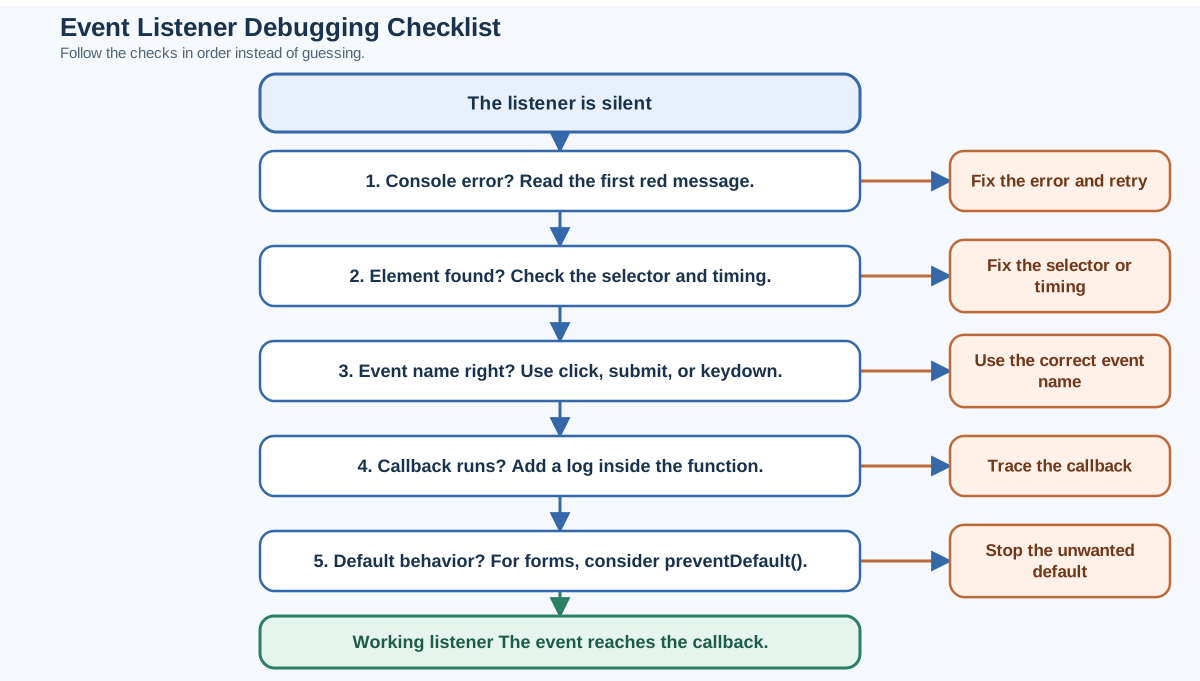
When a JavaScript event listener isn't working, don't guess. Run the checklist in order:
- Read the console. A red error often names the broken link directly.
- Confirm the element exists. Check that your script runs after the element is in the page.
- Check the event name. Make sure it matches the action and has no "on" prefix.
- Test the callback with a log. If the log fires, the listener works and the problem is inside your callback.
- Watch for default browser behavior. If you're handling a form, you may need
event.preventDefault().
Here's a practice task to make this stick. Take the working baseline page from the start of this article and deliberately break it in one of the ways above. Put the script in the <head> without wrapping it. Watch the console. Fix it. Then break it again with a wrong event name. Fix it. Then call the callback with parentheses and watch it run at the wrong time. Each time you repair a broken listener, you're building the debugging instinct that will serve you for the rest of your JavaScript journey.
Knowledge check
Final check
Finish the article by checking the ideas you just learned.
References
Want a more structured JavaScript path?
Use the JavaScript for AI Applications Starter Pack to turn individual tutorials into a focused path from language fundamentals to interactive AI applications.
JavaScript for AI Applications Starter Pack
Build the JavaScript foundation behind modern interactive applications. The JavaScript for AI Applications Starter Pack takes you from core language concepts through functions, browser events, forms, DOM updates, application state, debugging, and practical projects—so you can learn how interfaces take input, work with structured data, respond to users, and turn results into experiences people can actually use.
- 253-page illustrated PDF
- 12 guided JavaScript chapters
- Visual concept diagrams
- Self-assessment quizzes
- Bonus deep-dive sections
- DOM, events, forms & application state
- Browser projects, debugging & practical workflows
Coming soon


