
Fix "Cannot Read Properties of null" in JavaScript
If you are new to JavaScript, this message can look like the browser is speaking a different language. It is not. It is telling you something simple: your…

You open the browser console and see this:
Uncaught TypeError: Cannot read properties of null (reading 'textContent')
If you are new to JavaScript, this message can look like the browser is speaking a different language. It is not. It is telling you something simple: your code asked for an element that does not exist, then tried to read a property from that empty result.
This is one of the most common errors beginners hit when they start working with web pages. The good news? The fix is usually straightforward once you know what to look for.
What This Error Is Telling You
When you select an element from your page, you expect to get that element back. But when no match is found, JavaScript does not throw a friendly "element not found" warning. Instead, it gives you a value called null.
Think of null as JavaScript's way of saying "nothing was found here." It is an empty shelf where you expected a book.
Now imagine trying to open that missing book to read a page. You cannot, because there is no book. That is exactly what your code is doing:
document.querySelector("#title").textContent = "Hello";
If no element with the id title exists, document.querySelector("#title") returns null. Then your code tries to read .textContent from that empty result—and JavaScript stops and reports the error.
The error is a TypeError, which means you tried to perform an operation on a value that does not support it. In this case, you tried to read a property from null, and null has no properties to give you.
This error commonly appears when you use querySelector or getElementById, because both return null when they cannot find a matching element. The debugging path is the same for either method.
Knowledge check
Check your understanding
Answer this question before you continue.
A Tiny Example That Triggers the Error
Let us make this concrete. Create a simple HTML file and open it in your browser:
<!DOCTYPE html>
<html>
<head>
  <title>Null Error Example</title>
</head>
<body>
  <h1>My Page</h1>

  <script>
    const heading = document.querySelector("#subtitle");
    heading.textContent = "Updated heading";
  </script>
</body>
</html>
Open this file in your browser and look at the console. You will see:
Uncaught TypeError: Cannot read properties of null (reading 'textContent')
Why? The page has an <h1> with the text "My Page," but there is no element with the id subtitle. The selector #subtitle looks for an element with that id, finds nothing, and returns null.
The fix is to make the selector match something that actually exists:
<!DOCTYPE html>
<html>
<head>
  <title>Null Error Example</title>
</head>
<body>
  <h1 id="subtitle">My Page</h1>

  <script>
    const heading = document.querySelector("#subtitle");
    heading.textContent = "Updated heading";
  </script>
</body>
</html>
Now the page displays "Updated heading" instead of "My Page," and the console is clean.
Knowledge check
Check your understanding
Answer this question before you continue.
Debug in This Order
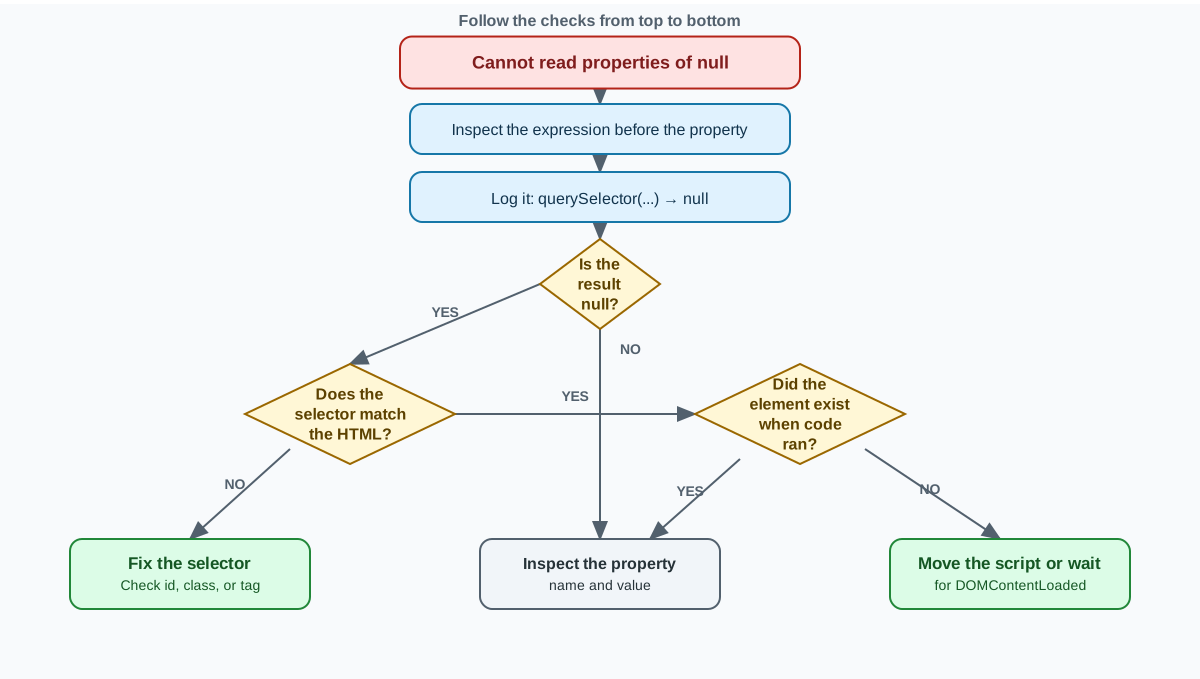
When you see this error, do not guess. Run through these steps in order:
- Find the expression before the property. The error names the property, like
textContent. Look left of that dot to see which element lookup returnednull. - Log the result. Add
console.logright before the failing line to confirm the value isnull. - Compare the selector with your HTML. Check spelling, case, and whether the element actually exists on the page.
- Check script timing. If the selector matches perfectly, ask whether the script ran before the element was created.
The rest of this article walks through steps 3 and 4, because those are the two causes behind nearly every null-property error.
Cause 1: The Selector Does Not Match
The most common cause of this error is a mismatch between the selector string and the actual HTML. This can happen in several ways:
- A misspelled id: your HTML has
id="header"but your selector is#hader. - Wrong case: your HTML has
id="Title"but your selector is#title. Ids are case-sensitive. - Wrong element type: you used a class selector like
.buttonwhen the element has an id, not a class. - The element simply does not exist on the page.
Here is a broken example:
const message = document.querySelector(".warning-message");
message.innerHTML = "Something went wrong";
If no element has the class warning-message, this code crashes. The quickest way to confirm the problem is to log the result before touching it:
const message = document.querySelector(".warning-message");
console.log(message); // null means no element was found
When you see null in the console, you know the lookup found nothing at that moment. Compare the selector string with your HTML carefully. Check the spelling, check the case, and confirm the element is actually on the page.
The same rule applies if you used getElementById instead:
const message = document.getElementById("warning-message");
console.log(message); // null means no element was found
The debugging step is identical: verify that the id in your JavaScript matches the id in your HTML.
Knowledge check
Check your understanding
Answer this question before you continue.
Cause 2: The Script Runs Before the Element Exists
The second common cause is timing. The browser builds your page from top to bottom. When it reaches a <script> tag, it stops and runs that JavaScript immediately. If your script sits in the <head> and tries to select an element in the <body>, that element has not been created yet.
<!DOCTYPE html>
<html>
<head>
<title>Timing Problem</title>
<script>
const button = document.querySelector("#submit-btn");
button.textContent = "Send"; // Error: button is null
</script>
</head>
<body>
<button id="submit-btn">Submit</button>
</body>
</html>
When the script runs, the browser has not reached the <button> yet. The element does not exist at that moment, so querySelector returns null. Notice that the selector is correct—the problem is when the code runs.
There are two beginner-safe fixes.
Fix 1: Move the script to the end of the body.
<!DOCTYPE html>
<html>
<head>
<title>Timing Problem</title>
</head>
<body>
<button id="submit-btn">Submit</button>
<script>
const button = document.querySelector("#submit-btn");
button.textContent = "Send";
</script>
</body>
</html>
By the time the browser reaches the script, the button already exists. This is the simplest fix and works well for most pages.
Fix 2: Wait for the DOM to be ready.
You can also tell your code to wait until the browser has finished building the page structure:
<!DOCTYPE html>
<html>
<head>
<title>Timing Problem</title>
<script>
document.addEventListener("DOMContentLoaded", function () {
const button = document.querySelector("#submit-btn");
button.textContent = "Send";
});
</script>
</head>
<body>
<button id="submit-btn">Submit</button>
</body>
</html>
The DOMContentLoaded event fires when the browser has parsed the full HTML. Your code inside the listener runs only after the button exists.
Both fixes work. Moving the script to the end of the body is easier to understand at this stage. The DOMContentLoaded approach becomes more useful when you have reasons to keep scripts in the <head>.
Knowledge check
Check your understanding
Answer this question before you continue.
A Common Beginner Mistake to Avoid
When beginners see this error, a tempting reaction is to guess. Maybe the property name is wrong? Maybe it should be innerHTML instead of textContent?
That instinct points at the wrong suspect. The error is not about the property. It is about the element. If the element is null, every property you try to read will fail, no matter which one you choose.
A better habit is to check that the element exists before you touch it:
const heading = document.querySelector("#subtitle");
if (heading) {
heading.textContent = "Updated heading";
} else {
console.log("Element not found");
}
The if (heading) check passes only when heading is not null. This guard stops the crash and tells you what went wrong. But be clear about what it does not do: it does not repair a broken selector or fix a timing problem. If the heading is required on your page, you still need to debug why the lookup returned null.
Use this guard when an element is genuinely optional—for example, a decorative banner that may or may not exist. When the element must be there, treat the guard as a diagnostic signal, not the final fix.
Your Turn: Fix It Yourself
Here is a small broken snippet. Try to fix it on your own:
<!DOCTYPE html>
<html>
<head>
<title>Practice Fix</title>
</head>
<body>
<p id="intro">Welcome</p>
<script>
  const paragraph = document.querySelector("#Intro");
  paragraph.textContent = "Hello there";
</script>
</body>
</html>
When you run this, you will see the null error in the console. Your goal: make the page display "Hello there" with no errors.
Hint: Look at the id in the HTML, then look at the selector string. Are they identical?
When you find the fix, try breaking it again on purpose. Change the id, move the script into the <head>, and watch the error return. The fastest way to make this lesson stick is to cause the error yourself, fix it, and then cause it again.
Once you are comfortable fixing this error, a good next step is learning how to change element content and respond to user clicks. Those skills build directly on selecting elements correctly—and you will see this null error far less often when you know exactly what your selectors are returning.
Knowledge check
Final check
Finish the article by checking the ideas you just learned.
References
Want a more structured JavaScript path?
Use the JavaScript for AI Applications Starter Pack to turn individual tutorials into a focused path from language fundamentals to interactive AI applications.
JavaScript for AI Applications Starter Pack
Build the JavaScript foundation behind modern interactive applications. The JavaScript for AI Applications Starter Pack takes you from core language concepts through functions, browser events, forms, DOM updates, application state, debugging, and practical projects—so you can learn how interfaces take input, work with structured data, respond to users, and turn results into experiences people can actually use.
- 253-page illustrated PDF
- 12 guided JavaScript chapters
- Visual concept diagrams
- Self-assessment quizzes
- Bonus deep-dive sections
- DOM, events, forms & application state
- Browser projects, debugging & practical workflows
Coming soon


