
Changing DOM Content
A static page is a finished product. A dynamic page is a conversation: the user clicks, submits, or types, and the page answers. That answer usually means…

Key topics
A static page is a finished product. A dynamic page is a conversation: the user clicks, submits, or types, and the page answers. That answer usually means changing what's inside an element—swapping a heading, updating a status message, refreshing a price without reloading the whole page. JavaScript gives you two straightforward properties for exactly this job: textContent and innerHTML.
Before you can change content, you need to grab the element you want to update. If you haven't practiced selecting DOM elements yet, that's the natural first step. Once you can select an element, changing what's inside it is a two-line operation.
What It Means to Change DOM Content
The DOM—the Document Object Model—is the browser's live model of your page. When you write HTML, the browser reads it and builds a tree of elements: headings, paragraphs, divs, buttons, all connected in a parent-child structure. JavaScript can reach into that tree, grab a specific element, and replace what sits between its opening and closing tags.
That's what "changing DOM content" means: swapping whatever lives inside an element with something new. The pattern is always the same:
- Select the element you want to change.
- Assign new content to one of its properties.
Here's a tiny runnable example. Save this as an HTML file and open it in your browser:
<!DOCTYPE html>
<html>
<body>
  <p id="message">Old text</p>

  <script>
    const message = document.getElementById("message");
    message.textContent = "New text";
  </script>
</body>
</html>
When the page loads, the paragraph will show:
New text
Notice how the selection works: the HTML gives the paragraph the id message, and JavaScript asks for that exact id as a quoted string. The script then replaces the paragraph's content with a new string. That's the entire mental model: select, then assign. Everything else in this article is about choosing the right property for the content you want to insert.
Knowledge check
Check your understanding
Answer this question before you continue.
Changing Plain Text with textContent
textContent is the simplest way to replace the text inside an element. It treats everything you assign as plain text—nothing more.
const message = document.getElementById("message");
message.textContent = "Your order has shipped!";
The paragraph now displays:
Your order has shipped!
The key behavior to understand: textContent ignores HTML tags. If you try to insert markup, it shows up as literal text rather than rendered elements.
message.textContent = "<strong>Important</strong> update";
The paragraph displays exactly what you wrote:
<strong>Important</strong> update
No bold. No formatting. Just the characters <strong> sitting on the page like any other text. That's not a bug—it's the feature that makes textContent the safe default for plain text. It never parses markup, so it never accidentally creates elements you didn't intend.
textContent can also read the current text of an element:
const currentText = message.textContent;
console.log(currentText);
If the paragraph currently contains "Your order has shipped!", the console shows:
Your order has shipped!
This makes textContent useful for grabbing what's already on the page before you change it.
My rule is simple: when you're updating plain text—a message, a label, a heading, a price—use textContent. It does exactly what you expect and nothing more.
Knowledge check
Check your understanding
Answer this question before you continue.
Changing HTML with innerHTML
innerHTML is the more powerful sibling. It parses the string you assign as HTML, which means tags become real elements.
const message = document.getElementById("message");
message.innerHTML = "<strong>Important</strong> update";
Now the paragraph displays:
Important update
The word "Important" renders in bold because the browser parsed the <strong> tag and created an actual bold element. If you inspect the page, you'll see the paragraph now contains a <strong> element inside it.
This power extends beyond a single tag. You can insert entire structures:
const list = document.getElementById("items");
list.innerHTML = "<li>First item</li><li>Second item</li>";
The list now contains two list items, rendered as real elements.
innerHTML is genuinely useful when you need to insert markup you control—a formatted message, a small structure, a snippet of HTML you've written yourself.
But that power comes with a cost. When you assign to innerHTML, the browser tears down everything inside the element and rebuilds it from scratch. Any event listeners attached to old child elements are destroyed in the process. If you had a button inside that element with a click handler, and you replace the content with innerHTML, that click handler is gone.
Warning: Never concatenate unsanitized user input into an
innerHTMLstring. If a user can type something that ends up inside your markup, they can inject unexpected HTML—and in the worst case, scripts that run on your page. This is a real security issue called cross-site scripting (XSS). The safe pattern is simple: build the HTML structure you control, then assign the user's value separately withtextContent.
Here's what that safe pattern looks like in practice:
// Unsafe: user input becomes part of the HTML string
message.innerHTML = "<p>Hello, " + userName + "!</p>";

// Safe: the structure is controlled, the user value stays plain text
const greeting = document.createElement("p");
greeting.textContent = "Hello, " + userName + "!";
message.appendChild(greeting);
In the safe version, even if a user types <script> or <img onerror="...">, the browser treats it as harmless text. The markup you control is created separately, and the user's value never gets parsed.
Knowledge check
Check your understanding
Answer this question before you continue.
textContent vs. innerHTML: Which Should You Use?
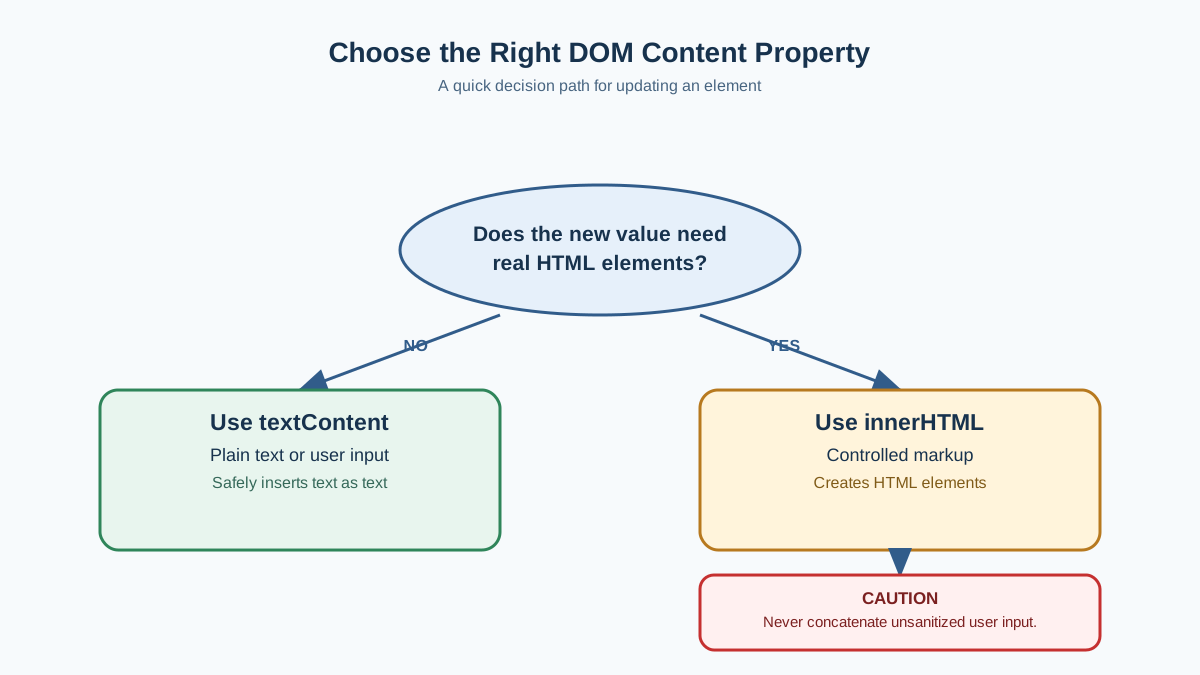
The difference comes down to one question: do you want the browser to parse your string as HTML, or treat it as plain text?
| Property | What it does | Parses HTML? | Use this when |
|---|---|---|---|
textContent | Replaces content with plain text | No | Showing text, messages, labels, or anything from user input |
innerHTML | Replaces content and parses markup | Yes | Inserting HTML structure you wrote and control |
The decision rule is short: use textContent for plain text and anything from user input. Use innerHTML only when you truly need to insert markup you control.
When you're changing DOM content in JavaScript, most everyday updates are plain text. A status message. A heading. A notification. Those are textContent jobs. Reserve innerHTML for the moments when you actually need real HTML structure—a formatted list, a styled word, a small block of markup.
A good beginner instinct: start with textContent. If you find yourself needing actual HTML elements, switch to innerHTML deliberately, knowing why you're making that trade.
Knowledge check
Check your understanding
Answer this question before you continue.
Common Beginner Mistakes
Every beginner hits these. They're normal, they're recoverable, and they all have straightforward fixes.
Mistake 1: Running the script before the element exists.
If your script runs before the browser has parsed the element you're trying to change, the selection returns nothing and your assignment fails. The element must exist before the script runs.
The fix: place your <script> tag after the elements it targets, or wait for the page to finish loading. In the examples above, the script sits at the end of <body>, so the elements above it already exist.
Mistake 2: Forgetting quotes or using the wrong id.
// Wrong: missing quotes around the id
document.getElementById(message).textContent = "New text";

// Wrong: id doesn't match your HTML
document.getElementById("messge").textContent = "New text";
The first version throws an error because message isn't defined as a variable. The second quietly returns null, and then trying to set .textContent on null throws an error. Check that your id matches your HTML exactly, and keep the quotes.
Mistake 3: Picking the wrong property for your goal.
Ask yourself what should appear on the page. If you want the characters <strong> to show up literally as text, textContent is correct. If you want the browser to create a bold element, innerHTML is the deliberate choice.
// Shows literal <strong> tags as text
element.textContent = "<strong>Bold</strong>";

// Renders bold text
element.innerHTML = "<strong>Bold</strong>";
The properties behave exactly as designed. The real question is your intention: display these characters, or create this element?
Practice: Make a Page Respond
Let's put it together. Build a page with a heading and a button, then use JavaScript to change the heading when the button is clicked.
<!DOCTYPE html>
<html>
<body>
  <h1 id="title">Welcome</h1>
  <button id="changeButton">Change heading</button>

  <script>
    const title = document.getElementById("title");
    const button = document.getElementById("changeButton");

    button.addEventListener("click", () => {
      title.textContent = "Thanks for visiting!";
    });
  </script>
</body>
</html>
When you click the button, the heading on the page changes from "Welcome" to "Thanks for visiting!":
Before click: Welcome
After click:  Thanks for visiting!
Once that works, try the extension: change the same heading using innerHTML to include a styled word.
title.innerHTML = "Thanks for <em>visiting</em>!";
Now the word "visiting" appears in italics. You've just used both properties in the same page and seen the difference with your own eyes.
What to Learn Next
Take the button example one step further. Add a text input to the page, and when the button is clicked, assign whatever the user typed to the heading using textContent. Then try wrapping that same value in a controlled structure with innerHTML—for example, a styled paragraph—while keeping the user's text safe. That small exercise combines everything in this article: selecting elements, responding to clicks, and choosing the right property for the content you're inserting.
Keep the one decision rule in your pocket: textContent for plain text, innerHTML only when you need real markup you control. Master that distinction, and you'll change DOM content with confidence on every page you build.
Knowledge check
Final check
Finish the article by checking the ideas you just learned.
References
Want a more structured JavaScript path?
Use the JavaScript for AI Applications Starter Pack to turn individual tutorials into a focused path from language fundamentals to interactive AI applications.
JavaScript for AI Applications Starter Pack
Build the JavaScript foundation behind modern interactive applications. The JavaScript for AI Applications Starter Pack takes you from core language concepts through functions, browser events, forms, DOM updates, application state, debugging, and practical projects—so you can learn how interfaces take input, work with structured data, respond to users, and turn results into experiences people can actually use.
- 253-page illustrated PDF
- 12 guided JavaScript chapters
- Visual concept diagrams
- Self-assessment quizzes
- Bonus deep-dive sections
- DOM, events, forms & application state
- Browser projects, debugging & practical workflows
Coming soon


