
Introduction to Events
You built a button. It looks great. You click it, and... nothing. The page just sits there, politely ignoring you.

Key topics
You built a button. It looks great. You click it, and... nothing. The page just sits there, politely ignoring you.
Here's the secret: your page isn't broken. It's just not listening yet.
JavaScript events are how the browser tells your code, "Hey, something just happened." Your job is to decide what to do about it. Once you understand this handshake between the browser and your code, you can turn any static page into something that actually responds to the people using it.
Why your page does nothing when you click
A plain web page is a lot like a printed poster. It can display information beautifully, but it has no idea whether someone is looking at it, touching it, or walking past it. Nothing about the page changes based on what a person does.
That's fine for a poster. It's a problem for a website.
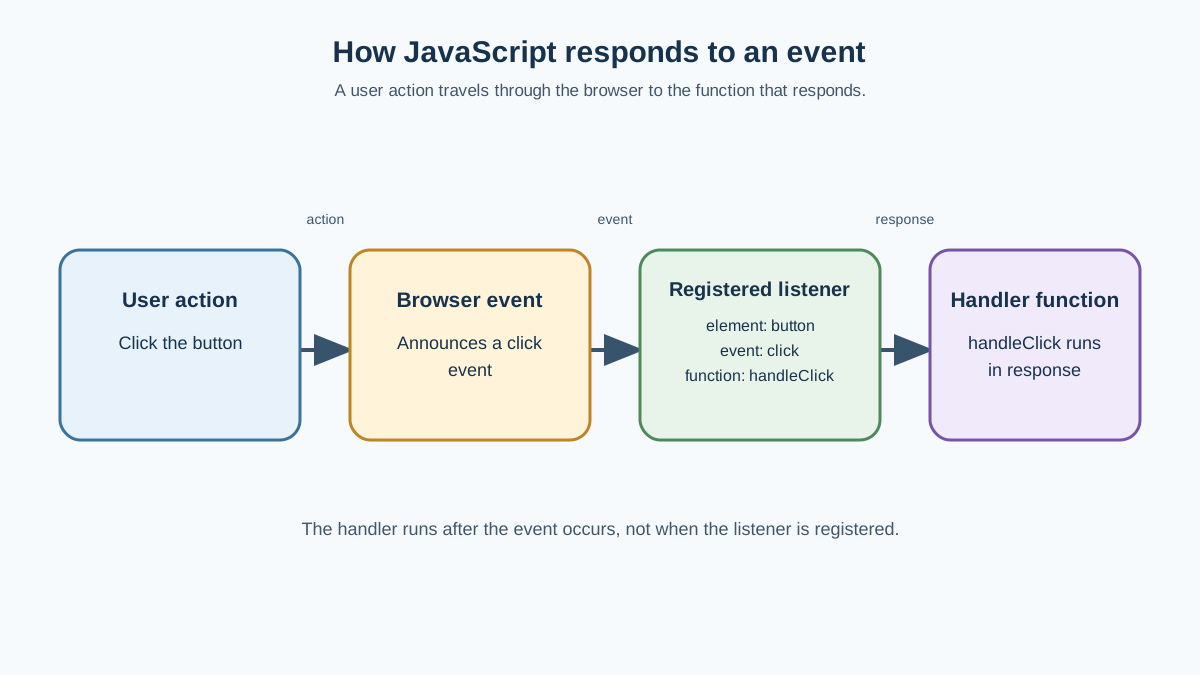
When you want a page to react to a user, you need three things to line up:
- Something happens — a click, a key press, a form submission.
- The browser notices and announces it.
- Your JavaScript hears the announcement and runs code in response.
That announcement is called an event. The code you write to respond is called an event handler. And the act of telling the browser you care about a particular event is called registering an event listener.
Here's the part that should feel familiar: the code that runs in response to an event is just a function. You already know how to write functions. Events are simply a way to decide when those functions run.
Knowledge check
Check your understanding
Answer this question before you continue.
What an event actually is
An event is a signal the browser fires when something significant happens. Think of it as the browser raising its hand and saying, "Heads up — a user just did something."
Events come from two main places:
- The user: clicking a button, pressing a key, typing in a field, submitting a form.
- The browser itself: the page finishing loading, the window being resized, content scrolling into view.
Here are some everyday events you'll meet constantly:
| Event name | When it fires |
|---|---|
click | The user clicks an element |
keydown | The user presses a key on the keyboard |
input | The user types or changes a form field's value |
submit | The user submits a form |
load | The page (or an image, or other resource) finishes loading |
One detail matters here: events are attached to specific elements on the page, not to the whole page at once. A button fires a click event. An input field fires an input event. A form fires a submit event. The event belongs to the element the user interacted with.
This is good news for you. It means you can decide exactly which parts of your page should be interactive, and leave the rest alone.
Knowledge check
Check your understanding
Answer this question before you continue.
Listening with addEventListener
The standard way to respond to an event is with a method called addEventListener. It takes three pieces of information:
- The element you want to watch.
- The event name, as a string like
"click". - The function to run when that event happens.
Here's a complete example. Imagine you have this button in your HTML:
<button id="greet-button">Click me</button>
Now add this JavaScript:
const button = document.getElementById("greet-button");

button.addEventListener("click", function() {
  console.log("Button was clicked!");
});
When you click the button, the browser will log a message to the console:
Button was clicked!
Let's look at what's happening in those three parts:
buttonis the element we're watching."click"is the event we care about.- The function is what runs when the click happens.
Notice that the function isn't called right away. You're handing it to addEventListener and saying, "Hold onto this. Run it when the click happens." That's why you write the function's name or definition without parentheses at the end — you're passing the function itself, not calling it.
You can also use a named function if you prefer:
function handleClick() {
  console.log("Button was clicked!");
}

button.addEventListener("click", handleClick);
Both versions work the same way. The function you pass is just a function — the same kind you've already learned to write.
Knowledge check
Check your understanding
Answer this question before you continue.
The event object: what the browser tells you
Sometimes you need more than a heads-up. You need details.
When an event fires, the browser doesn't just call your function. It passes along an event object — a bundle of information about what just happened.
Your handler function can receive that object as a parameter:
button.addEventListener("click", function(event) {
  console.log(event.target);
});
Now when you click the button, you'll see the button element itself logged to the console:
<button id="greet-button">Click me</button>
The event.target property tells you which element triggered the event. That's useful when you have several elements sharing the same listener, or when you need to know exactly what the user interacted with.
The event object carries different details depending on the event type. A keyboard event tells you which key was pressed. A mouse event tells you where the pointer was. A form event tells you which field changed.
For now, you only need a couple of properties. The most useful one to start with is event.target, because it answers the question: "What did the user actually click or interact with?"
Think of it this way: the event tells you that something happened. The event object tells you what happened.
Knowledge check
Check your understanding
Answer this question before you continue.
Where events show up in real pages
Events aren't just for logging messages to the console. They're the reason modern websites feel alive. Here's where you'll see them doing real work:
- Form validation that checks what a user is typing as they type it, using the
inputevent. - Buttons that open menus, submit forms, or toggle dark mode, using the
clickevent. - Pages that adjust their layout when the window resizes, using the
resizeevent. - Interactive lists and dropdowns that respond to clicks and keyboard input.
Every time you've used a website and thought, "Oh, that was smooth" — a menu sliding open, a form catching a mistake before you submitted it, a button changing appearance when clicked — you were watching event handling in action.
The pattern is always the same: the browser announces, your code listens, and a function runs.
A common beginner mistake: forgetting to listen
The most common mistake when starting out with events is writing the handler function but never attaching it to an element.
Here's the wrong version:
const button = document.getElementById("greet-button");

function handleClick() {
  console.log("Button was clicked!");
}
The function exists. It's perfectly good code. But nothing ever tells the browser to call it when the button is clicked. The function just sits there, waiting for an invitation that never comes.
The fix is to register it as a listener:
const button = document.getElementById("greet-button");

function handleClick() {
  console.log("Button was clicked!");
}

button.addEventListener("click", handleClick);
Another common slip is calling the function immediately instead of passing it to be called later:
// Wrong: runs handleClick() right away
button.addEventListener("click", handleClick());

// Correct: passes handleClick to run when the click happens
button.addEventListener("click", handleClick);
The parentheses in the first version call the function immediately, so the browser receives the result of the call instead of the function itself. It's a subtle difference that causes confusing behavior — the message logs before you even click.
If your event handler isn't firing, here's a quick recovery checklist:
- Check the console for errors. A typo in an element ID will stop your script cold.
- Confirm the element exists. If
document.getElementByIdreturnsnull, there's nothing to attach a listener to. - Check the event name.
"click"isn't"onclick"when you're usingaddEventListener. The event name is just"click".
Your next step: build something that responds
Now it's your turn. Open a blank HTML file and build a tiny interactive page:
- Add a button and a paragraph.
- Write a function that changes the paragraph's text.
- Attach the function to the button with
addEventListener.
If you want a slightly bigger challenge, build a counter: a button that increments a number each time it's clicked, and displays the new count on the page.
Start with the click event. Get comfortable with the rhythm — element, event name, function. Once that feels natural, you can explore other event types and start handling keyboard input, form submissions, and everything else that makes a page feel responsive.
The page isn't broken. It was just waiting for you to listen.
Knowledge check
Final check
Finish the article by checking the ideas you just learned.
References
Want a more structured JavaScript path?
Use the JavaScript for AI Applications Starter Pack to turn individual tutorials into a focused path from language fundamentals to interactive AI applications.
JavaScript for AI Applications Starter Pack
Build the JavaScript foundation behind modern interactive applications. The JavaScript for AI Applications Starter Pack takes you from core language concepts through functions, browser events, forms, DOM updates, application state, debugging, and practical projects—so you can learn how interfaces take input, work with structured data, respond to users, and turn results into experiences people can actually use.
- 253-page illustrated PDF
- 12 guided JavaScript chapters
- Visual concept diagrams
- Self-assessment quizzes
- Bonus deep-dive sections
- DOM, events, forms & application state
- Browser projects, debugging & practical workflows
Coming soon


