
Use JavaScript ES Modules in the Browser with import and export
The moment your script file gets long enough that you scroll to find a function, you have outgrown the single-file habit.

Key topics
The moment your script file gets long enough that you scroll to find a function, you have outgrown the single-file habit.
You already know how to attach a JavaScript file to an HTML page with a <script> tag. That works fine for a while. Then you reuse a function on a second page, and now you have two copies. Fix a bug in one, forget the other, and the second page keeps the old behavior. Silent, annoying, and completely avoidable.
The fix is a module: a file that keeps its own private scope and shares only what it chooses to share. You declare what leaves the file with export, and you pull it into another file with import. That is the whole idea.
There is one condition that trips up nearly everyone the first time: modules need to be served over a real address, not opened by double-clicking the HTML file. We will get to exactly why, but keep it in the back of your mind.
Why One Big Script File Stops Working
A single <script> tag is a great starting point. It is also a trap that closes slowly.
The first symptom is length. You scroll to find things. The second symptom is duplication. You need formatPrice() on a second page, so you copy it. Now there are two versions of the same logic, and they will drift apart the first time you fix one and forget the other.
A module solves both problems with one rule: a file only exposes what it exports. Everything else stays private to that file. No accidental globals, no name collisions, no "where did this variable come from?"
If you have not yet set up an editor and browser for running JavaScript, do that first. This article assumes you can already create an HTML file, a .js file, and open the browser console.
Your First Module: One Export, One Import
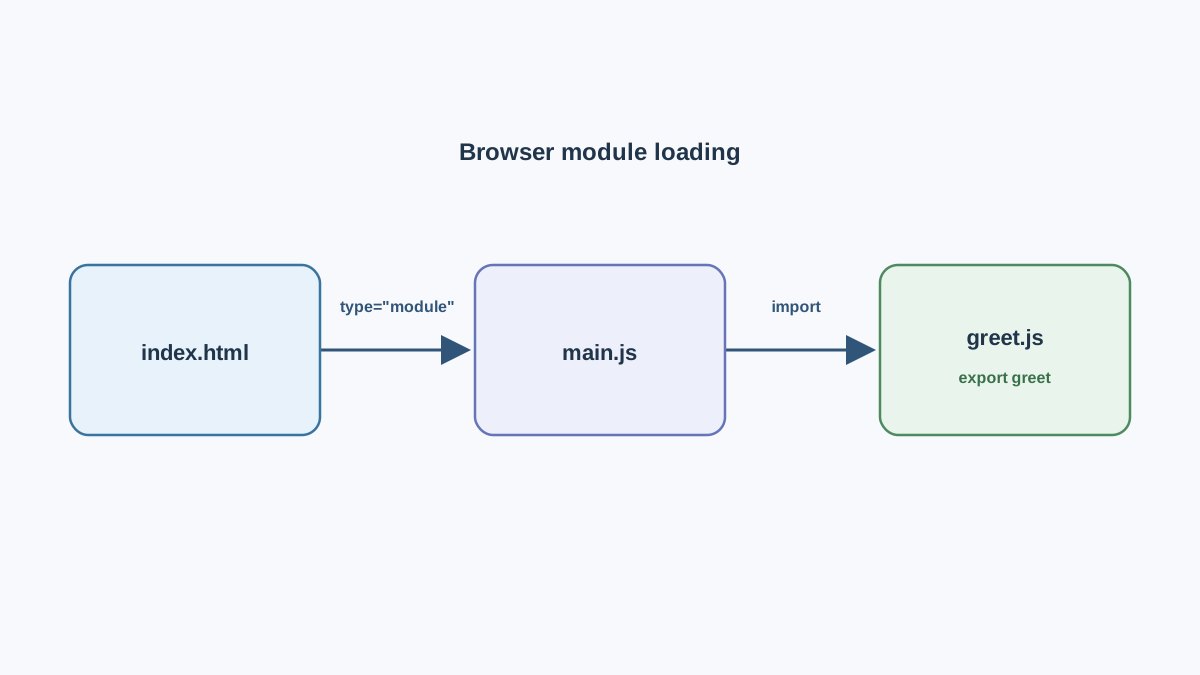
Let's build the smallest possible working example. Two files, one function, one import.
Create a file called greet.js:
// greet.js
export function greet(name) {
  return `Hello, ${name}!`;
}
The export keyword in front of function is what makes greet available to other files. Without it, greet would exist only inside greet.js.
Now create main.js in the same folder:
// main.js
import { greet } from './greet.js';

console.log(greet('Ada'));
Two things to notice. First, the curly braces around greet — that is the named import syntax, and the name must match the export exactly. Second, the path includes the file extension: './greet.js', not './greet'. The browser does not guess extensions for you.
Finally, create index.html:
<!DOCTYPE html>
<html>
  <head>
    <meta charset="utf-8">
    <title>Modules Demo</title>
  </head>
  <body>
    <script type="module" src="./main.js"></script>
  </body>
</html>
The type="module" attribute is the switch. It tells the browser to treat main.js as a module rather than a regular script. You do not add a second <script> tag for greet.js — the browser fetches it automatically because main.js imports it.
Before you can see the output, you need to serve these files over http://. The quickest way is a local server. If you have Node.js installed, open a terminal in your project folder and run:
npx serve
Then open the URL it prints, usually something like http://localhost:3000. Open the browser console, and you should see:
Hello, Ada!
If you see that line, the wiring works. Everything else in this article is variation on this pattern.
Knowledge check
Check your understanding
Answer this question before you continue.
Named Exports vs. Default Exports
There are two ways to export from a file, and beginners often pick the wrong one by accident. Here is the practical difference.
Named exports use curly braces on both sides. You can have as many as you want in one file, and the names must match between the export and the import.
Default export is one per file. It is imported without braces, and you can name it whatever you like at the import site.
// math.js
export function add(a, b) { return a + b; }
export function subtract(a, b) { return a - b; }
export default function multiply(a, b) { return a * b; }
// main.js
import multiply, { add, subtract } from './math.js';

console.log(add(2, 3));
console.log(subtract(5, 2));
console.log(multiply(4, 4));
5
3
16
Notice that multiply comes before the braces. That is the default export. The named exports sit inside the braces.
You can also rename a named import with as when the original name is awkward or collides with something in your file:
import { add as sum } from './math.js';
console.log(sum(2, 3));
And when a file exports several related things and you want them grouped, use the namespace form:
import * as math from './math.js';
console.log(math.add(2, 3));
Here is the comparison in one table:
| Style | Syntax | How many per file | Import shape | Rename |
|---|---|---|---|---|
| Named | export function foo() {} | Many | import { foo } from './x.js' | import { foo as bar } |
| Default | export default function foo() {} | One | import foo from './x.js' | Name it anything at import |
My rule: use a default export for the one obvious thing a file provides, and named exports for everything else. If a file is called formatDate.js and exports one function, default is fine. If a file is called utils.js and exports five helpers, use named exports so the reader knows exactly what is coming in. Whatever you pick, stay consistent within a project — mixed conventions are how teams end up arguing in code review.
Knowledge check
Check your understanding
Answer this question before you continue.
The Error You Will Hit: Opening the HTML File Directly
Here is the part that catches almost every beginner. You double-click index.html, the page loads, and the console shows something like:
Access to script at 'file:///.../greet.js' from origin 'null' has been blocked by CORS policy
Your code is not wrong. The protocol is wrong.
When you open a file by double-clicking, the browser loads it over file://. Modules are blocked there for security reasons — a module can fetch other files, and the browser refuses to let a local file pull in arbitrary resources from your disk. The fix is not to change your code. The fix is to serve the files over http://.
But file:// is not the only cause of module-loading trouble. Different error messages point to different problems, and reading the right one saves you from guessing. Here is how to tell them apart:
| Error message | What it means | Where to look |
|---|---|---|
blocked by CORS policy with a file:// URL | The page was opened directly from disk | Serve the folder over http:// |
Expected a JavaScript module script but the server responded with a MIME type of "text/html" | The server sent the wrong content type, often because the path resolved to an HTML error page | Check the Network tab for the actual response |
Cannot use import statement outside a module | The <script> tag is missing type="module" | Add the attribute to the script tag |
Failed to resolve module specifier or a 404 | The import path is wrong | Check the extension and the relative path |
The MIME error is worth a second look because it is easy to misread. If the server responds with text/html for a .js request, the browser is probably receiving a 404 page instead of your file. The path is wrong, not the server configuration. Check the Network tab and look at what actually came back.
Rule of thumb: if the URL bar starts with
file://, that is the bug. If it starts withhttp://and you still see an error, read the message — it is telling you which of the other three problems you have.
Knowledge check
Check your understanding
Answer this question before you continue.
Run It Through a Local Server
Any static server works. The lowest-friction option for a beginner is the live server feature built into most modern editors — in VS Code it is the Live Server extension, and in many editors it is built in.
If you have Node.js installed, you can also run one from the terminal in your project folder:
npx serve
Then open the URL it prints, usually something like http://localhost:3000. You should see the same Hello, Ada! in the console that failed a moment ago.
Two things to verify once it works:
- Open the Network tab in your browser's developer tools and reload. You should see
main.jsandgreet.jsas two separate requests. That is visible proof the import resolved. - Check that the server sends
text/javascriptas the content type for.jsfiles. Most static servers do this by default, so you usually do not need to think about it — but if you see a MIME type error, this is the cause.
Keep this loop short. The goal is a working page, not a server administration project.
Knowledge check
Check your understanding
Answer this question before you continue.
How Modules Change the Rules Inside Your File
Once the example runs, a few behavioral differences show up that are worth understanding before you write more code.
Each module has its own top-level scope. A variable declared at the top of greet.js is not visible in main.js unless you export it. This is the whole point — no more accidental globals leaking onto window.
Modules run in strict mode automatically. Strict mode turns some silent mistakes into loud errors. Assigning to an undeclared variable, for example, throws instead of quietly creating a global. That is a good thing, but it can surprise you if you are used to sloppy-mode behavior.
A module is evaluated once. If two files import the same module, its top-level code runs only the first time. The second import gets the already-initialized result. This is why you should keep top-level code for setup — creating a config object, registering something — and export functions for anything you need to call repeatedly.
That last point is the payoff. You are trading a shared global namespace for isolated files that declare their own boundaries. The extra setup step buys you a codebase that does not collapse into a pile of name collisions.
When Modules Are the Right Tool — and When They Are Not
Modules are not always the answer. Here is how I decide.
Use modules when:
- You are reusing a function across more than one page.
- A single file has more than one clear responsibility and you want to separate them.
- You are working with another person and need clear boundaries between your code and theirs.
Skip modules when:
- You have one small script on one page. The extra file and the server step buy you nothing.
- You are prototyping something you will throw away in an hour.
One clarification that saves confusion later: modules are not a build tool. They are the browser's native mechanism for splitting code. Bundlers like Vite or webpack exist for other reasons — combining many files into one request, transforming syntax, optimizing for production. You do not need any of that to start using modules.
When you are ready to go further, two features are worth knowing by name: import maps, which let you import by a short name instead of a relative path, and dynamic imports, which load a module on demand with import() inside a function. You do not need either today. Just know they exist so the path does not feel like a dead end.
Practice: Split a Working Script Into Modules
Here is a task that forces you to do the split yourself.
Start with a single script that defines two functions and calls them on a button click:
// app.js
function showGreeting() {
  console.log('Hello from the greeting button');
}

function showFarewell() {
  console.log('Goodbye from the farewell button');
}

document.getElementById('greet').addEventListener('click', showGreeting);
document.getElementById('farewell').addEventListener('click', showFarewell);
Your task:
- Move
showGreetingintogreeting.jsand export it. - Move
showFarewellintofarewell.jsand export it. - Create a new
main.jsthat imports both and wires up the buttons. - Load
main.jswith<script type="module">. - Serve the folder and confirm both buttons still log the same messages.
If nothing happens when you click, check the URL bar first — is it file://? Then check your import paths and extensions. The console will tell you which one is wrong.
Extension: add a third module that imports from greeting.js and calls it. You should see the dependency chain resolve in the Network tab as three separate requests.
What You Just Learned
You started with a script file that was getting too long to navigate. You ended with code that lives in files declaring their own boundaries, wired together with import and export, running through a local server.
The decision rule to carry forward: if you are copying a function into a second page, it belongs in a module. That single instinct will keep your codebase from quietly doubling itself every time you add a page.
Your next step is to take a script you have already written — anything with two or more functions — and split it into modules. Do it once by hand, watch the Network tab, and the pattern will stick. From there, the natural continuation is learning how to fetch data from an API and display it, which is where modules start paying off in real projects.
Knowledge check
Final check
Finish the article by checking the ideas you just learned.
References
Want a more structured JavaScript path?
Use the JavaScript for AI Applications Starter Pack to turn individual tutorials into a focused path from language fundamentals to interactive AI applications.
JavaScript for AI Applications Starter Pack
Build the JavaScript foundation behind modern interactive applications. The JavaScript for AI Applications Starter Pack takes you from core language concepts through functions, browser events, forms, DOM updates, application state, debugging, and practical projects—so you can learn how interfaces take input, work with structured data, respond to users, and turn results into experiences people can actually use.
- 253-page illustrated PDF
- 12 guided JavaScript chapters
- Visual concept diagrams
- Self-assessment quizzes
- Bonus deep-dive sections
- DOM, events, forms & application state
- Browser projects, debugging & practical workflows
Coming soon


