
Read and Update URL Query Parameters with JavaScript
A query string is the page's small, shareable memory: the part of the address that survives a copy-paste, a bookmark, or a link sent to a friend. Here is…

Key topics
A query string is the page's small, shareable memory: the part of the address that survives a copy-paste, a bookmark, or a link sent to a friend. Here is how to read it and change it without breaking the URL.
You have probably seen a URL like this:
https://example.com/search?name=Sam&page=2
Everything after the ? is the query string. It is data your page can read, and it is data your page can change. That means a search term, a page number, or a selected filter can live in the address bar — and a link you send to someone else can carry that state with it.
The tool for this job is URLSearchParams. It reads a query string, gives you clean values, and writes a new query string back — including the encoding you would otherwise have to handle by hand.
In this cookbook, you will build one small page that reads a name value from the URL, falls back to a default when the value is missing, and updates the URL when you click a button.
What a Query String Actually Is
Before any API, get the mental model right. A query string is just text, which is why your string skills already apply.
It starts at the ? and holds name=value pairs joined by &:
?name=Sam&page=2
nameis a key,Samis its value.pageis a key,2is its value.- The same key can appear more than once:
?tag=js&tag=css.
One important distinction: the query string is data the page reads, not a file path. Changing it does not load a different HTML file. It changes the values your JavaScript sees when the page runs.
That is exactly why it is useful. A URL with ?q=javascript is a link you can share, bookmark, and reload — and the page can rebuild itself from it.
Read a Parameter from the Current URL
The browser exposes the raw query string through window.location.search. It includes the leading ?:
?name=Sam
Wrap that string in new URLSearchParams(...) and you get an object with readable methods. The one you will use most is get().
Here is a complete, runnable page. Save it as index.html and open it in your browser:
<!DOCTYPE html>
<html lang="en">
<head>
  <meta charset="UTF-8">
  <title>Query Params Demo</title>
</head>
<body>
  <h1>Hello, <span id="greeting">...</span></h1>

  <script>
    const params = new URLSearchParams(window.location.search);
    const name = params.get('name');

    document.getElementById('greeting').textContent = name;
  </script>
</body>
</html>
Now open it with the parameter present:
file:///path/to/index.html?name=Sam
Expected output on the page:
Hello, Sam
Open it without the parameter:
file:///path/to/index.html
Expected output on the page:
Hello, null
That null is the first thing that trips up beginners. get() returns null — not an empty string — when the key is missing. It is JavaScript's way of saying "this key was never here."
Knowledge check
Check your understanding
Answer this question before you continue.
Handle a Missing Parameter with a Default
A shared link without the parameter should not produce a blank page. So give the value a fallback.
The shortest fix uses the || operator:
const params = new URLSearchParams(window.location.search);
const name = params.get('name') || 'friend';

document.getElementById('greeting').textContent = name;
Open the page with no query string, and the output becomes:
Hello, friend
If you prefer to be explicit, an if check reads just as clearly:
let name = params.get('name');

if (name === null) {
  name = 'friend';
}
Both work. The || version is shorter and idiomatic for this exact case. The if version is easier to extend later if you need more than a simple fallback.
Common mistake: Calling a string method on the result of
get()before checking fornull.params.get('name').toUpperCase()throws aTypeErrorwhen the key is missing. Always handle the missing case first.
Knowledge check
Check your understanding
Answer this question before you continue.
Create and Update Parameters with set()
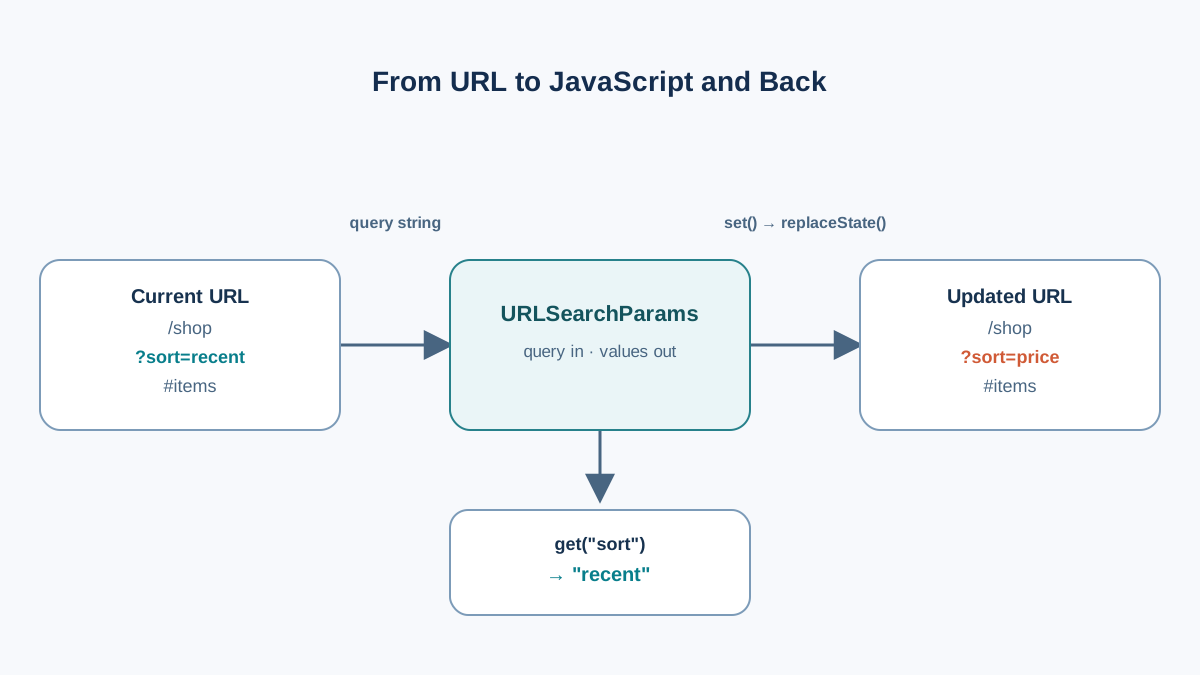
Reading is half the job. Writing is the other half.
params.set('page', '3') does two things depending on what it finds:
- If the key exists, it updates the value.
- If the key does not exist, it creates it.
Then params.toString() turns the object back into a query string. To put that new string in the address bar without reloading the page, use history.replaceState().
The safest way to update the current URL is to build a URL object from window.location.href, change its searchParams, and pass the whole thing to replaceState(). That keeps the path, the #hash, and anything else already in the address intact.
Here is the full example. It reads name, shows it, and updates the URL when you click the button:
<!DOCTYPE html>
<html lang="en">
<head>
<meta charset="UTF-8">
<title>Query Params Demo</title>
</head>
<body>
<h1>Hello, <span id="greeting">...</span></h1>
<button id="set-name">Set name to Alex</button>
<script>
const params = new URLSearchParams(window.location.search);
const name = params.get('name') || 'friend';
document.getElementById('greeting').textContent = name;
document.getElementById('set-name').addEventListener('click', () => {
const url = new URL(window.location.href);
url.searchParams.set('name', 'Alex');
history.replaceState(null, '', url);
document.getElementById('greeting').textContent = 'Alex';
});
</script>
</body>
</html>
Before clicking, the address bar might look like this:
file:///path/to/index.html?name=Sam
After clicking, it becomes:
file:///path/to/index.html?name=Alex
The page did not reload. The address bar just changed — and if you copy that URL now, it carries name=Alex with it. If the original URL had a #section fragment, it is still there too, because you never rebuilt the URL from scratch.
Note:
set()replaces every existing value for that key. If the URL had?tag=js&tag=cssand you callparams.set('tag', 'html'), you end up with a singletag=html. Useappend()when you want to add another value instead of replacing.
Knowledge check
Check your understanding
Answer this question before you continue.
Repeated Names and getAll()
The same key appearing more than once is valid and common. Multi-select filters use it all the time:
?tag=js&tag=css
Here is the behavior you need to remember:
get('tag')returns only the first match:"js".getAll('tag')returns an array of all matches:["js", "css"].
const params = new URLSearchParams('?tag=js&tag=css');

console.log(params.get('tag'));
console.log(params.getAll('tag'));
Expected output:
js
[ 'js', 'css' ]
And the write side:
append('tag', 'html')adds another value:?tag=js&tag=css&tag=html.set('tag', 'html')collapses them all to one:?tag=html.
If your UI lets users pick multiple filters, append() and getAll() are the pair you want. If it is a single choice, set() and get() are enough.
Why Your Values Look Encoded
Spaces and non-Latin characters cannot sit raw in a URL. They get percent-encoded — replaced with a % followed by their UTF-8 code. A space becomes %20, and for historical reasons it can also appear as +.
The good news: URLSearchParams handles this automatically. You pass plain text in, and you read plain text out.
const params = new URLSearchParams();
params.set('q', 'test me!');
console.log(params.toString());
Expected output:
q=test+me%21
Notice the + and the %21. That is the serialized form. When you read it back with get('q'), you get "test me!" again — decoded.
One subtlety worth knowing: the URL's own search property encodes spaces as %20, while URLSearchParams serializes them as +. Both are valid. If you update searchParams and then look at the URL, the encoding may shift slightly. That is expected, not a bug.
Tip: Do not build query strings with string concatenation.
'?q=' + userInputbreaks the moment the input contains a space, an&, or a?. LetURLSearchParamsencode for you.
Knowledge check
Check your understanding
Answer this question before you continue.
Common Beginner Mistakes
These are the errors that cost the most time on this task.
- Forgetting that
get()returnsnull. Calling.toUpperCase()or.trim()on the result throws before you ever see the value. - Using
set()when you meantappend(). You silently drop repeated values and wonder where the other filters went. - Rebuilding the URL by hand. Concatenating
window.location.origin + '?' + paramsloses the path or the#hash. Build aURLfromwindow.location.hrefand update itssearchParamsinstead. - Reading the parameter once at load. If the URL changes later — through a link, a back button, or your own code — the page will not update unless you re-read it.
- Mixing raw strings and objects.
URLSearchParamsaccepts both'?name=Sam'and'name=Sam', but passing a full URL string will not work the way you expect. Passwindow.location.search, notwindow.location.href.
When to Use URLSearchParams and When Not To
Use it for small, shareable, human-readable state: search terms, filters, page numbers, selected tabs, sort order. Anything you would want to see in the address bar or send to someone else.
Do not use it for:
- Secrets. Everything in the URL is visible in the address bar, browser history, and server logs.
- Large data. Query strings have practical length limits in browsers and servers. A few hundred characters is fine; a serialized object is not.
- Persistence across visits. If a value should survive without appearing in the URL, that is a job for
localStorage, not the query string.
The rule I use: if the value describes what the user is looking at right now, it belongs in the URL. If it describes who the user is or what they saved, it belongs somewhere else.
A Small Variation: Build the Query String from Scratch
So far you have been editing the current URL. Sometimes you need to build a fresh one — for example, when constructing a link.
Call new URLSearchParams() with no argument to start empty, then fill it:
const params = new URLSearchParams();
params.set('q', 'javascript');
params.set('page', '1');

const link = '/search?' + params.toString();
console.log(link);
Expected output:
/search?q=javascript&page=1
The rule is simple:
- Editing the current page? Start from
new URLSearchParams(window.location.search). - Building a new link? Start from
new URLSearchParams().
What to Memorize and What to Look Up
You do not need the whole API in your head. Five methods cover almost everything:
| Method | What it does |
|---|---|
get(name) | Returns the first value, or null |
set(name, value) | Updates or creates a single value |
append(name, value) | Adds another value without replacing |
getAll(name) | Returns all values as an array |
toString() | Serializes back to a query string |
Plus the pattern itself: new URLSearchParams(window.location.search).
Everything else — delete, has, sort, keys, values, entries, forEach — is worth knowing exists, but you can look it up when you need it. The five above will carry you through filters, search boxes, pagination, and tab state.
Your Next Step
Take the page you built and add a text input. On every keystroke, write the input's value into a q parameter using set() and history.replaceState(). Then reload the page and confirm the input is repopulated from the URL.
That is the moment the query string stops being decoration and becomes state you control. Once you feel that, you will start noticing it everywhere — in search pages, dashboards, and every filter UI that remembers what you picked.
Knowledge check
Final check
Finish the article by checking the ideas you just learned.
References
Want a more structured JavaScript path?
Use the JavaScript for AI Applications Starter Pack to turn individual tutorials into a focused path from language fundamentals to interactive AI applications.
JavaScript for AI Applications Starter Pack
Build the JavaScript foundation behind modern interactive applications. The JavaScript for AI Applications Starter Pack takes you from core language concepts through functions, browser events, forms, DOM updates, application state, debugging, and practical projects—so you can learn how interfaces take input, work with structured data, respond to users, and turn results into experiences people can actually use.
- 253-page illustrated PDF
- 12 guided JavaScript chapters
- Visual concept diagrams
- Self-assessment quizzes
- Bonus deep-dive sections
- DOM, events, forms & application state
- Browser projects, debugging & practical workflows
Coming soon


