
Build a Searchable List with JavaScript
Every product you use has one: a search box that narrows a list as you type. Contact lists, product catalogs, dashboards, admin panels—they all use the…

Every product you use has one: a search box that narrows a list as you type. Contact lists, product catalogs, dashboards, admin panels—they all use the same pattern. Type a few letters, and the list responds instantly. No page reload. No waiting on a server. Just you and your keystrokes.
That feature is not magic. It is a small, learnable pattern you can build today with plain JavaScript. By the end of this project, you will have a live searchable list that filters data as you type, handles uppercase and lowercase gracefully, and shows a friendly message when nothing matches.
Here is the mental model that will carry you through the whole build: the input is a signal, the array is the source of truth, and the DOM is just a mirror you redraw. When the signal changes, you ask the array for the right items, then repaint the mirror.
What You'll Build and Why It Matters
You are going to build a small app with two parts:
- A text input at the top.
- A list below it that filters itself as you type.
Type "ja" and the list narrows to items containing "ja." Type "xyz" and the list disappears, replaced by a message telling you nothing matched. Clear the input, and the full list returns.
This is the smallest version of a feature that powers search boxes across the web. When you search for a product on a shopping site or filter your email by sender, you are relying on the same core idea: take what the user typed, compare it against a collection of data, and show only the matching pieces.
Before we start, this project assumes you already know a few basics:
- How to render an array as a list in the DOM.
- How to listen for keyboard and input events.
- How to use
filterto select items from an array.
If any of those feel shaky, a quick review will help. The good news: this project is where those three skills click together into something real.
Here is what your finished project must do:
- Match text case-insensitively, so "JAVA" finds "java."
- Re-render the list live on every keystroke.
- Show a clear message when no items match.
Let's build it.
Set Up the HTML and CSS
Create a new folder for the project, then add three files: index.html, style.css, and script.js. If you already have a favorite way to organize small projects, use that instead. The file names do not matter as much as the structure.
Start with the HTML:
<!DOCTYPE html>
<html lang="en">
<head>
  <meta charset="UTF-8">
  <meta name="viewport" content="width=device-width, initial-scale=1.0">
  <title>Searchable List</title>
  <link rel="stylesheet" href="style.css">
</head>
<body>
  <main>
    <h1>Programming Languages</h1>

    <label for="searchInput">Search languages</label>
    <input type="text" id="searchInput" placeholder="Type to filter...">

    <ul id="languageList"></ul>
    <p id="noResults" class="hidden">No results found. Try a different search.</p>
  </main>

  <script src="script.js"></script>
</body>
</html>
Notice what is not in the HTML: no list items. The <ul> starts empty. That is intentional. JavaScript will fill it, so the HTML stays a clean shell. Think of the page as a stage with the lights off. JavaScript decides what appears on stage and when.
The <p id="noResults"> element is also hidden by default. It will only appear when a search finds nothing.
Now add some light styling so the input and list are readable:
body {
  font-family: Arial, sans-serif;
  max-width: 500px;
  margin: 2rem auto;
  padding: 0 1rem;
}

input {
  width: 100%;
  padding: 0.5rem;
  font-size: 1rem;
  margin-bottom: 1rem;
  box-sizing: border-box;
}

ul {
  list-style: none;
  padding: 0;
}

li {
  padding: 0.5rem;
  border-bottom: 1px solid #ddd;
}

.hidden {
  display: none;
}
That is enough. The focus here is the JavaScript behavior, not design polish. A clean, readable list is all you need to see your code working.
Once your files are saved, open index.html in your browser. You will see an empty input and an empty list area. That is expected—the page has no behavior yet. If the page does not load at all, check that index.html, style.css, and script.js are all in the same folder and that the file names match the href and src values in your HTML.
Store the Data in an Array
The heart of this project is a plain JavaScript array. This array is your source of truth—the master list that filtering and rendering both read from.
Add this to script.js:
const languages = [
  "JavaScript",
  "Python",
  "Java",
  "Ruby",
  "Go",
  "Rust",
  "Swift",
  "Kotlin",
  "PHP",
  "C#"
];
I am using programming languages, but you could use fruit names, country names, employee records, or anything else. The pattern stays the same.
Here is the key decision: you will never mutate this original array. When the user types, you will create a new filtered array each time. The original stays untouched.
Why does that matter? Because the full list is always recoverable. No matter how many times the user filters, the source data remains intact. If they clear the input, you can render the complete array again without rebuilding it from scratch.
This is a habit worth forming early. When you keep your source data separate from what you display, your code becomes predictable. You always know where the real data lives, and you always know that filtering is a temporary view, not a destructive change.
The filter method is the tool for this job. It loops through an array and returns a new array containing only the items that pass a test you provide.
const shortNames = languages.filter(function(language) {
  return language.length < 5;
});

console.log(shortNames);
[ 'Java', 'Go', 'Ruby', 'PHP', 'C#' ]
The original languages array is still intact. filter gave you a brand new array with only the items that met the condition.
Write a Function That Renders a List
Now you need a way to turn an array into visible list items. You have probably rendered arrays before, but this time you will wrap that logic in a reusable function.
The function takes an array, clears the container, and builds one <li> for each item:
const listContainer = document.getElementById("languageList");
const searchInput = document.getElementById("searchInput");
const noResultsMessage = document.getElementById("noResults");

function renderList(items) {
  listContainer.innerHTML = "";

  items.forEach(function(item) {
    const li = document.createElement("li");
    li.textContent = item;
    listContainer.appendChild(li);
  });
}
Two details matter here.
First, listContainer.innerHTML = "" clears whatever was previously displayed. This is not optional. If you skip it, every keystroke will stack a new copy of the list on top of the old one. You would type one letter and suddenly see the list twice. Clear before you render, every time.
Second, the function accepts any array you pass it. That makes it reusable. You can call renderList(languages) to show everything, or renderList(filteredLanguages) to show only matches.
Let's see it working with the full array:
renderList(languages);
Save script.js, then refresh index.html in your browser. You should see all ten programming languages as a clean list.
If the list does not appear, open your browser's developer tools and click the Console tab. Any JavaScript error will show up there. The most common issue is a typo in an element ID—check that languageList in your JavaScript matches the id in your HTML exactly.
This function will be called again and again as the user types. Each keystroke produces a new filtered array, and each new array gets rendered fresh.
Knowledge check
Check your understanding
Answer this question before you continue.
Filter the Array as the User Types
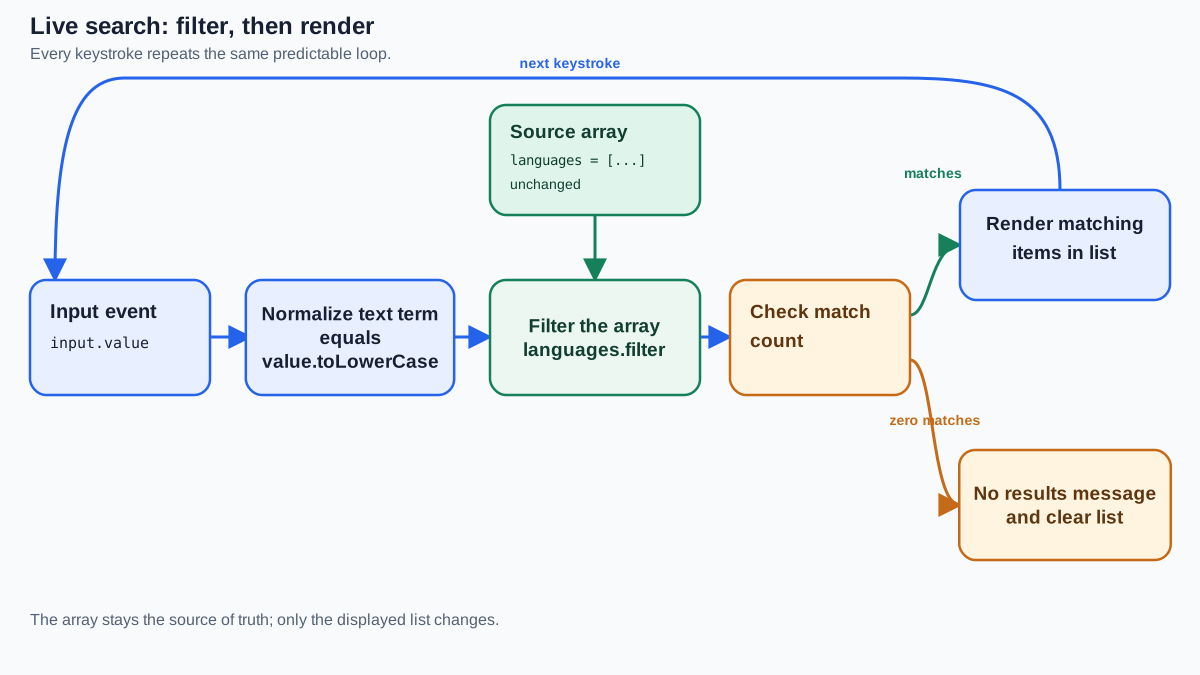
Now comes the part that makes this a live search: connecting the input to the filtering logic.
You need an event listener on the search field. The event you want is input, not click or change. The input event fires on every keystroke, the moment the value changes. That is what gives you the live, instant response.
Add this listener to script.js, after the renderList function:
searchInput.addEventListener("input", function() {
  const searchTerm = searchInput.value;
  const filteredLanguages = languages.filter(function(language) {
    return language.toLowerCase().includes(searchTerm.toLowerCase());
  });

  renderList(filteredLanguages);
});
Let's walk through what happens on each keystroke.
First, you read the current value from the input. Whatever the user has typed arrives as a string. If they typed "ja," searchTerm is "ja".
Next, you call filter on the original languages array. The callback checks each language to see whether it includes the search term.
The includes method checks for a partial match. That means typing "va" will match "JavaScript" because "JavaScript" contains the letters "va" in order. You are not limited to whole words or exact matches.
Here is the case-insensitivity trick:
return language.toLowerCase().includes(searchTerm.toLowerCase());
Both sides get converted to lowercase before comparing. The language "Java" becomes "java," and the search term "JAVA" also becomes "java." Now they match.
Without this step, searching "java" would not find "Java," which would feel broken to any user. Case-insensitive matching is one of those small touches that separates a toy demo from something that feels like a real feature.
Finally, you call renderList with the filtered result. The DOM updates instantly.
Save the file and refresh the page. Type "py" and the list narrows to "Python." Type "ja" and you see "JavaScript" and "Java." Clear the input and the full list returns.
This is a working search version. There is one gap left, and we will close it next.
Knowledge check
Check your understanding
Answer this question before you continue.
Handle the Empty-Result State
There is one gap in the current code. What happens when the user types something that matches nothing?
Right now, the container just goes blank. The user gets zero feedback. They might wonder if the page broke.
A good interface tells the user what happened. That is where the hidden <p> element comes in.
Replace the event listener you just added with this final version:
searchInput.addEventListener("input", function() {
  const searchTerm = searchInput.value;
  const filteredLanguages = languages.filter(function(language) {
    return language.toLowerCase().includes(searchTerm.toLowerCase());
  });

  if (filteredLanguages.length === 0) {
    noResultsMessage.classList.remove("hidden");
    listContainer.innerHTML = "";
  } else {
    noResultsMessage.classList.add("hidden");
    renderList(filteredLanguages);
  }
});
The logic is simple:
- If the filtered array is empty, show the message and clear the list.
- If items exist, hide the message and render them normally.
The classList methods add and remove the hidden class, which toggles the display: none rule from your CSS.
Test it. Type "xyz" and you should see "No results found. Try a different search." Type "ja" again and the message disappears, replaced by matching items.
This empty state matters more than it might seem. Real users make typos. Real users search for things that do not exist. When that happens, the interface should respond with information, not silence.
Knowledge check
Check your understanding
Answer this question before you continue.
The Complete JavaScript
Here is the full script.js with every piece in place:
const languages = [
  "JavaScript",
  "Python",
  "Java",
  "Ruby",
  "Go",
  "Rust",
  "Swift",
  "Kotlin",
  "PHP",
  "C#"
];

const listContainer = document.getElementById("languageList");
const searchInput = document.getElementById("searchInput");
const noResultsMessage = document.getElementById("noResults");

function renderList(items) {
  listContainer.innerHTML = "";

  items.forEach(function(item) {
    const li = document.createElement("li");
    li.textContent = item;
    listContainer.appendChild(li);
  });
}

searchInput.addEventListener("input", function() {
  const searchTerm = searchInput.value;
  const filteredLanguages = languages.filter(function(language) {
    return language.toLowerCase().includes(searchTerm.toLowerCase());
  });

  if (filteredLanguages.length === 0) {
    noResultsMessage.classList.remove("hidden");
    listContainer.innerHTML = "";
  } else {
    noResultsMessage.classList.add("hidden");
    renderList(filteredLanguages);
  }
});

renderList(languages);
If you added the earlier listener version while following along, delete that older block and keep only this one. Having two listeners on the same input would cause the list to render twice on every keystroke.
Common Beginner Mistakes and How to Fix Them
Every beginner hits a few predictable walls on this project. Here are the most common ones and how to fix them.
The case-sensitivity trap
Symptom: Typing "java" finds nothing, even though "Java" is in the list.
Cause: You compared the raw strings without normalizing case. "Java".includes("java") returns false because the capital "J" does not match the lowercase "j."
Fix: Convert both sides to lowercase before comparing.
return language.toLowerCase().includes(searchTerm.toLowerCase());
Rendering duplicates
Symptom: The list grows longer every time you type. Type one letter and suddenly the list appears twice.
Cause: You forgot to clear the container before re-rendering, or you left two event listeners attached to the same input. Each keystroke appends new items on top of the old ones.
Fix: Clear the container at the start of your render function, and make sure you only have one input listener.
listContainer.innerHTML = "";
Listening to the wrong event
Symptom: The list only updates when you press Enter or click away from the input.
Cause: You used change or keydown instead of input. The change event only fires when the input loses focus. The keydown event fires on key presses but misses other input methods like pasting.
Fix: Use the input event. It fires on every value change, no matter how the change happened.
searchInput.addEventListener("input", function() {
  // filter and render here
});
Knowledge check
Check your understanding
Answer this question before you continue.
Mutating the original array
Symptom: After clearing the search, some items are missing from the full list.
Cause: You used a method that changes the original array, like splice or pop, instead of filter. Once the source data is gone, you cannot get it back.
Fix: Use filter, which always returns a new array and leaves the original untouched.
const filtered = languages.filter(function(language) {
  return language.toLowerCase().includes(searchTerm.toLowerCase());
});
Test Your Searchable List
Before you call this project done, run through a quick verification pass. These checks confirm that every piece behaves the way it should.
- Full match: Type "Python" and confirm only "Python" shows.
- Partial match: Type "va" and confirm "JavaScript" and "Java" both appear.
- Case insensitivity: Type "JAVA" and confirm "Java" still appears.
- Empty state: Type "zzz" and confirm the "No results found" message appears.
- Reset: Clear the input completely and confirm all ten languages return.
That last check matters. If the full list does not return when you clear the input, your source array was probably mutated somewhere. Go back and check that you are using filter, not a destructive method.
This habit—running a quick test pass before moving on—will serve you well beyond this project. It takes thirty seconds and catches most beginner bugs before they become confusing mysteries.
Next Steps to Extend the Project
You have built a working JavaScript searchable list. The core pattern—input as signal, array as source of truth, DOM as mirror—is now yours. Here are a few natural ways to push it further.
Add a clear button. A small "×" button inside the input that empties the field and restores the full list is a common pattern in real search boxes. This is the simplest extension and the one I would build first. It forces you to practice updating the input's value from JavaScript and re-rendering the complete array.
Filter by multiple fields. Right now your data is a list of strings. What if each item were an object with a name and a category? You could filter against both fields, so searching "web" might match a language with the category "web" even if the name does not contain those letters.
Highlight the matching text. Instead of showing plain text in each result, wrap the matched portion in a <mark> or <span> with a highlight color. This requires a bit of string manipulation, but it makes the search feel polished.
The same filter-and-render pattern you just built is the foundation behind much larger search features. Real applications add debouncing, server requests, and complex data, but the core loop stays the same: listen for input, filter the data, redraw the view.
One boundary is worth naming: this approach works because your full dataset already lives in the browser. Server-side search becomes relevant only when the data is too large to load upfront—millions of records, for example. For a list of dozens or hundreds of items, filtering in the browser is faster and simpler.
Run one final test pass on your project. Then pick one extension—the clear button is my recommendation—and build it. The pattern will stretch to fit whatever you add.
Knowledge check
Final check
Finish the article by checking the ideas you just learned.
References
Want a more structured JavaScript path?
Use the JavaScript for AI Applications Starter Pack to turn individual tutorials into a focused path from language fundamentals to interactive AI applications.
JavaScript for AI Applications Starter Pack
Build the JavaScript foundation behind modern interactive applications. The JavaScript for AI Applications Starter Pack takes you from core language concepts through functions, browser events, forms, DOM updates, application state, debugging, and practical projects—so you can learn how interfaces take input, work with structured data, respond to users, and turn results into experiences people can actually use.
- 253-page illustrated PDF
- 12 guided JavaScript chapters
- Visual concept diagrams
- Self-assessment quizzes
- Bonus deep-dive sections
- DOM, events, forms & application state
- Browser projects, debugging & practical workflows
Coming soon


