
textContent vs innerHTML in JavaScript
textContent treats your value as plain text. innerHTML treats it as HTML markup. Same string, two different outcomes—and one of them needs extra care when…

textContent treats your value as plain text. innerHTML treats it as HTML markup. Same string, two different outcomes—and one of them needs extra care when the value comes from a user.
Two Ways to Change What a Page Shows
Let's say you've selected an element on your page and you want to put something inside it. Maybe you have a <p> tag with an id, and you want to update its content when a user submits a form or clicks a button.
Here's the setup:
<p id="message">Original text</p>
Now you want to change that text with JavaScript. You've probably seen both of these patterns:
const message = document.getElementById("message");

message.textContent = "Hello, world!";
const message = document.getElementById("message");

message.innerHTML = "Hello, world!";
For that simple string, both produce the same visible result. The paragraph shows "Hello, world!" either way. That's why beginners often assume the two are interchangeable.
They're not. Watch what happens when the string contains something that looks like HTML:
const message = document.getElementById("message");

message.textContent = "<strong>Hello</strong>, world!";
The page displays this literally:
<strong>Hello</strong>, world!
You see the angle brackets and all. Now try the same string with innerHTML:
const message = document.getElementById("message");

message.innerHTML = "<strong>Hello</strong>, world!";
This time the browser reads the string as HTML markup and renders it:
Hello, world!
The word "Hello" appears in bold. Same string, two different outcomes. The property you choose tells the browser how to interpret the value you're handing it.
If you haven't seen element selection before, don't worry—document.getElementById("message") simply grabs the element with that id so you can work with it. The real action here is what happens after the equals sign.
Knowledge check
Check your understanding
Answer this question before you continue.
See It Yourself First
Before we go deeper, let's make this visible. Create a simple HTML file and open it in your browser:
<!DOCTYPE html>
<html>
  <body>
    <p id="demo">Original content</p>

    <script>
      const demo = document.getElementById("demo");

      demo.textContent = "<strong>Hello</strong>, world!";
    </script>
  </body>
</html>
Open the page. You'll see the angle brackets displayed as literal text:
<strong>Hello</strong>, world!
Now change textContent to innerHTML and refresh:
demo.innerHTML = "<strong>Hello</strong>, world!";
This time "Hello" appears in bold. The browser parsed the tag and rendered it.
That small experiment teaches you more than any definition. You'll see the mechanism directly: one property writes text, the other parses markup.
What textContent Actually Does
textContent writes your string as plain text. It doesn't look for HTML tags, doesn't parse markup, and doesn't care if your string contains characters that look like tags. It treats the whole thing as literal text and inserts it into the element.
That's why <strong> showed up as visible characters instead of making text bold. The browser never interpreted those angle brackets as markup. They were just part of the text.
textContent also replaces everything that was already inside the element. If your element contained other nested elements, images, or formatting, setting textContent wipes them all out and puts a single text node in their place.
Reading with textContent works the same way in reverse. If an element contains HTML markup, textContent returns only the text, with all tags stripped away:
const description = document.getElementById("description");
console.log(description.textContent);
For an element containing <p>Learn <em>JavaScript</em> here</p>, that logs:
Learn JavaScript here
No tags, no formatting, just the text.
This makes textContent the natural choice whenever you want to display text—especially text you didn't write yourself. If a user types their name into a form and you display it with textContent, whatever they typed appears exactly as they typed it, with no surprises.
Knowledge check
Check your understanding
Answer this question before you continue.
What innerHTML Actually Does
innerHTML takes a different path. Instead of treating your string as text, it hands the string to the browser's HTML parser, which reads it, builds real DOM elements from it, and inserts those elements into the page.
That's why <strong>Hello</strong>, world! became bold text. The browser parsed the string, recognized <strong> as a tag, and created an actual bold element.
Reading with innerHTML returns the full markup, tags included:
const description = document.getElementById("description");
console.log(description.innerHTML);
For that same element containing <p>Learn <em>JavaScript</em> here</p>, you get:
<p>Learn <em>JavaScript</em> here</p>
The tags come back because they're part of the element's HTML content.
innerHTML is genuinely useful when you intentionally want to insert a block of markup you control. For example, building a small card or list item from a template:
const container = document.getElementById("container");

container.innerHTML = `
  <div class="card">
    <h2>Getting Started</h2>
    <p>Follow these steps to set up your project.</p>
  </div>
`;
That works, and it's a common pattern. The key phrase there is "you control." You wrote that markup, you know exactly what it contains, and you're using innerHTML deliberately to create structure.
Here's a quick comparison to keep the two straight:
textContent | innerHTML | |
|---|---|---|
| Treats your value as | Plain text | HTML markup |
Renders <strong> as | Visible characters | Bold text |
| Returns when reading | Text only, no tags | Full markup, tags included |
| Use this when | Displaying text, especially user input | Inserting markup you intentionally wrote |
| Beginner mistake | Expecting tags to format text | Dropping untrusted input into the page |
Knowledge check
Check your understanding
Answer this question before you continue.
Why innerHTML Needs Care with User Input
Here's where the difference stops being academic.
Because innerHTML parses whatever string you give it, that string can contain more than harmless formatting. It can contain markup that changes the page, steals data, or runs scripts. This isn't a theoretical concern—it's a well-known vulnerability class called cross-site scripting, or XSS.
Imagine a comment form where users type a message, and you display each comment on the page:
commentSection.innerHTML = userComment;
If a user types something like <img src=x onerror="alert('hacked')">, the browser parses that as HTML. The image fails to load, the error handler fires, and suddenly your page is running code the user supplied.
textContent sidesteps all of this. It never parses markup, so there's no tag to interpret and no script to run. The string stays a string.
My rule is simple: if the value came from a user, an API, a database, or anywhere you don't fully control, use textContent. Save innerHTML for markup you wrote yourself and understand completely.
Knowledge check
Check your understanding
Answer this question before you continue.
When to Use Each Property
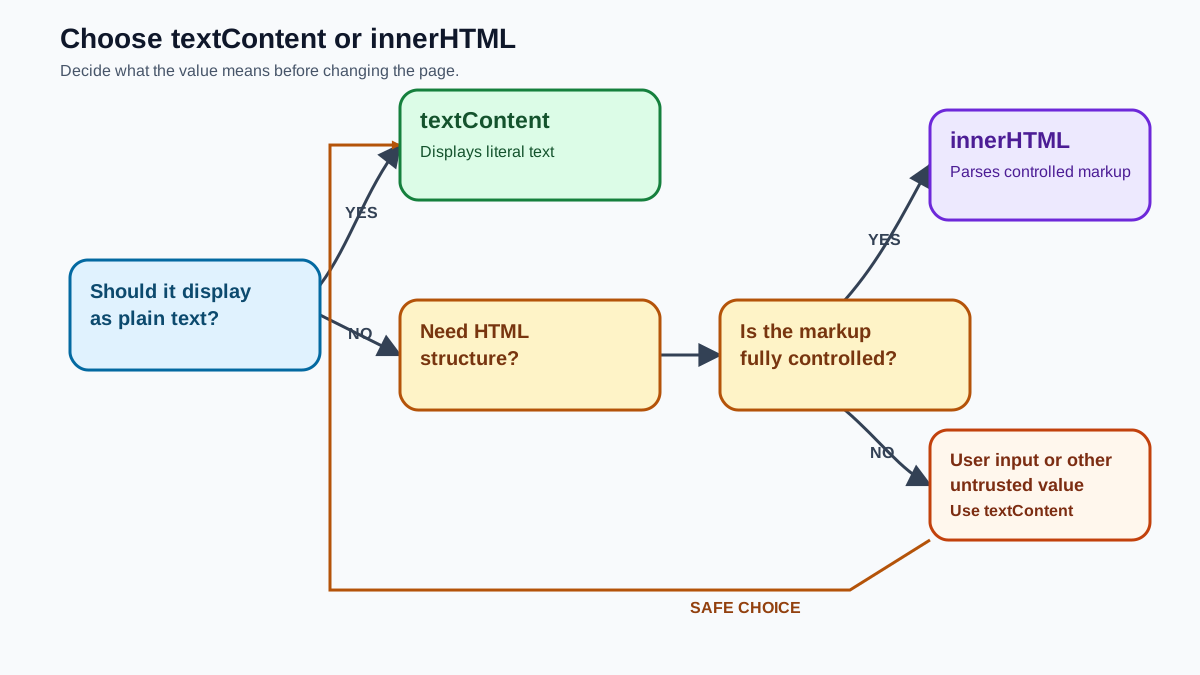
You don't need to memorize edge cases. You need one decision rule, and it covers almost every situation you'll meet as a beginner.
Use textContent when you want to display text. Especially text from a user, a form, an API response, or any external source. It's safe, it's fast, and it does exactly what you expect: shows the text as written.
Use innerHTML only when you intentionally want to insert HTML markup you control. If you're building a small template, adding a list of items with tags, or injecting a block of formatted content you wrote yourself, innerHTML is the right tool.
Here's the breakdown:
Use textContent when:
- Displaying user input, like names, comments, or form values
- Showing text from an API or database
- Updating a label, heading, or paragraph with plain text
- You're not sure where the value came from
Avoid textContent when:
- You need to insert actual HTML elements with formatting
- You're building markup that requires tags, classes, or structure
Use innerHTML when:
- You wrote the markup yourself and know exactly what it contains
- You're inserting a small block of HTML from a template
- You need to create multiple elements with structure in one assignment
Avoid innerHTML when:
- The value comes from a user or any untrusted source
- You only need to change text content
- You're not certain what characters the string might contain
The one-line version you can carry forward: textContent for text, innerHTML only for markup you control.
Try One More Experiment
Now that you've seen the basic difference, let's test what happens when you read content back. Update your HTML file with an element that contains nested markup:
<!DOCTYPE html>
<html>
  <body>
    <div id="card">
      <h2>Welcome</h2>
      <p>Start your <strong>journey</strong> here.</p>
    </div>

    <script>
      const card = document.getElementById("card");

      console.log("textContent:", card.textContent);
      console.log("innerHTML:", card.innerHTML);
    </script>
  </body>
</html>
Open the browser console and you'll see the difference clearly:
textContent: Welcome
Start your journey here.

innerHTML:
      <h2>Welcome</h2>
      <p>Start your <strong>journey</strong> here.</p>
textContent gives you the readable text with all tags stripped away. innerHTML gives you the full markup, structure and all.
The Takeaway
textContent and innerHTML look like siblings, but they behave like distant cousins. One treats your value as literal text. The other hands it to the browser's HTML parser and lets the markup do its thing.
When you're changing what a page shows, default to textContent. It's safer, simpler, and handles the most common job—displaying text—without surprises. Reach for innerHTML only when you deliberately want to insert HTML you wrote and understand.
Once you're comfortable choosing between these two, the natural next step is learning how to create and remove elements entirely, or how to modify an element's styles with JavaScript. Both build on the same foundation you've just practiced: selecting an element, then telling the browser what to do with it.
Knowledge check
Final check
Finish the article by checking the ideas you just learned.
References
Want a more structured JavaScript path?
Use the JavaScript for AI Applications Starter Pack to turn individual tutorials into a focused path from language fundamentals to interactive AI applications.
JavaScript for AI Applications Starter Pack
Build the JavaScript foundation behind modern interactive applications. The JavaScript for AI Applications Starter Pack takes you from core language concepts through functions, browser events, forms, DOM updates, application state, debugging, and practical projects—so you can learn how interfaces take input, work with structured data, respond to users, and turn results into experiences people can actually use.
- 253-page illustrated PDF
- 12 guided JavaScript chapters
- Visual concept diagrams
- Self-assessment quizzes
- Bonus deep-dive sections
- DOM, events, forms & application state
- Browser projects, debugging & practical workflows
Coming soon


