
JavaScript Not Working in the Browser: A Beginner Debugging Guide
No error message. No visible change. Just the same static page staring back at you. If this feels frustrating, good—that means you're paying attention.…

You wrote some JavaScript. You refreshed the page. And nothing happened.
No error message. No visible change. Just the same static page staring back at you. If this feels frustrating, good—that means you're paying attention. Because "JavaScript not working in browser" is never just one problem. It's three possible failures wearing the same disguise:
- The script never loaded.
- The script loaded but crashed partway through.
- The script ran fine but couldn't find the element it was supposed to change.
Each failure needs a different fix. That's why the worst thing you can do is start randomly changing your code and hoping something sticks. The better approach—the one that will save you hours across your entire programming life—is to gather evidence first.
Your primary evidence source is the browser console. If you've already learned how to include JavaScript in your HTML pages and how the browser runs your scripts, you know that your code executes in a specific order. The console is where the browser reports what happened during that execution.
Let's walk through the diagnostic path, one step at a time.
Step 1: Prove the Script Actually Loaded
Before you debug a single line of logic, verify the simplest thing: did the browser even read your script?
Here's a minimal HTML file that tests this:
<!DOCTYPE html>
<html>
<head>
  <title>Script Load Test</title>
</head>
<body>
  <h1>My Page</h1>

  <script>
    console.log("Script is running!");
  </script>
</body>
</html>
Open that file in your browser, then open the console. If you see Script is running! in the console, your script loaded successfully.
If you see nothing, check these common culprits:
- A typo in the script tag. Make sure you wrote
<script>and not<sript>or<script>with a missing bracket. - A wrong file path. If you're using an external file like
<script src="app.js"></script>, confirm thatapp.jsis in the same folder as your HTML file. When the path is wrong, the browser can't find the file—and it will report that failure in the console's network or error messages.
Common mistake: Looking for console output on the page
Here's a trap nearly every beginner falls into: console.log() does not display anything on your webpage. It only writes to the browser console, which is a separate developer panel. If you're expecting to see "Script is running!" appear in the page itself, you'll think your code is broken when it's actually working perfectly.
The console is your private communication channel with the browser. Your visitors never see it. You use it to check what your code is doing.
Knowledge check
Check your understanding
Answer this question before you continue.
Step 2: Open the Console and Read the Error
If your script loaded but something went wrong, the console will show you an error message. Learning to read that message is the single most valuable debugging skill you can build.
Here's how to open the console in the major browsers:
| Browser | Windows/Linux | Mac |
|---|---|---|
| Chrome | Ctrl + Shift + J | Cmd + Option + J |
| Firefox | Ctrl + Shift + K | Cmd + Option + K |
| Edge | Ctrl + Shift + J | Cmd + Option + J |
| Safari | — | Cmd + Option + C |
Now let's look at a broken example. Suppose your HTML contains this script:
<script>
  let message = "Hello, world!";
  console.log(message)

  function greet() {
    return "Hi there!";
  }
</script>
Notice anything wrong? The console.log(message) line is missing its closing parenthesis. That's a syntax error—a spelling or grammar mistake in your code that prevents it from running at all.
The console will show you something like:
Uncaught SyntaxError: missing ) after argument list
That message tells you three things:
- Uncaught means the error wasn't handled by your code.
- SyntaxError tells you the type of problem.
- missing ) after argument list explains what the browser expected but didn't find.
Beginners mostly meet two error types:
- Syntax errors mean your code can't even start running. The browser couldn't understand it.
- Runtime errors mean your code started running but failed partway through. The syntax was fine, but something went wrong during execution.
Now fix the missing parenthesis and refresh:
<script>
  let message = "Hello, world!";
  console.log(message);

  function greet() {
    return "Hi there!";
  }
</script>
The error disappears, and the console shows:
Hello, world!
The console is not your enemy—it's the browser telling you exactly what it needs.
Knowledge check
Check your understanding
Answer this question before you continue.
Step 3: Isolate the Failing Line
Here's a critical fact about how JavaScript runs: when a script crashes, everything after the failing line never executes. That's why you might see part of your page working while the rest seems dead.
Imagine this script:
<script>
  console.log("Step 1: Starting...");

  let user = { name: "Alex" };
  console.log(user.name.toUpperCase());

  console.log("Step 2: Still running...");

  let numbers = [1, 2, 3];
  console.log(numbers[5].toString());

  console.log("Step 3: Finished!");
</script>
The console output would look like this:
Step 1: Starting...
ALEX
Step 2: Still running...
Uncaught TypeError: Cannot read properties of undefined (reading 'toString')
The script crashed on numbers[5] because that array only has three items—indexes 0, 1, and 2. Accessing index 5 gives you undefined, and you can't call .toString() on undefined.
Notice what happened: "Step 3: Finished!" never appeared. The script died at the error line, and everything after it was skipped.
This is why beginners often think their whole script is broken when only one line is failing. The fix is to find that one line.
Here's the technique: place console.log() markers before and after suspicious code to see where execution stops.
<script>
  console.log("Before the risky code");

  // ... code you suspect might be failing ...

  console.log("After the risky code");
</script>
If you see "Before the risky code" but not "After the risky code," you know the problem lives somewhere in between. Narrow it down from there.
Common mistake: Assuming the whole script is broken
When a script crashes, later code appears to "do nothing." But that doesn't mean all your code is wrong. It means one line broke the chain. Find that line, fix it, and the rest of your script will run as intended.
Knowledge check
Check your understanding
Answer this question before you continue.
Step 4: Check Whether the Script Found Its Element
Sometimes your script runs perfectly—no errors in the console—but the page still doesn't change. This is the sneakiest failure of the three, because nothing looks wrong.
This usually means your JavaScript tried to find an element on the page and came back empty-handed. In JavaScript terms, it got null.
Here's the classic example:
<!DOCTYPE html>
<html>
<body>
  <h1 id="title">Original Title</h1>

  <script>
    let heading = document.getElementById("titel");  // Typo!
    heading.textContent = "New Title";
  </script>
</body>
</html>
The HTML has an element with id="title", but the JavaScript is looking for id="titel". The console will show:
Uncaught TypeError: Cannot set properties of null (setting 'textContent')
In plain language: getElementById("titel") found nothing, so it returned null. Then your code tried to change the text of null, which doesn't work.
The fix is simple: make sure the id in your HTML exactly matches the selector in your JavaScript.
<script>
  let heading = document.getElementById("title");  // Fixed!
  heading.textContent = "New Title";
</script>
If you've already learned how to select DOM elements, you know that querySelector and getElementById are precise tools. They return exactly what you ask for—and if you misspell the name, they return nothing.
Common mistake: Forgetting that selectors are case-sensitive
getElementById("Title") is not the same as getElementById("title"). HTML ids and JavaScript selectors must match character for character. When in doubt, copy the id directly from your HTML into your JavaScript.
Knowledge check
Check your understanding
Answer this question before you continue.
A Quick Checklist for Next Time
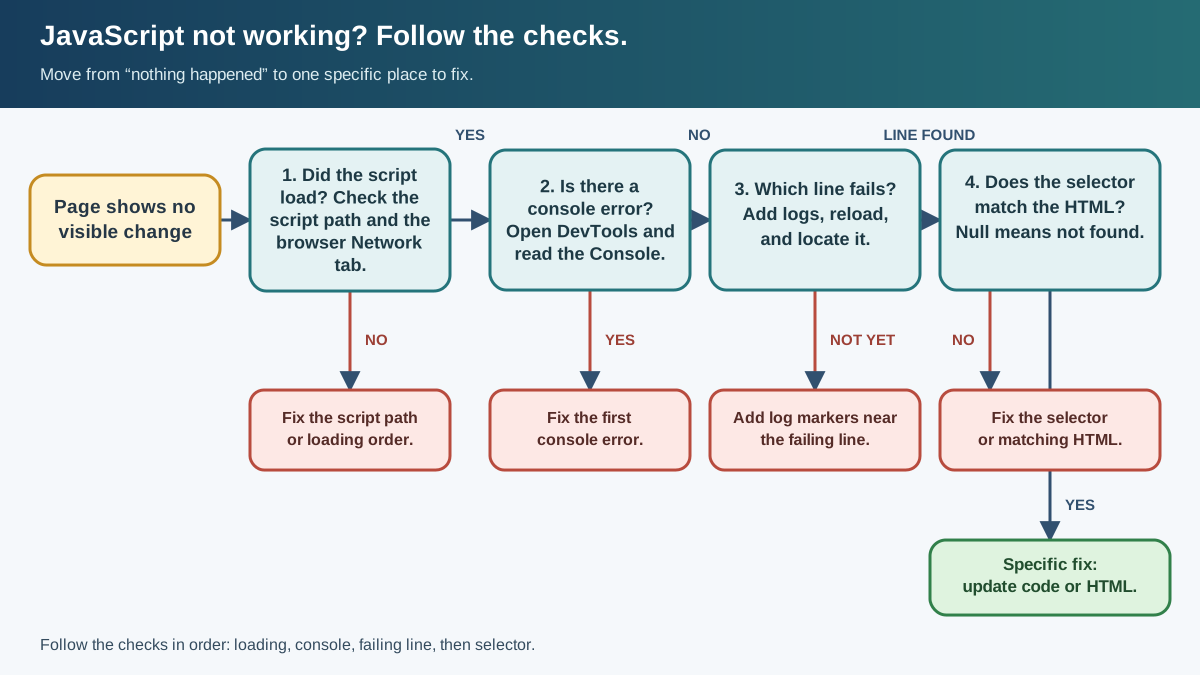
When your JavaScript does nothing, work through these checks in order:
- Did the script load? Add a
console.log()at the very top of your script and refresh the page. No output means the browser never found or ran your code. - What does the console say? Open the console and read the first error message. It tells you the error type, the file, and the line number.
- Which line fails? Place
console.log()markers before and after suspicious sections to find exactly where execution stops. - Did the selector match? If there are no errors but the page doesn't change, check that every id and class name in your JavaScript exactly matches your HTML.
Make this checklist a habit. Every time you write JavaScript that seems to do nothing, run through it before changing any code. The console turns a vague "nothing works" into a specific, fixable problem.
Your Next Step: Break Things on Purpose
The best way to build this debugging instinct is to practice finding failures you created yourself.
Take a small working script—something simple like changing the text of a heading. Then deliberately introduce one of these bugs:
- Misspell the id in your JavaScript.
- Remove a closing parenthesis.
- Reference a variable that doesn't exist.
Refresh the page. Read the console. Find the error. Fix it. Repeat with a different bug.
After a few rounds, you'll stop feeling stuck when JavaScript misbehaves. You'll know the console has the answer, and you'll know exactly where to look. That confidence—the feeling that you can turn a blank-looking page into a specific next test—is one of the most important skills you'll carry into every future programming project.
Knowledge check
Final check
Finish the article by checking the ideas you just learned.
References
Want a more structured JavaScript path?
Use the JavaScript for AI Applications Starter Pack to turn individual tutorials into a focused path from language fundamentals to interactive AI applications.
JavaScript for AI Applications Starter Pack
Build the JavaScript foundation behind modern interactive applications. The JavaScript for AI Applications Starter Pack takes you from core language concepts through functions, browser events, forms, DOM updates, application state, debugging, and practical projects—so you can learn how interfaces take input, work with structured data, respond to users, and turn results into experiences people can actually use.
- 253-page illustrated PDF
- 12 guided JavaScript chapters
- Visual concept diagrams
- Self-assessment quizzes
- Bonus deep-dive sections
- DOM, events, forms & application state
- Browser projects, debugging & practical workflows
Coming soon


