
Save Data in localStorage with JavaScript
You built something that works. A button that counts clicks. A form that collects a name. A little app that feels alive in the browser. Then you hit…

You built something that works. A button that counts clicks. A form that collects a name. A little app that feels alive in the browser. Then you hit refresh, and everything snaps back to zero.
That is not a bug in your code. Your data was living in the page's memory, and memory forgets the moment the page reloads.
localStorage is the browser's built-in notebook. It remembers between visits. In this JavaScript localStorage tutorial, you will learn how to save, read, update, and remove data so your work survives a refresh—and when you should not use it at all.
Why Your Data Disappears on Refresh
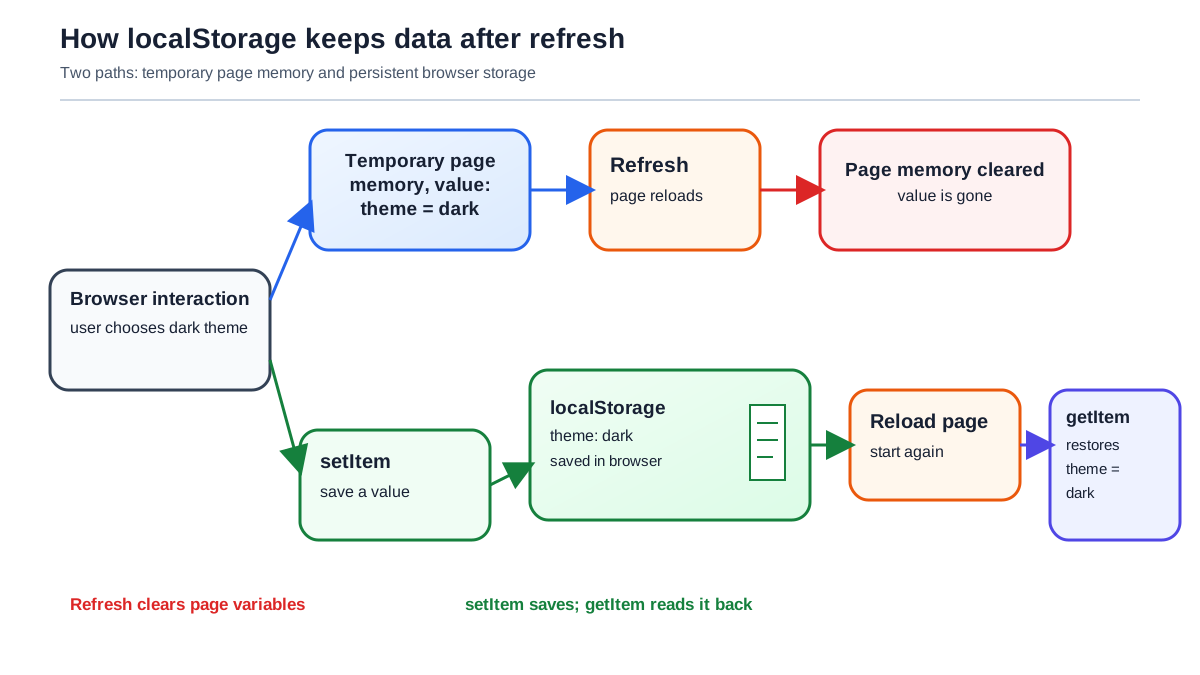
When your page loads, JavaScript creates variables and builds the DOM from scratch. Every value you stored in a variable, every change you made to the page, exists only in that moment. Close the tab or reload the page, and the browser throws that memory away.
That is fine for a lot of things. But some data deserves to outlive the page: a username, a theme choice, a list of tasks, a score the user earned.
localStorage gives you a place to keep that data on the user's own device. It is a key-value store built into the browser. You give a piece of data a name (the key) and a value, and the browser remembers both. The data survives page refreshes, tab closures, and even full browser restarts.
Here is the expectation to set now: this is local persistence, not a database and not secure storage. The data lives on the user's device, readable by any JavaScript running on your page. You will see why that matters later.
If you have not yet worked with script tags or changed the DOM, those are the building blocks you will want first. This article assumes you can add JavaScript to an HTML page and update what the user sees.
The Quick Working Example
Let us see the mechanism working before we dig into details. Open your browser's developer tools (right-click and choose Inspect, then find the Console tab) and type these lines:
localStorage.setItem("name", "Chris");
let myName = localStorage.getItem("name");
console.log(myName);
You should see this output:
Chris
Now reload the page. In the console, type only the last two lines again:
let myName = localStorage.getItem("name");
console.log(myName);
The value is still there. The page reloaded, the JavaScript ran fresh, but the data survived because it was not stored in the page's memory. It was stored in the browser's notebook.
setItem takes two arguments: a key (the name you give the data) and a value (the data itself). getItem takes one argument—the key—and returns the value.
You can also inspect what is stored without writing code. Open DevTools and find the Application tab (called Storage in some browsers). In the left sidebar, look under Local Storage and select your site's origin. You will see your name key with its value.
Knowledge check
Check your understanding
Answer this question before you continue.
The Core Methods: setItem, getItem, removeItem
The localStorage API is small. Four methods cover nearly everything you will do.
setItem(key, value)
Saves a value under a name:
localStorage.setItem("theme", "dark");
Knowledge check
Check your understanding
Answer this question before you continue.
getItem(key)
Reads a value back. If the key does not exist, it returns null:
let theme = localStorage.getItem("theme");
console.log(theme);
dark
let missing = localStorage.getItem("doesNotExist");
console.log(missing);
null
Knowledge check
Check your understanding
Answer this question before you continue.
removeItem(key)
Deletes one saved value:
localStorage.removeItem("theme");
console.log(localStorage.getItem("theme"));
null
clear()
Wipes everything stored for your site:
localStorage.clear();
One important detail: localStorage stores values as strings. If you save a number, it comes back as a string. If you save an object, you will get a surprise—which is exactly what the next section covers.
Saving Objects and Arrays with JSON
Here is the trap that catches nearly every beginner.
Try saving an object directly:
let user = { name: "Alice", score: 42 };
localStorage.setItem("user", user);
console.log(localStorage.getItem("user"));
You will see something like this:
[object Object]
That is not your data. localStorage silently turned the object into a string, and the default string version of an object is useless.
The fix is to convert your data into a format that survives as text. That format is JSON—JavaScript Object Notation. It looks almost identical to a JavaScript object or array, but it is a string.
Before saving, use JSON.stringify() to turn your object or array into a string:
let user = { name: "Alice", score: 42 };
localStorage.setItem("user", JSON.stringify(user));
When you read it back, use JSON.parse() to turn the string back into a usable object:
let savedUser = JSON.parse(localStorage.getItem("user"));
console.log(savedUser.name);
console.log(savedUser.score);
Alice
42
The same pattern works for arrays. If you already know how to build arrays and objects, this is the one extra step that makes them storable:
let tasks = ["learn localStorage", "build a project"];
localStorage.setItem("tasks", JSON.stringify(tasks));

let savedTasks = JSON.parse(localStorage.getItem("tasks"));
console.log(savedTasks[0]);
learn localStorage
Think of it as packing a suitcase before a trip. JSON.stringify packs your object into a portable string. JSON.parse unpacks it on the other side.
Knowledge check
Check your understanding
Answer this question before you continue.
Common Beginner Mistakes
Forgetting to parse
If you save an object with JSON.stringify but read it back without JSON.parse, you get a string, not an object. Accessing a property on that string returns undefined instead of your data.
let savedUser = localStorage.getItem("user"); // missing JSON.parse
console.log(savedUser.name); // undefined
If your data comes back looking like text instead of an object, you forgot the JSON.parse step.
Saving objects without stringifying
Saving an object directly produces [object Object]. If you see that in your console or on your page, the object was never converted to JSON before saving.
Expecting a database
localStorage is not shared between users, and it is not sent to a server. It is a per-browser, per-device storage area. If two different people visit your site, each one has their own separate localStorage. If you need users to see the same data, you need a real backend.
Assuming it is private
Any JavaScript running on your page can read your localStorage. That includes third-party scripts you did not write. Never store passwords, authentication tokens, or sensitive personal data there. localStorage is a convenience, not a vault.
Forgetting it is per-origin
Data stored on https://example.com cannot be read by https://other-site.com. Even different ports or protocols count as different origins. This is a feature: it keeps sites from reading each other's data.
When to Use localStorage (and When Not To)
A good rule of thumb: if the data belongs to one user on one browser and should survive a refresh, localStorage is a reasonable choice.
Good uses:
- User preferences like a theme or language setting
- Form input that should not be lost on an accidental refresh
- Small app state, like a score or a list of items the user created
Not for:
- Passwords, tokens, or sensitive data
- Data that must be shared across devices or users
- Large amounts of data (browsers typically allow around 5MB per origin)
If you want to persist form data in the browser so a user does not lose their work, localStorage handles that well. If you are building something that needs a login system or a shared database, that is a different tool for a different job.
Your Next Step: Make It Stick
The fastest way to make this lesson permanent is to use it. Here is a small exercise:
Build a page with a text input and a button. When the user clicks the button, save the input value to localStorage. When the page loads, check localStorage for a saved value and put it back into the input. Refresh the page. Your text should still be there.
Then try the harder version: save a counter. Every time the user clicks a button, read the current count from localStorage, add one, save it back, and display it. Reload the page. The count should continue from where it left off instead of resetting to zero.
Open DevTools while you test. Watch the key appear in the Application tab. Remove it with removeItem. Clear everything with clear(). The more you inspect what the browser is actually storing, the less mysterious it becomes.
Persistence is the bridge between throwaway demos and real apps. A to-do list that forgets its items is a toy. A to-do list that remembers them is something people can actually use. That is the step you are taking now: from code that runs to code that remembers.
Knowledge check
Final check
Finish the article by checking the ideas you just learned.
References
Want a more structured JavaScript path?
Use the JavaScript for AI Applications Starter Pack to turn individual tutorials into a focused path from language fundamentals to interactive AI applications.
JavaScript for AI Applications Starter Pack
Build the JavaScript foundation behind modern interactive applications. The JavaScript for AI Applications Starter Pack takes you from core language concepts through functions, browser events, forms, DOM updates, application state, debugging, and practical projects—so you can learn how interfaces take input, work with structured data, respond to users, and turn results into experiences people can actually use.
- 253-page illustrated PDF
- 12 guided JavaScript chapters
- Visual concept diagrams
- Self-assessment quizzes
- Bonus deep-dive sections
- DOM, events, forms & application state
- Browser projects, debugging & practical workflows
Coming soon


